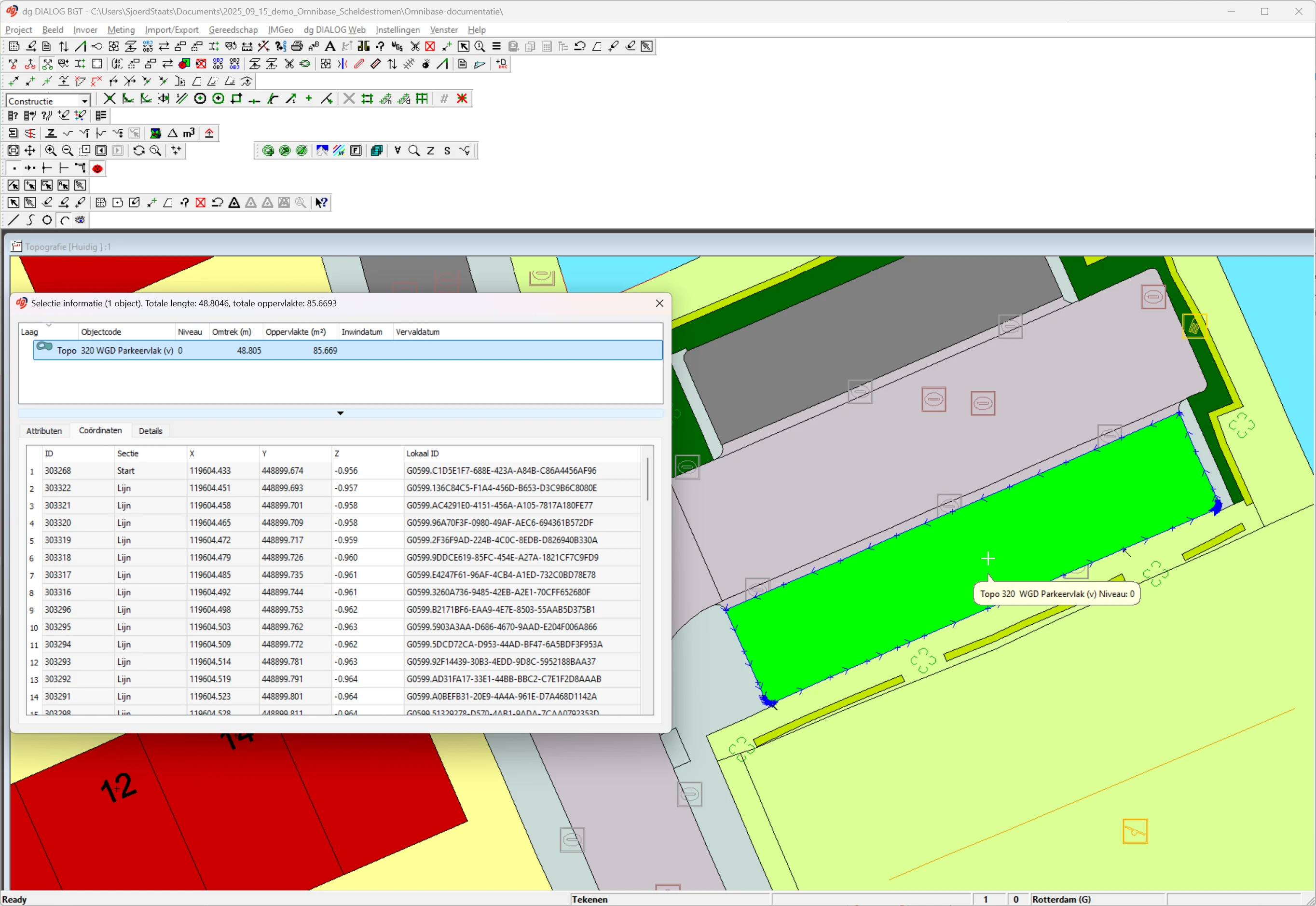
dg DIALOG BGT Integration
How does the integration with dg DIALOG BGT work
This section describes how the integration between Omnibase and DIALOG BGT works, including setup and configuration details. In this manual, we cover the requirements, installation steps, and troubleshooting tips.
The principles of the integration are that measurements from Omnibase are directly and very easily mapped to the correct object code layer within dg DIALOG BGT. This makes the measurements immediately usable within the BGT management application and eliminates the need for further adjustments. In addition, the acquisition method per measurement point (vertex) is stored as metadata. It does not matter whether a measurement is performed using a point cloud, panorama photo, or aerial photo: within dg DIALOG BGT, all these metadata attributes are accurately stored.
Performing measurements within the integration is highly intuitive: when measuring a new object, you start a new measurement in the correct object code and the geometry type is automatically adopted from dg DIALOG BGT. In addition, you can switch at any time between a measurement in Omnibase and dg DIALOG BGT, allowing a measurement to be snapped in between to other measurement points within your BGT management application. When measuring changes, a task list within dg DIALOG BGT can be used, and at any time Omnibase can be zoomed to the view location of dg DIALOG BGT.
The geometries from dg DIALOG BGT can be displayed in Omnibase as a layer over the available data. Selecting an object from Omnibase can then be done by clicking an object and pressing the spacebar or using the menu action button “cursor-click”. The selected object is highlighted and opened within dg DIALOG BGT.
Within the integration, it is also possible to automatically assign a Z-value to all vertices within one or multiple objects based on a point cloud in Omnibase.
Activating the integration between Omnibase and dg DIALOG BGT
Actions within dg DIALOG BGT
Start by activating the interfaces menu. This can be done in dg DIALOG BGT by right-clicking in the top taskbar and enabling the following setting:
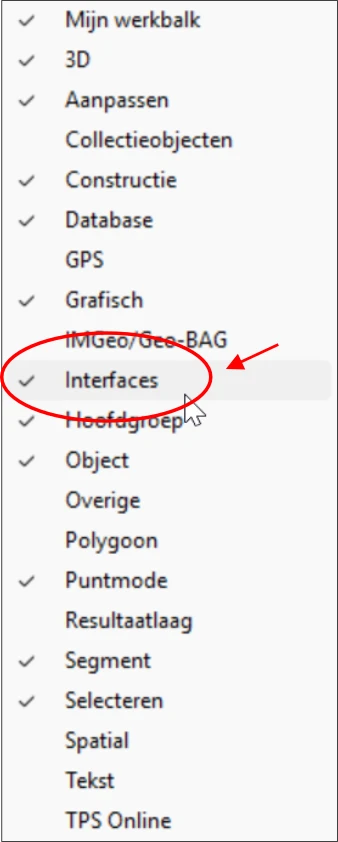
Then, within the interfaces menu that has now become available, click the inverted A. This is the first step required to start the integration:

An additional pop-up menu now appears in dg DIALOG BGT where the connection, on the dg DIALOG BGT side, can be started:
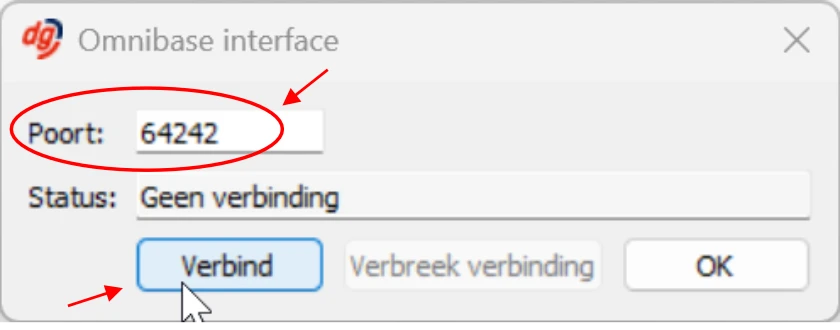
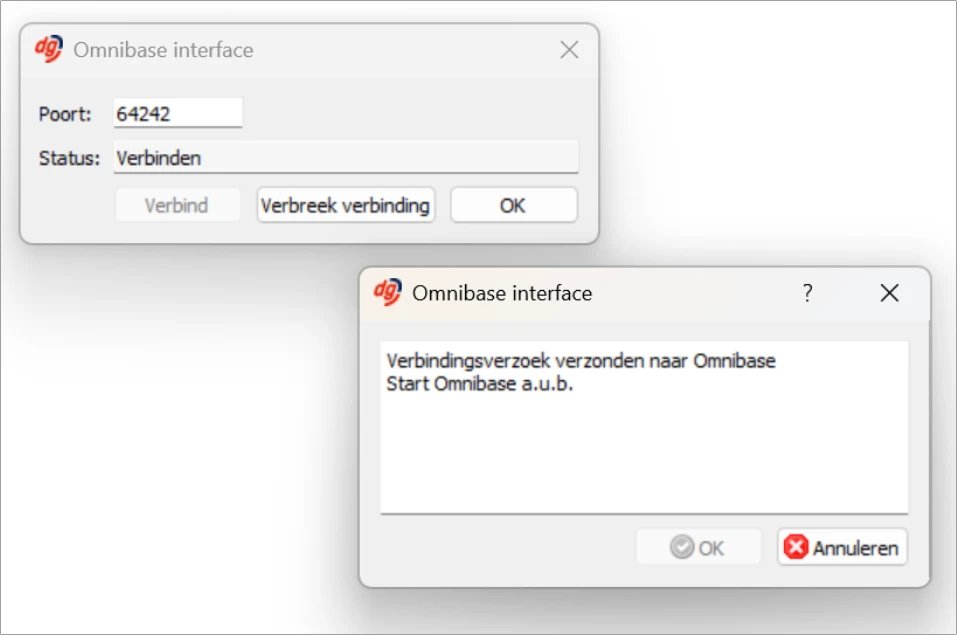
Enter a free port number (choose the default option provided by dg DIALOG BGT, e.g. 64242). This must be the same port number configured in Omnibase. Click the Connect button and the following information will be shown.
It states: “Connection request sent to Omnibase”.
Actions within Omnibase
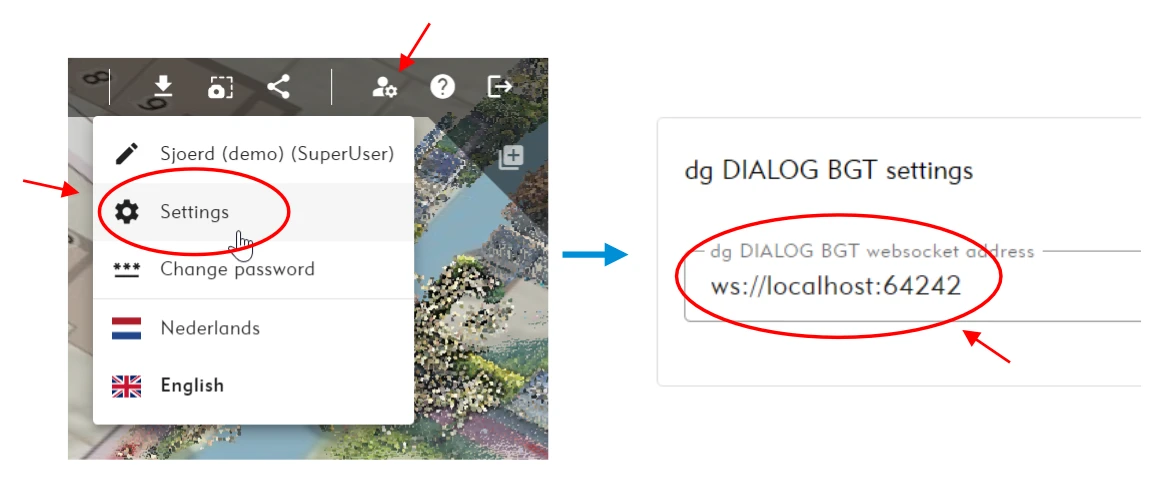
Now switch to Omnibase and, only on first use, verify that the port number in the websocket address matches the port number in dg DIALOG BGT. The websocket address should be as follows: ws://localhost:64242.
Next, open a project in which you want to use the integration and click the dg DIALOG BGT icon in the integrations menu within the viewer. This opens the integration menu and a connection can be established by pressing the connect button.
If the connection is successful, all menu components in the integration menu of the viewer become available:
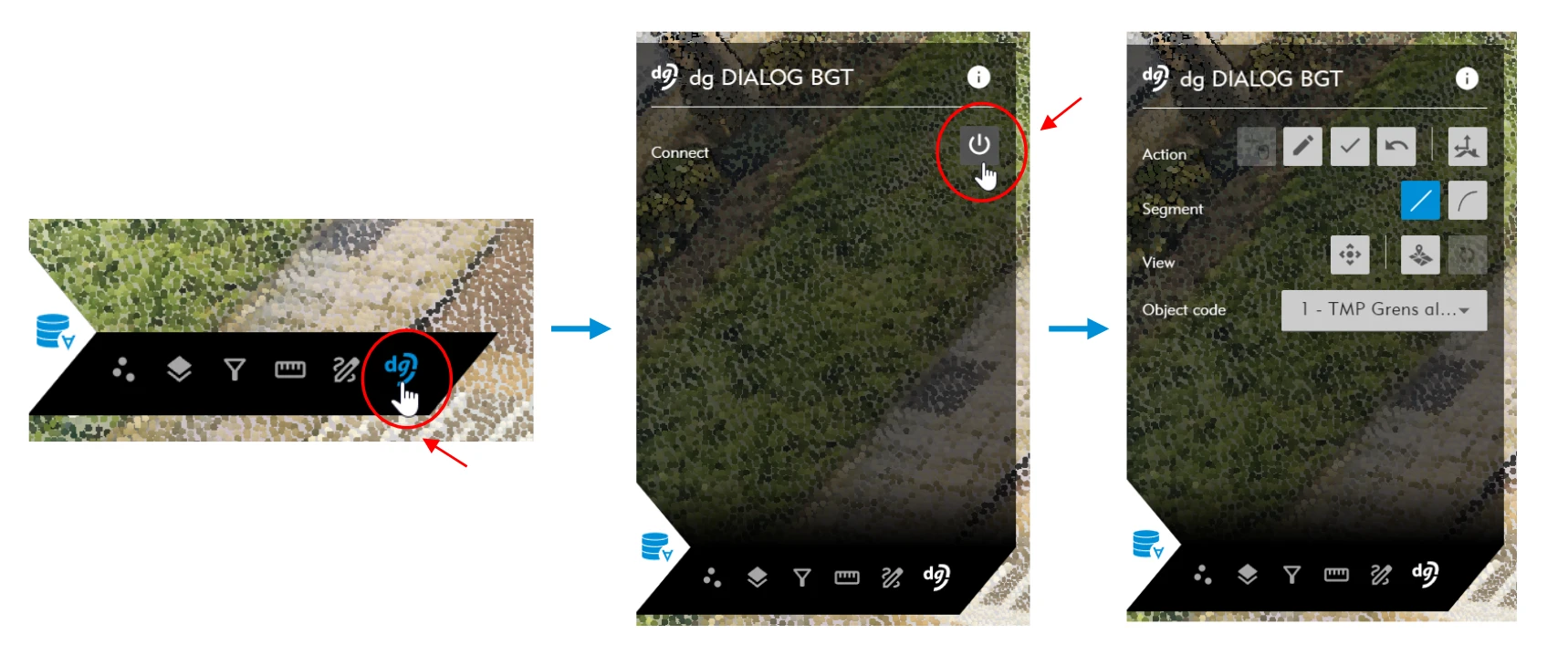
Available menu components in Omnibase
In Omnibase, the following menu components are available with various icons and associated actions. These are described below:
- Action options from left to right:
- Cursor-click icon: send measurement to dg DIALOG (this performs the same action as the
spacebar). You can also select an object with this button after placing a white cursor in Omnibase. - Pencil icon: start drawing a new object based on the selected object code.
- Checkmark icon: close the measurement and finalize it in dg DIALOG BGT.
- Backspace icon: undo in dg DIALOG BGT. The key combination
Ctrl + Zcan also be used. - Cross-section icon: perform a point cloud measurement using the cross-section functionality.
- Cursor-click icon: send measurement to dg DIALOG (this performs the same action as the
- Connection segment options from left to right:
- Draw a straight line segment in dg DIALOG BGT.
- Draw an arc in dg DIALOG BGT.
- Visual options from left to right:
- Center dg DIALOG BGT on the current location in Omnibase:
- dg DIALOG BGT zooms to the view location in Omnibase.
- This is based on the active screen in split-screen mode.
- Show all objects from dg DIALOG BGT in Omnibase:
- Geometries are displayed in Omnibase based on the data in dg DIALOG BGT. If 3D coordinates are available, geometries are displayed in 3D. If geometries are 2D, they are draped over a height model in Omnibase.
- Option to refresh displayed objects when zooming to a new location.
- Center dg DIALOG BGT on the current location in Omnibase:
- Object code:
- The active object code in which the measurement is stored within dg DIALOG BGT.
- The list of object codes is synchronized with dg DIALOG BGT when the connection is active:
- Changes in Omnibase are immediately reflected in dg DIALOG BGT.
- Changes in dg DIALOG BGT are immediately reflected in Omnibase.
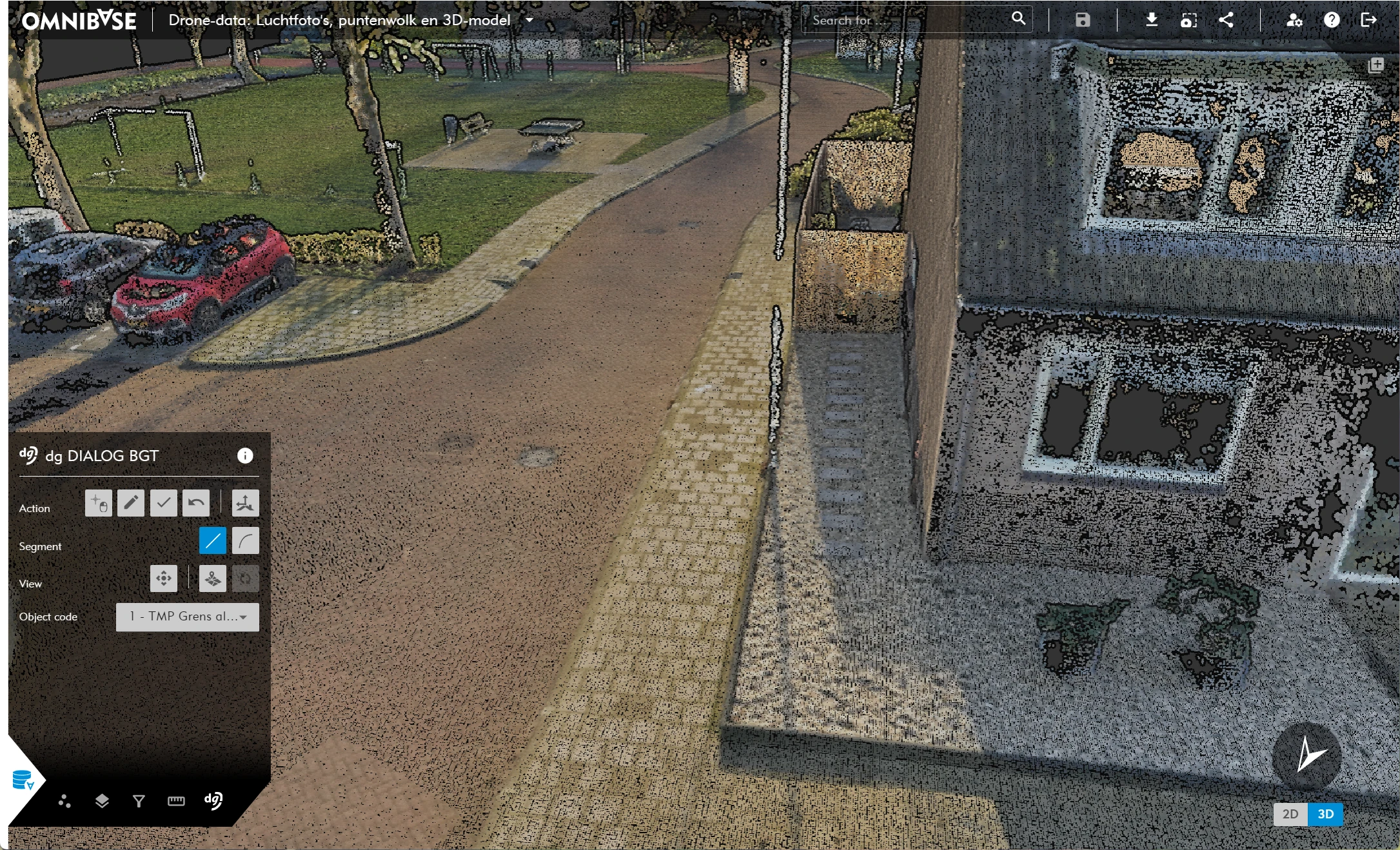
Mapping a new object
- Select the desired object code.
- Click “new object” → pencil icon.
- Click a measurement point with the left mouse button in Omnibase on a point cloud or perform a measurement in an aerial photo / panorama photo.
- Verify that the correct measurement point has been selected:
- For a point cloud measurement, rotate around the point.
- For an aerial photo measurement, adjust side views for height using the height slider if necessary.
- For a panorama photo measurement, adjust side views for distance using the distance slider if necessary.
- If this is the desired, final measurement for this point, press the
spacebarto send the measurement to dg DIALOG BGT and store it. - Perform all required measurements, accepting each point with the
spacebar. - Complete the measurement by:
- Clicking the checkmark icon in the actions menu in Omnibase, or
- Pressing the
spacebartwice consecutively, or - Finalizing the measurement within dg DIALOG BGT by pressing the
spacebar.
Interaction between dg DIALOG BGT and Omnibase during a measurement
As explained earlier, it is possible to switch at any time between dg DIALOG BGT and Omnibase during a measurement. The following workflow is possible:
- Start a line in dg DIALOG BGT by snapping to an object.
- Measure several intermediate points in Omnibase.
- Snap again to a vertex of an object in dg DIALOG BGT.
- Measure another point in Omnibase.
- Finish the line in dg DIALOG BGT by snapping to an object.
Mapping an arc
Mapping arcs is possible within the integration. Measure an arc directly from Omnibase by switching the connection segment; dg DIALOG BGT ensures that an arc is stored.
Two options for measuring an arc:
-
Arc measurement after a normal line segment:
During a measurement with a normal connection segment, switch to an arc connection segment. The last measured point from the straight line becomes the first point of the arc. Measure the intermediate point and press thespacebarto accept and send it to dg DIALOG BGT. Then measure the endpoint and press thespacebar: the arc is generated. -
New measurement starting directly with an arc connection segment:
Measure the starting point and press thespacebarto accept and send it to dg DIALOG BGT. Then measure the intermediate point and press thespacebar, and finally measure the endpoint and press thespacebar. dg DIALOG BGT creates an arc which is immediately visualized in Omnibase.
Click backspace or use the key combination Ctrl + Z to remove the last point or intermediate point if necessary.
Perform a measurement for the starting point of the
Adjusting a vertex of an existing object
- Within dg DIALOG, select the vertex of an object that needs to be adjusted.
- Right-click the vertex to open the context menu and choose move vertex or modify Z vertex.
- Switch to Omnibase and perform the new measurement in a point cloud or aerial photo. When the point can be modified in dg DIALOG BGT, complete the measurement by pressing the
spacebar. The vertex is now updated to the newly measured coordinate from Omnibase.
Automatically assigning Z-values to objects
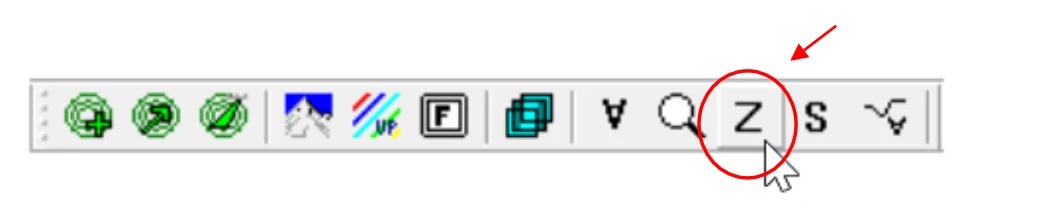
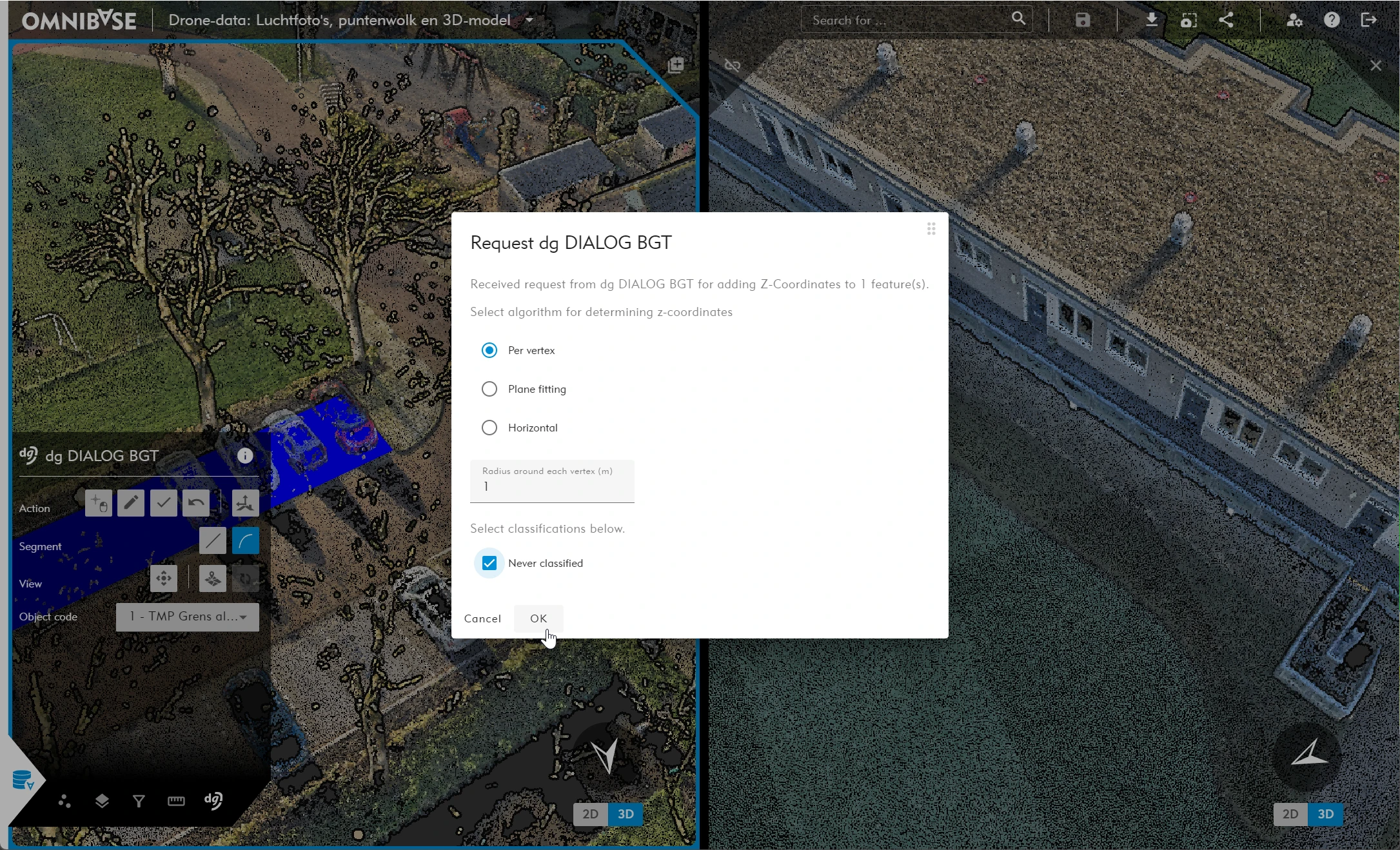
To automatically determine Z-values: select one or more objects in dg DIALOG BGT and click the ‘ Z ’ next to the magnifier icon within the interfaces menu. dg DIALOG BGT will display the message “Request for Z-values sent to Omnibase.”
The request is then shown in Omnibase. Select the desired settings:
- Z-value calculation per vertex.
- Z-value calculation based on surface estimation from the point cloud.
- Z-value calculation based on determining a horizontal plane from the point cloud.
- Radius around each vertex:
- Increase this value if the point cloud is less dense.
- The 20 nearest points are used to determine the Z-value.
- Select a specific classification class if available in the point cloud.
- If multiple point clouds are present in a project, select in the subsequent pop-up:
- Which point cloud to use as the source.
- Select at least one or multiple point cloud files to be used.
Progress is displayed in Omnibase by the following pop-up:

All Z-values of the vertices of the geometry are determined. If there are vertices where the automatic Z-determination has too high a standard deviation, these points are displayed in a result layer within dg DIALOG BGT. Adjust these points manually to assign a correct Z-value to the geometry.