Projects
Only users with the permissions: Admin or SuperUser can create, modify, or delete projects.
All users can view and open projects and their descriptions within the projects menu.
How is a project configured, modified, or deleted
Within the projects menu, projects are configured based on datasets. All settings required to publish the project are defined here.
It may occur that a layer (a dataset) in an opened project is empty.
In that case, check in the dataset menu whether data sources are still linked to the dataset. Data sources may have been automatically deleted when a data conversion task was removed.
The following settings can be configured:
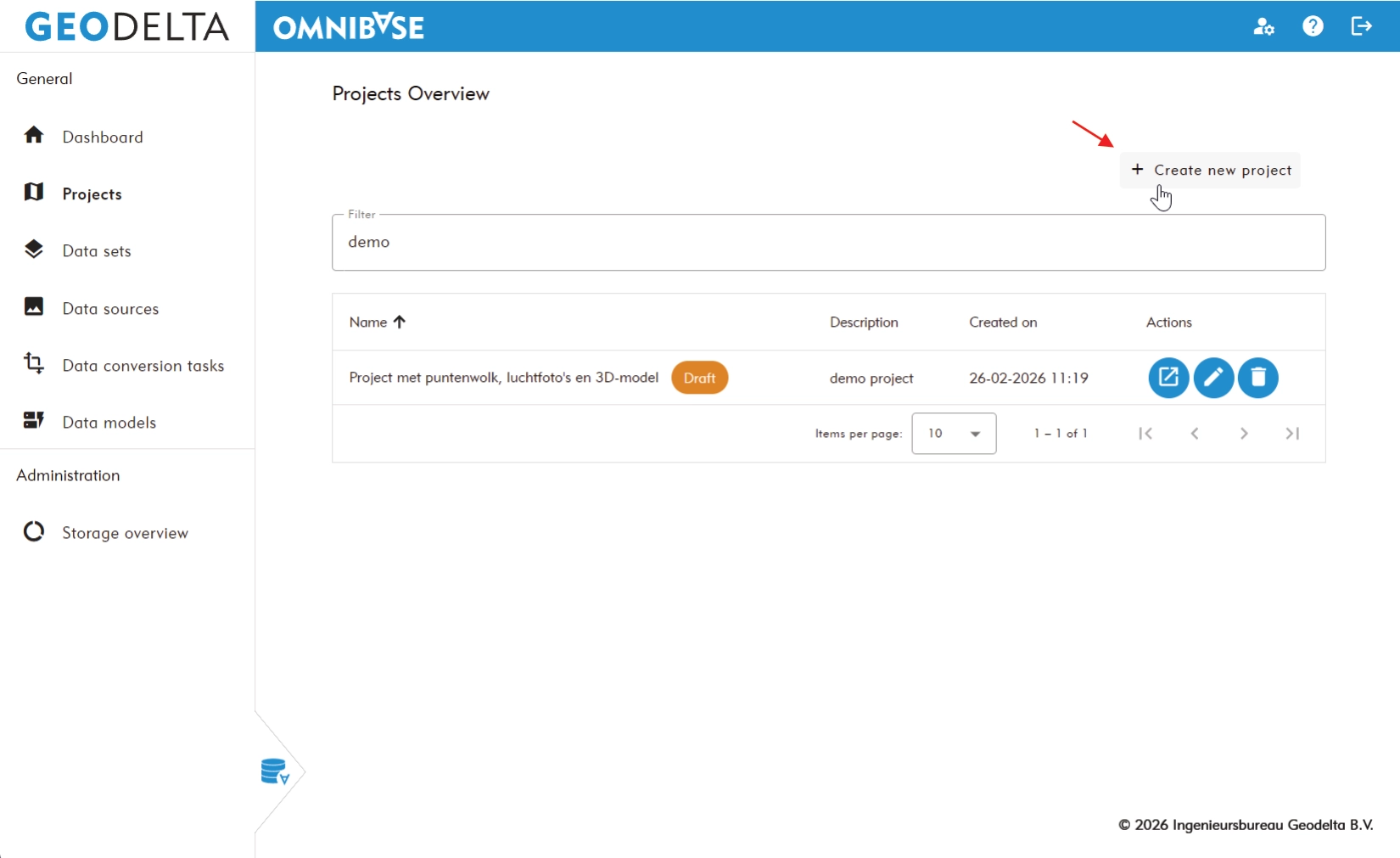
Creating a new project
Below is a description of how to create a new project. The same screen is used to modify an existing project. An example is shown after the steps.
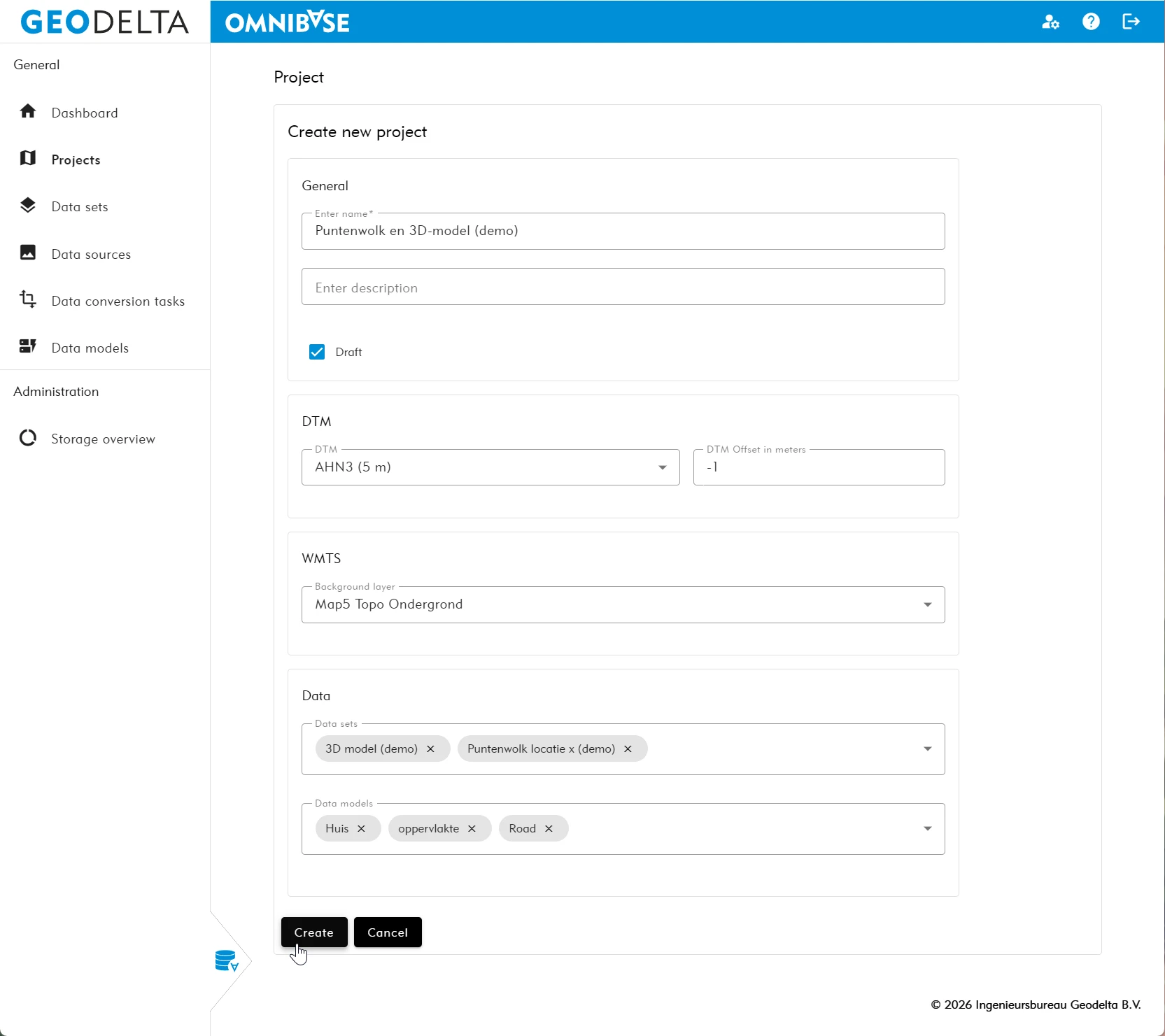
Enter the following information:
- Enter the project name.
- Enter a description, if required (optional field).
- Enable the checkbox ‘Concept’ if the project should not yet be published within the organization.
- Select a DTM (Digital Terrain Model) from the available models.
- In this example, AHN3 is available.
- When using a DTM, the base map is draped over the terrain model.
- Enter a value for DTM offset in meters to vertically shift the terrain model:
- Useful when point cloud data appears slightly below ground level.
- Value
-1lowers the DTM by 1 meter. - Value
+1raises the DTM by 1 meter.
- Select the required WMTS base map.
- This may be a default WMTS layer such as the provided “Map5 Topo Base Map”, or another WMTS data source created within the system.
- Select the required datasets for the project:
- Use a name filter to quickly find the correct dataset.
- Use a type filter (e.g. “Point clouds” or “3D-Tiles”) to filter by dataset type.
- Optionally select one or more data models if the annotation module is used within the project.
- Use a name filter to locate the correct data models.
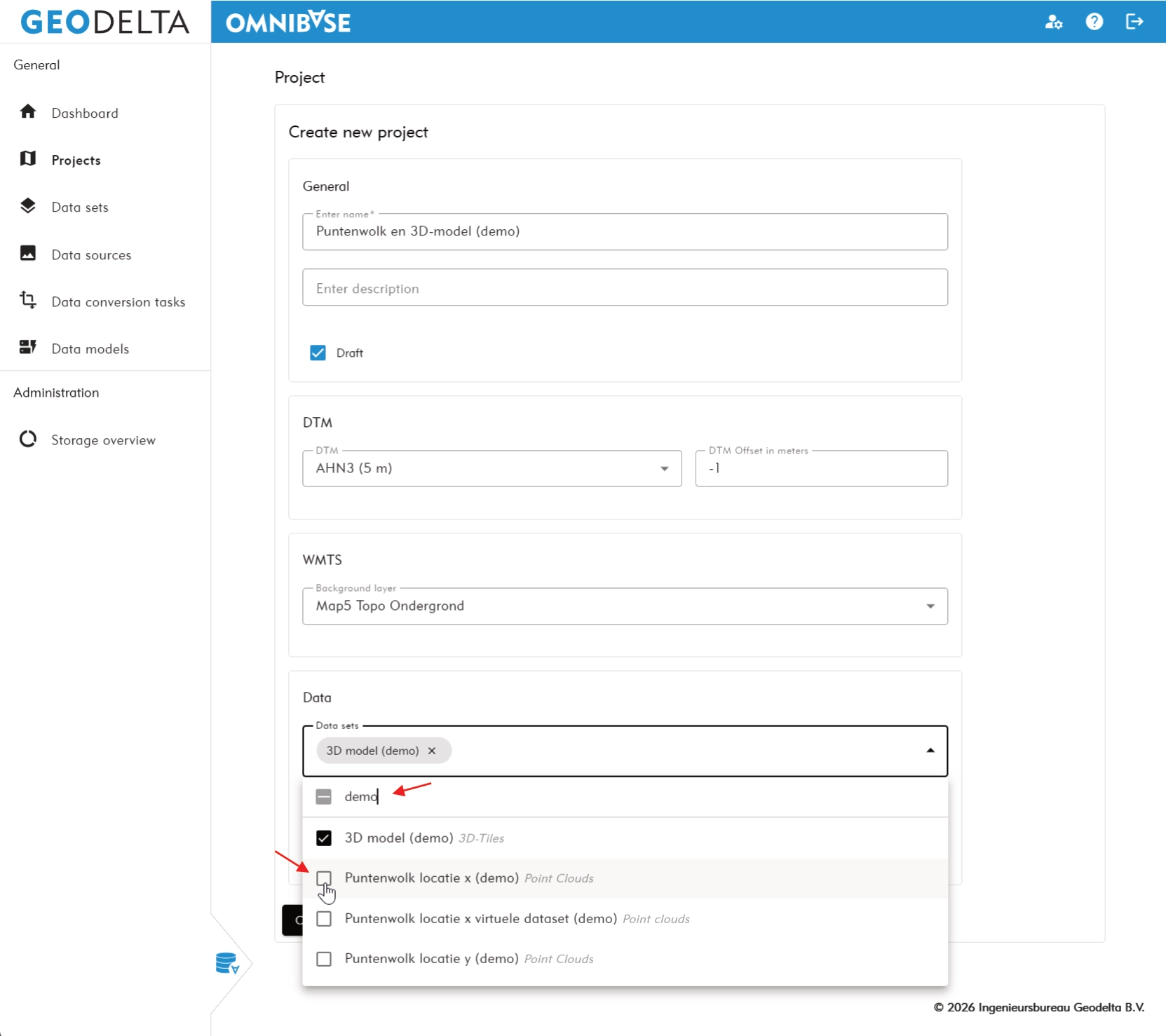
Entering project-specific settings: filtering and selecting datasets.
To create the project:
- Click
Create project.- Note: In this example, the project status is set to ‘Concept’. This means the project is only visible to the SuperUser who created it and to all administrator accounts. Disable the ‘Concept’ checkbox if the project should be available to the entire Omnibase organization.
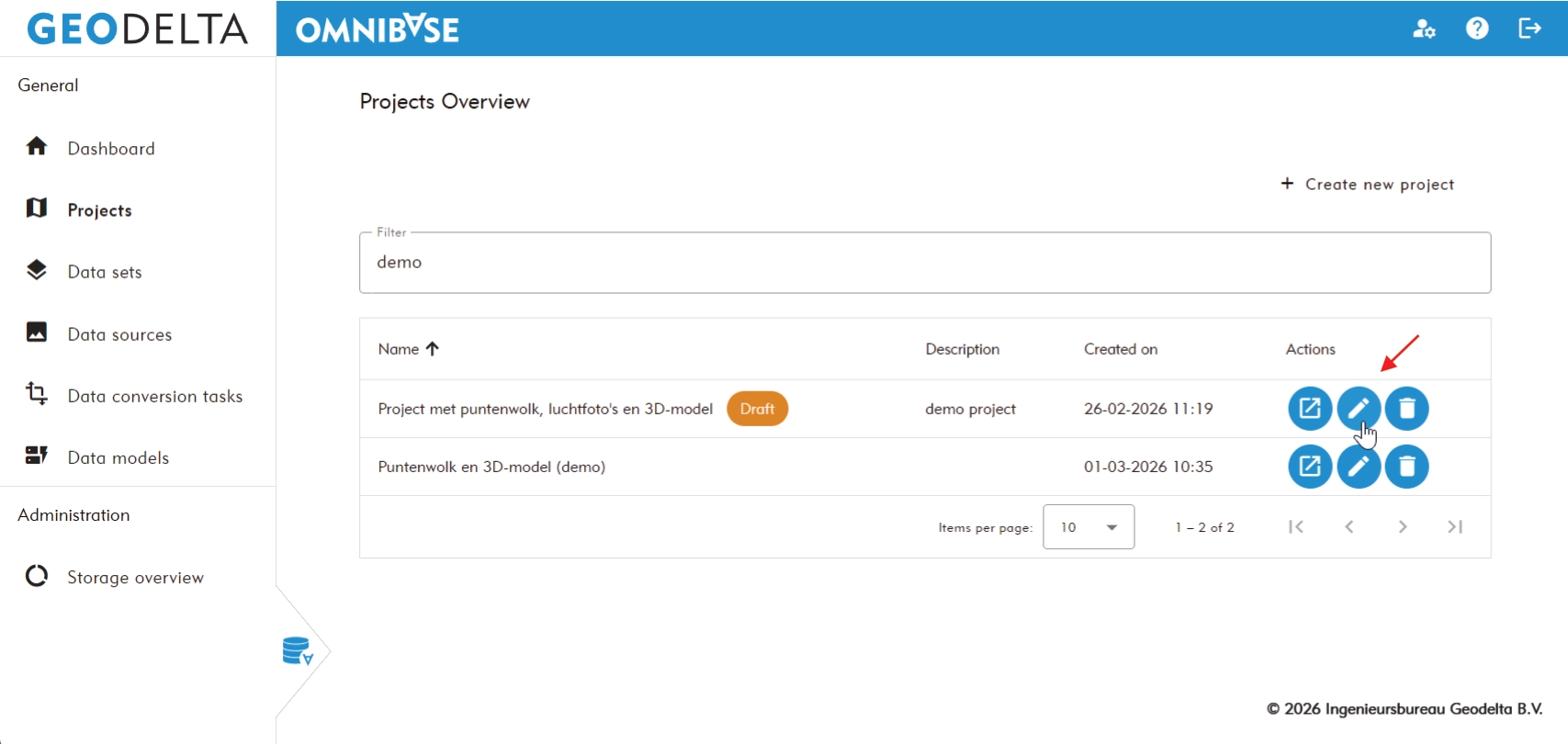
- After creation, you return to the projects overview page.
Modifying an existing project
Click the blue pencil icon on the projects page to edit a project.
Deleting an existing project
Click the blue trash icon to delete a project. A confirmation dialog will appear asking:
“Are you sure you want to delete this project?”