Data conversion tasks
This menu is only available for users with the permissions: Admin or SuperUser.
How are data conversion tasks created, modified, or deleted
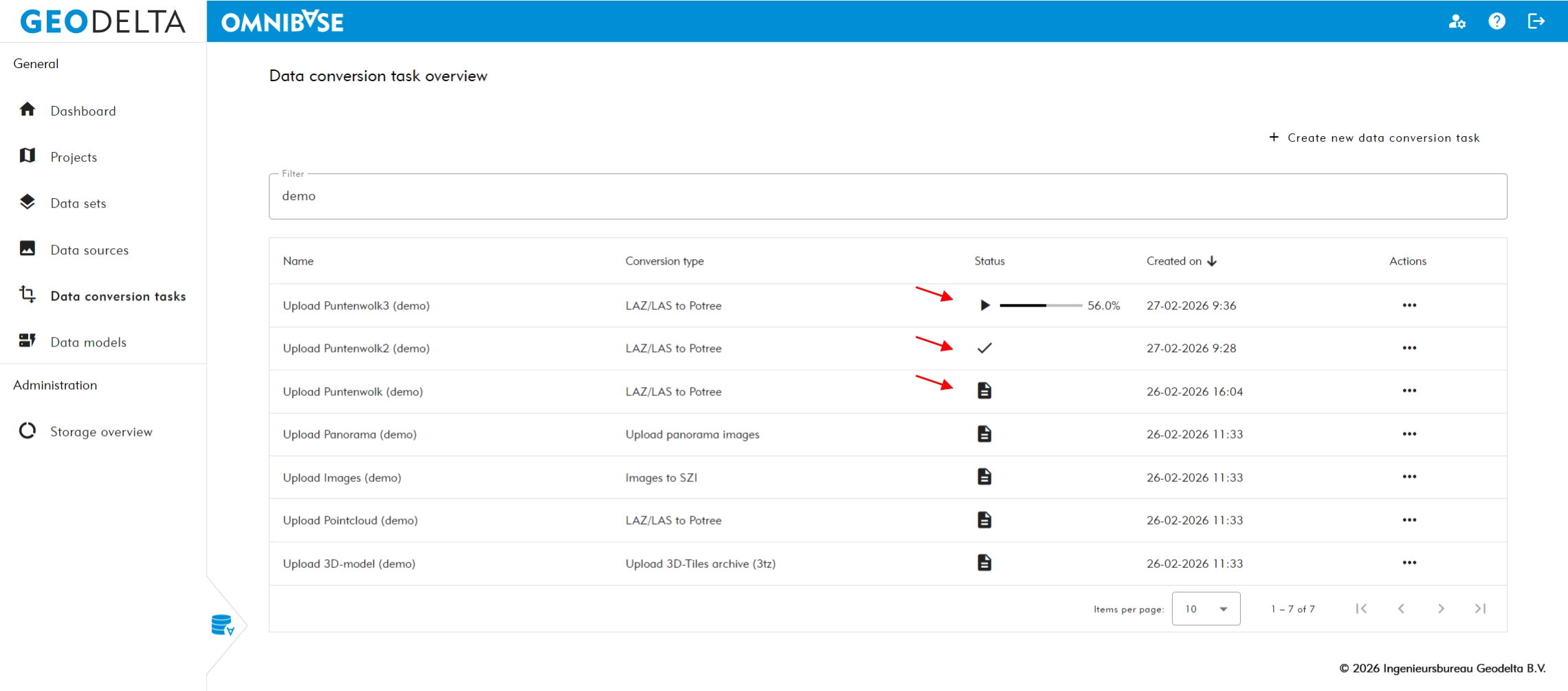
Within the data conversion tasks menu, all data is prepared for use in the viewer. Here you can upload raw data, which can subsequently be converted within the data conversion task. The data conversion tasks overview displays all existing data conversion tasks, including name, conversion type, status, and creation date.
If a data conversion task is deleted, all data sources created from this task are automatically deleted as well. Any created dataset(s) and project(s) are not automatically deleted, as these may contain a combination of data from multiple data conversion tasks.
The following data can be uploaded:
- Point clouds
- (Aerial) photos
- Panorama photos
- 3D models
Keep the Omnibase browser active during data upload
For all uploads — and especially larger uploads (e.g. > 50,000 files) — it is advisable to add the Omnibase website to the list of websites that must always remain active. This ensures that the website remains active during upload and that the browser does not free memory or put the website into sleep mode.
This can be configured in your browser:
For Chrome: Settings → Performance → General → “Always keep these sites active”: add "www.omnibase.cloud".
If necessary, search within settings for “always keep these sites active” and add Omnibase.
For Edge: Settings → System and performance → Performance → “Always keep these sites active”: add "www.omnibase.cloud".
Settings for other browsers such as Firefox or Safari can be found in comparable locations.
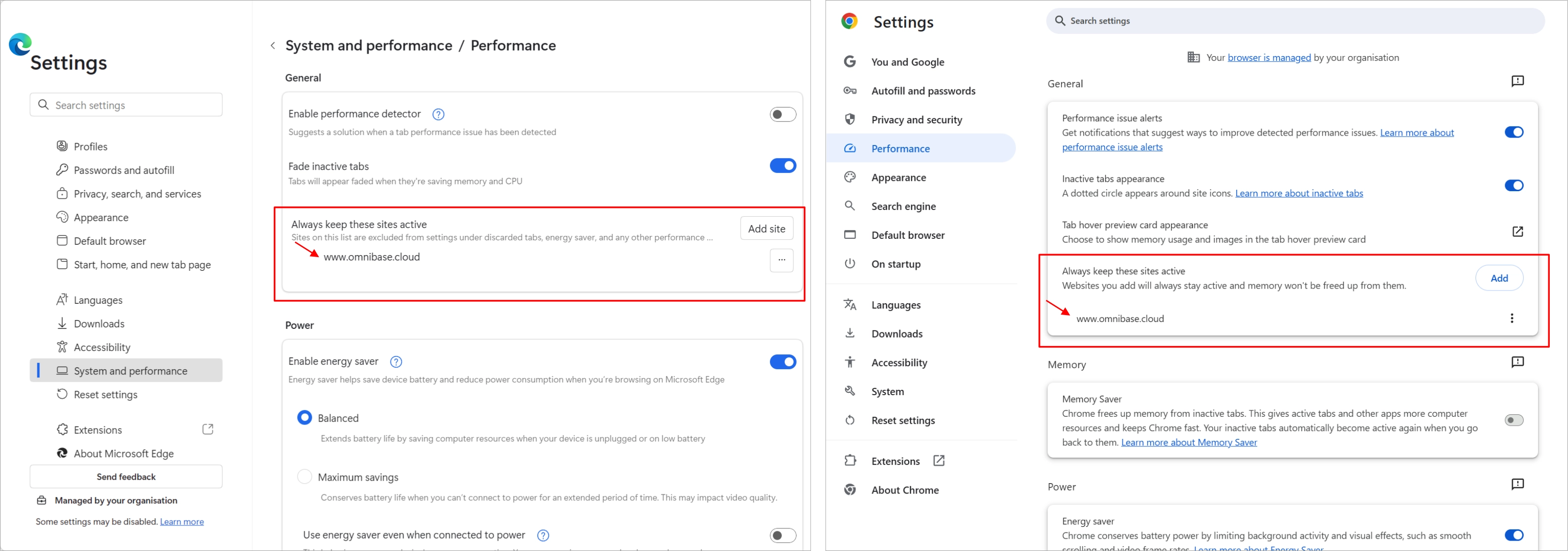
Setting to keep Omnibase active in the browser for stable data upload (Edge settings on the left, Chrome on the right).
1. Uploading data within a data conversion task
1.1 Creating a new data conversion task
Click the + Create new data conversion task button in the top right corner of the screen to create a new data conversion task. This works the same for all data types. A new menu appears where the name must be entered and the data can be selected. This looks as follows for all data types:
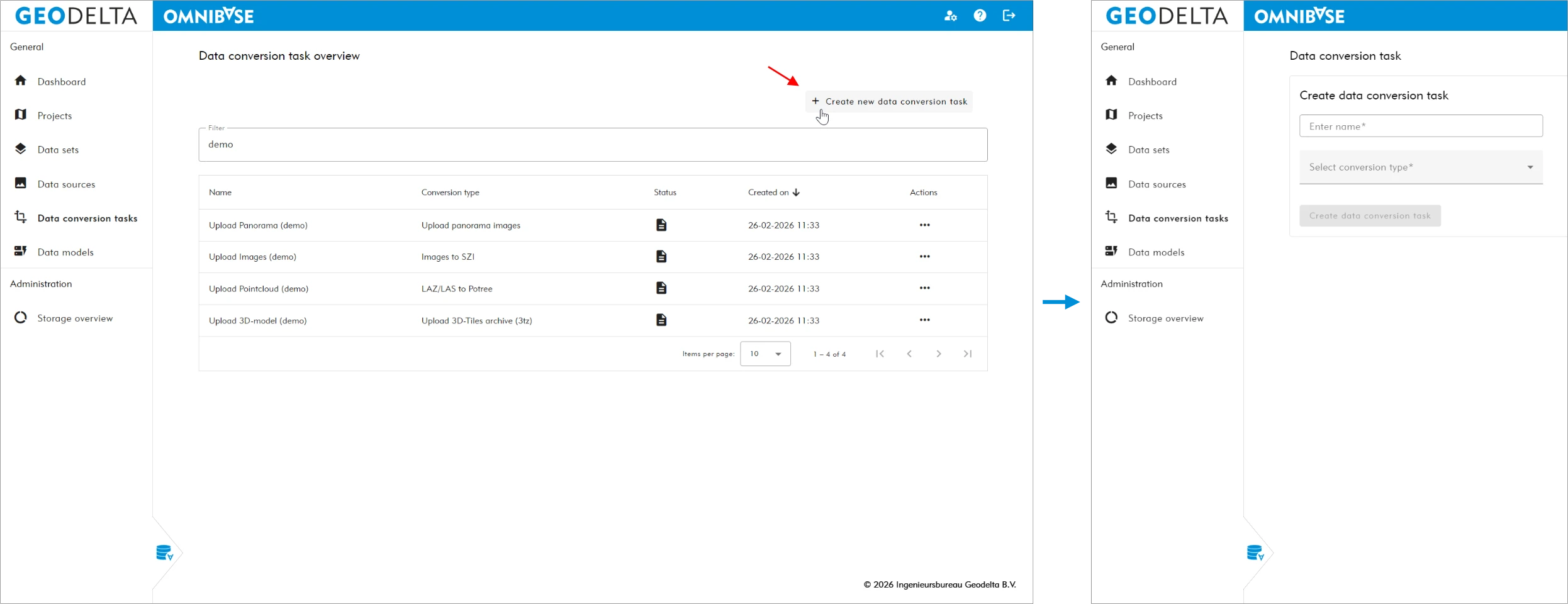
Create a new data conversion task (left) and the menu that opens afterwards (right).
1.2 Entering the name
First, enter a name for the data conversion task in the field “Enter a name*”.
Note: this name cannot be changed after conversion has started.
1.3 Selecting data
Below is an example showing how point cloud files are added. Uploading other data types works in the same way. The only exception is 3D-Tiles: this data is uploaded per file because it is already optimized for the cloud. Any merging of multiple 3D-Tiles files is done when creating datasets.
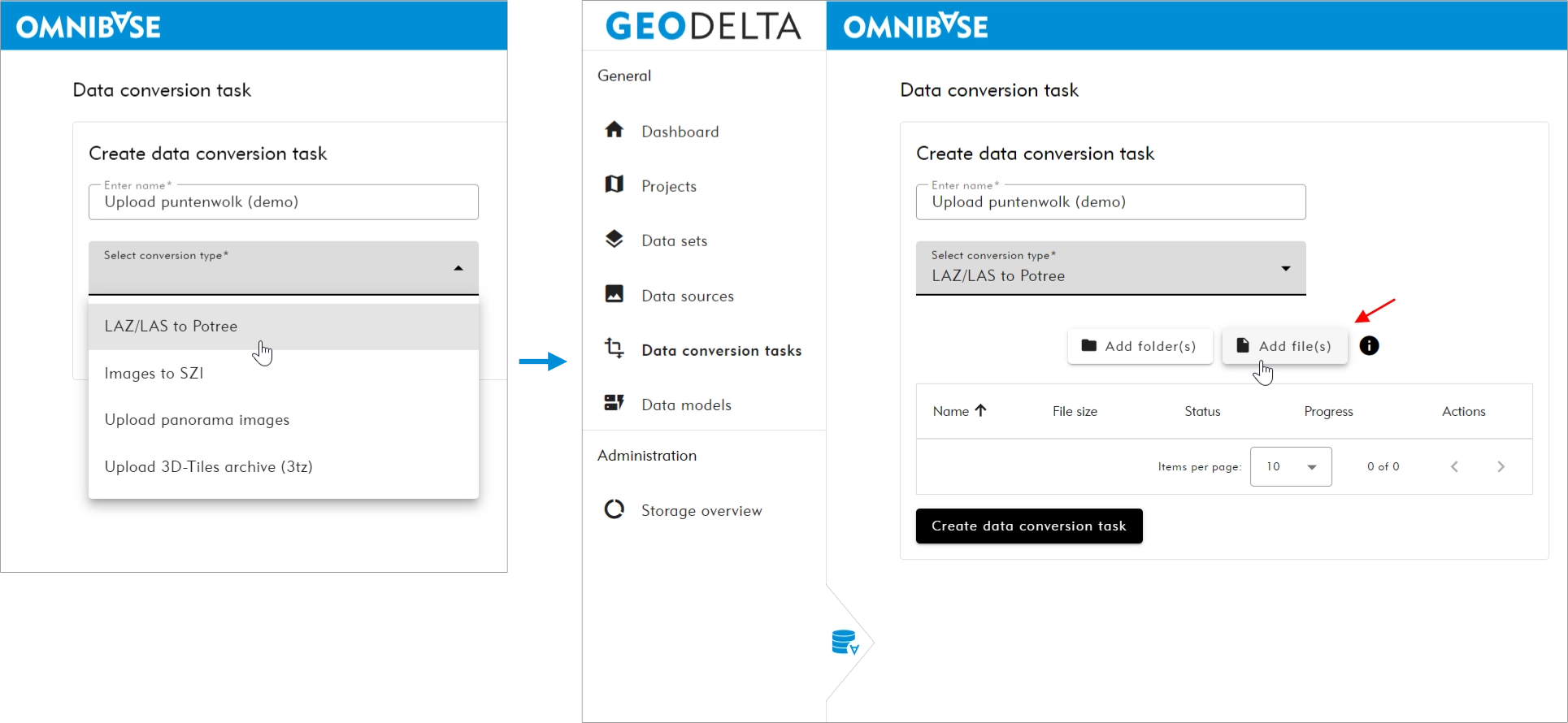
Entering a name and selecting the data conversion task type (left) and adding files (right).
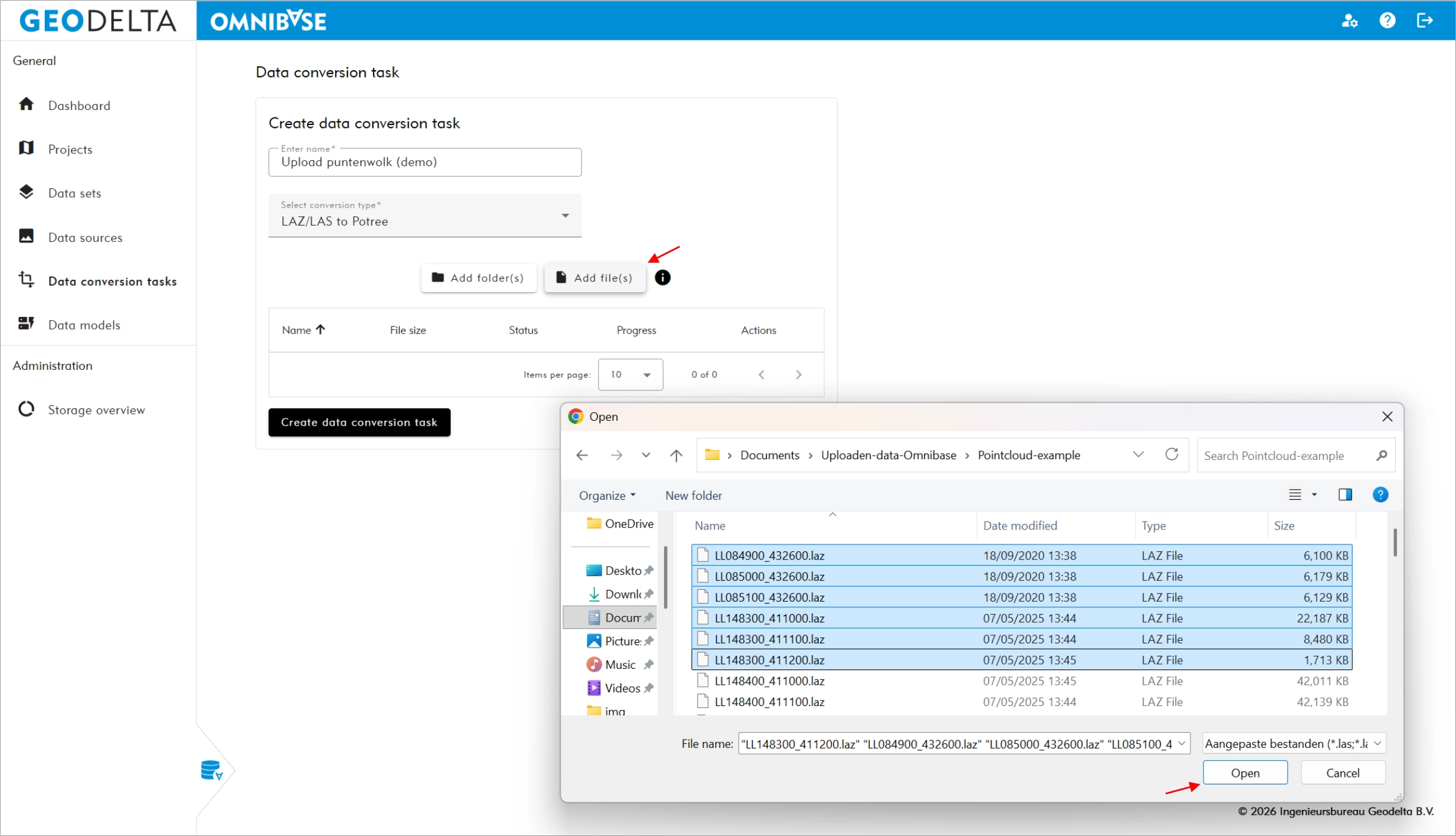
There are two options to select files:
- Add folder(s)
- Choose this option if many files need to be uploaded.
- Add file(s)
- Choose this option if only a number of files (from a few up to dozens) need to be uploaded or if you only want to convert a few sample files in a folder.
Files are not uploaded immediately after selection. Upload only starts after pressing the button at the bottom left: Create data conversion task. The actual conversion only takes place after the upload and is started via the data conversion tasks menu.
When converting point clouds, aerial photos, or panorama photos, the process differs slightly for point clouds compared to photos. Point cloud files are merged during conversion within the data conversion task into one underlying file with multiple zoom levels (octree levels). This file is highly efficient for cloud use.
Aerial photos and panorama photos are converted per file and are stored with multiple zoom levels.
For both types, once a conversion has started, no additional files can be added. It is possible to cancel a conversion, but we recommend verifying that the number of uploaded files matches the intended number before starting the conversion.
1.3.1 Selecting (individual) files
1.3.2 Selecting folders
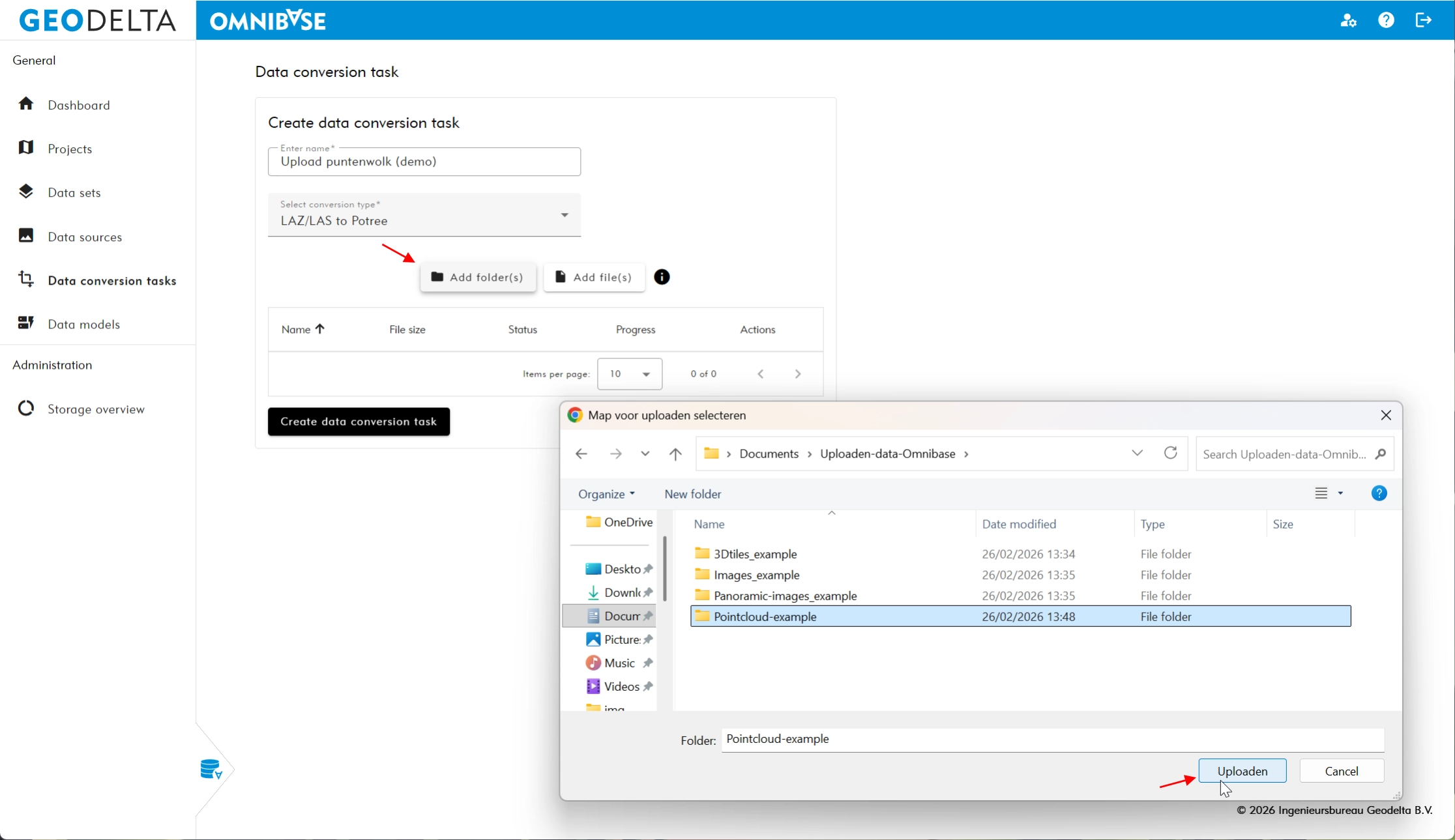
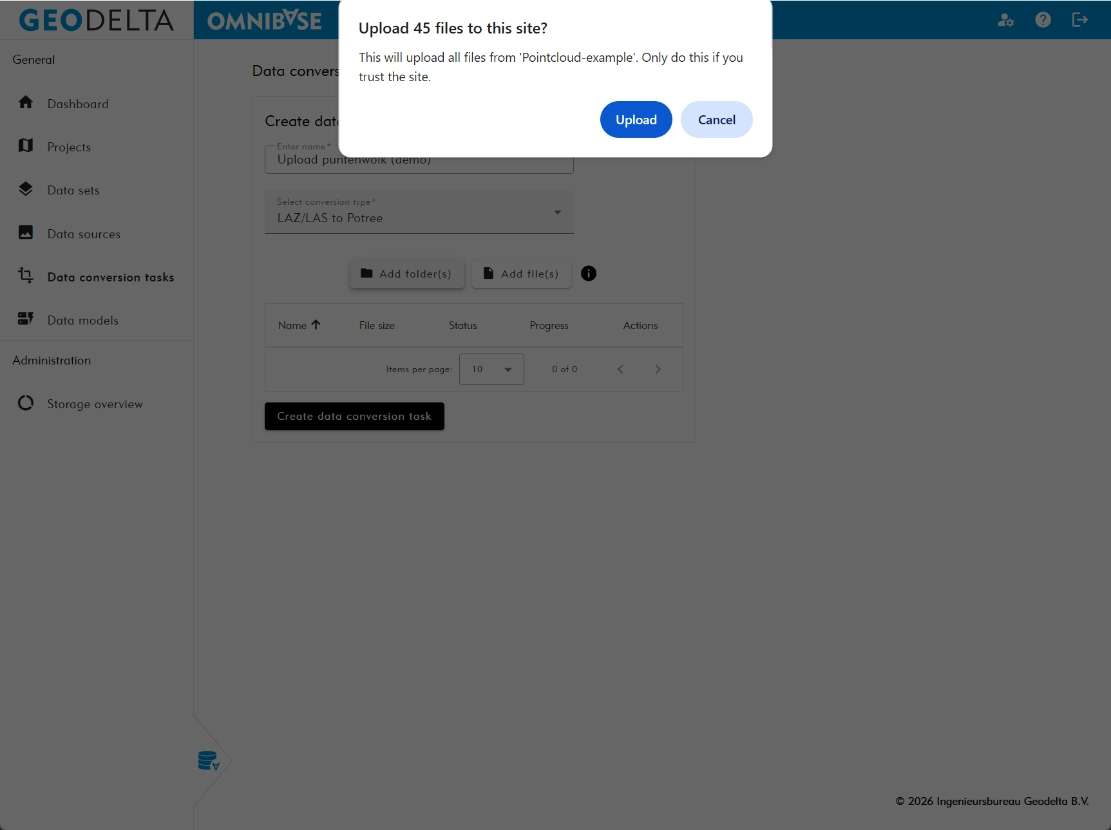
A pop-up will appear asking whether you want to upload all files (this is a standard browser pop-up). Choose Upload to include the files in the upload window or Cancel if you selected the wrong folder. The files are not yet uploaded but are listed in the data conversion task overview.
1.4 Verifying selected files and starting upload
Check whether the file names and the number of files match what you intend to upload. Then click the Create data conversion task button at the bottom left to start the upload.
The same menu remains open and on the right side the upload progress per file is displayed. Depending on internet speed and the number of files, the upload may take some time. Leave this screen open until the upload is completed.
For large data uploads (e.g. > 50,000 files), it is advisable to add the Omnibase website to the list of websites that must always remain active in your browser. This ensures that the website remains active during upload and prevents the browser from freeing memory or putting the website into sleep mode.
For configuration, go directly to the active browser settings earlier in this chapter.
The figure below shows the steps for starting the upload and the information displayed about progress. Based on the speed of the first uploads, Omnibase estimates the total upload duration. Progress is continuously updated within the upload menu. When the upload is completed, the user is automatically redirected to the data conversion tasks menu.
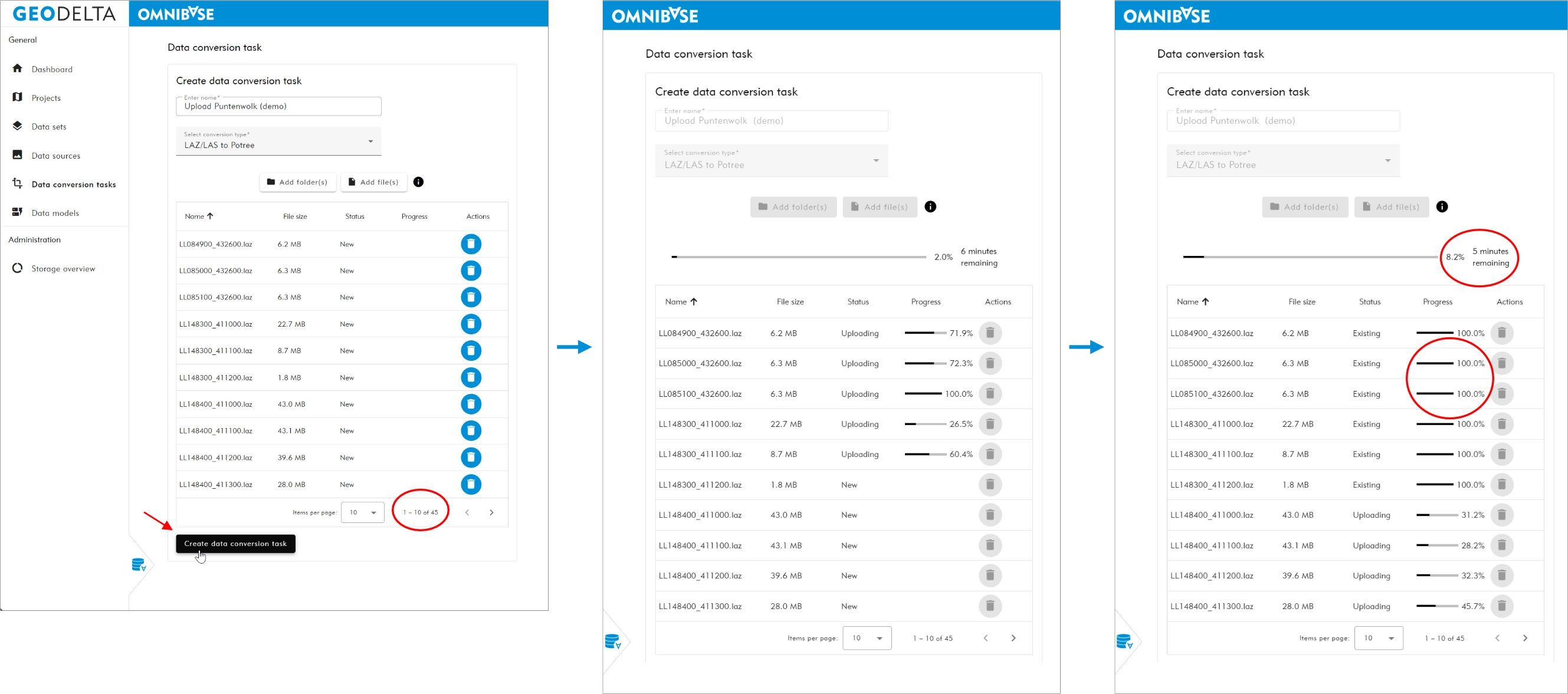
Verification of total selected files and starting upload (left), ongoing upload including progress status (center), and estimated total upload time including monitoring completed uploads (right).
2. Converting data within a data conversion task
2.1 Action menu of the data conversion task
Within the action menu of the created data conversion task, several options are available:
- Start conversion
- Cancel conversion (only when running)
- Show log (only available for a point cloud conversion)
- Edit task
- To add or remove files before starting conversion.
- Delete task
- Permanently deletes all uploaded and converted files within this data conversion task.
- Delete source files
- Deletes the uploaded source files used for conversion. These can be removed manually and are automatically deleted after 1 month.
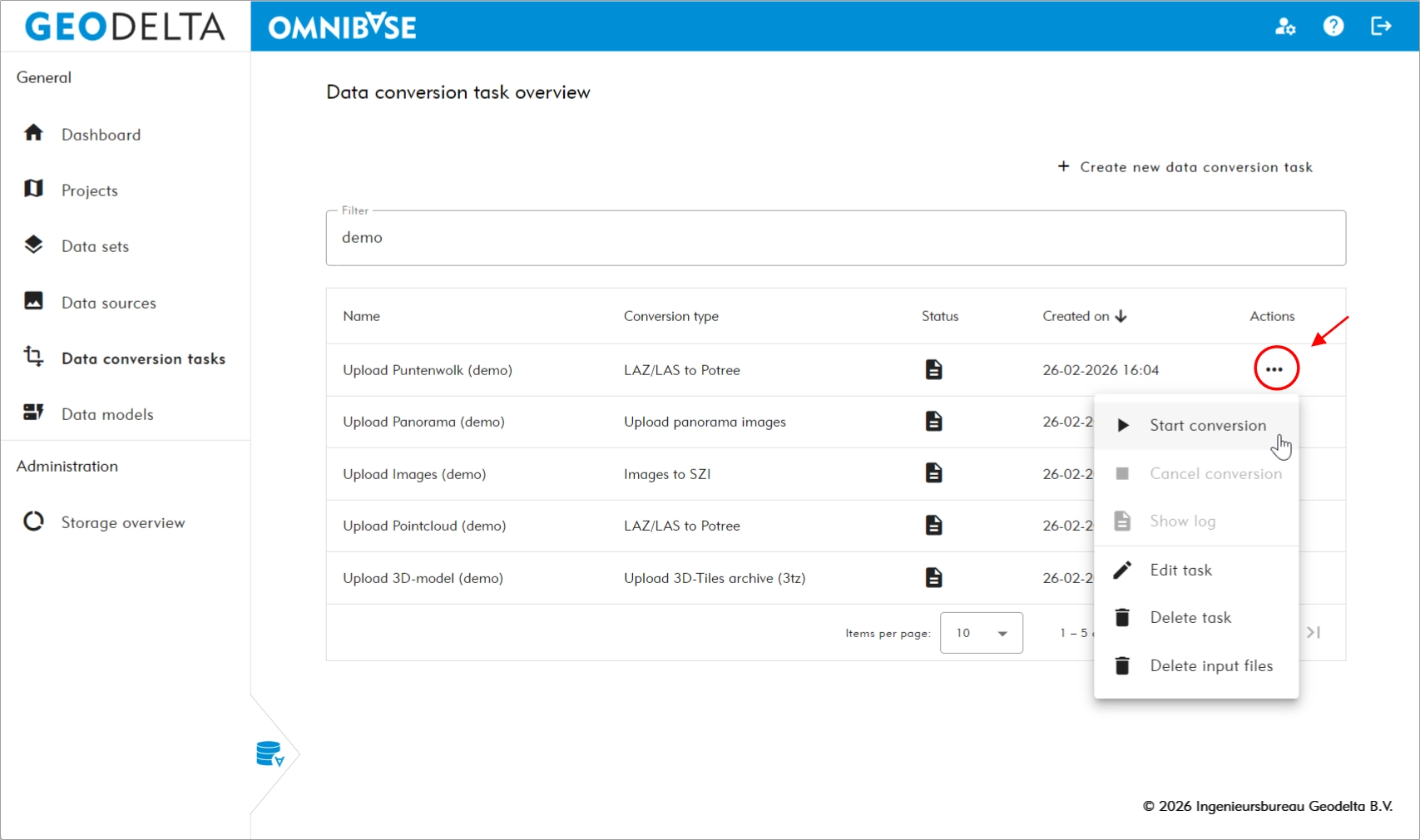
2.2 Starting conversion
Click the Start conversion button within the action menu to start the data conversion. Omnibase converts the data into its internally used format. For point clouds this is the Potree format or COPC-LAZ format, for (aerial) photos the Deep Zoom Image format, for panorama photos the Deep Zoom Panorama format. 3D models are uploaded as zipped 3D-Tiles (in the .3tz format) and are only copied to their final location during conversion.
The conversion runs in the background within Omnibase. You can continue working and start other conversions or manage data sources, datasets, or projects.
2.3 Canceling conversion
Click the Cancel conversion button within the action menu to cancel the data conversion. Although possible, this results in unnecessary use of time and processing capacity. Before starting conversion, verify via Edit task that all required data has been uploaded.
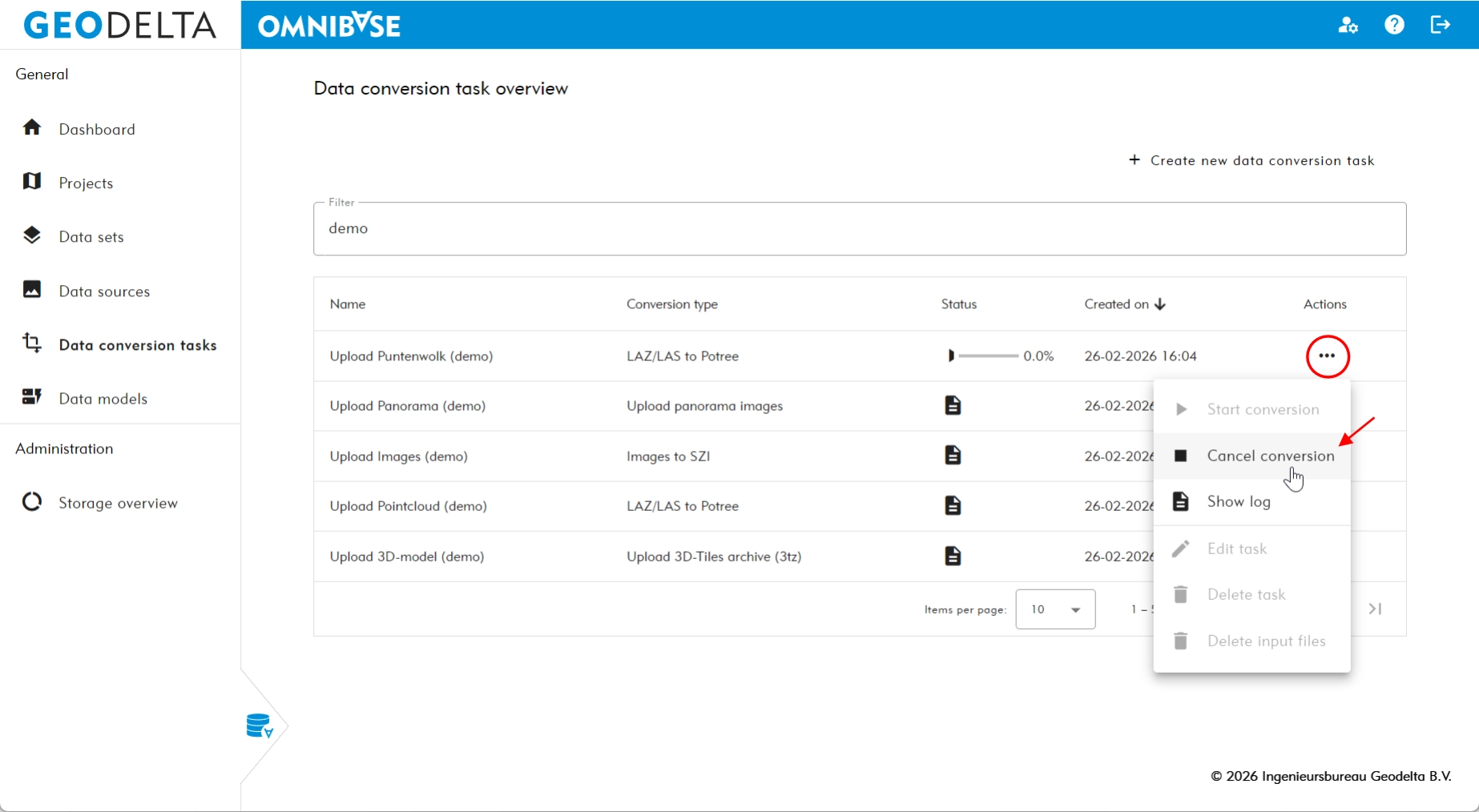
2.4 Show log
The conversion log is only available for point clouds. This is the raw log of the conversion script and may be useful when a conversion fails. Failure may occur if the point cloud file is corrupt or does not meet the requirements for conversion. Check whether your point cloud meets the raw data requirements. If the issue persists, please contact us.
2.5 Edit task
When editing a task, new files can be added and existing files can be removed. The task name can also be modified.
Add files:
Select files by clicking Add file(s) or Add folder(s). The status of the added file becomes ‘New’. Files that are added again but already exist are ignored and are not duplicated.
Remove files:
Select files to remove and click the blue trash icon on the right. The file status changes to ‘To be deleted’.
Apply changes:
Click Create data conversion task to apply the changes. New files are uploaded first, after which files marked for deletion are removed. Once completed, you are automatically redirected to the data conversion tasks overview where the conversion can be started.
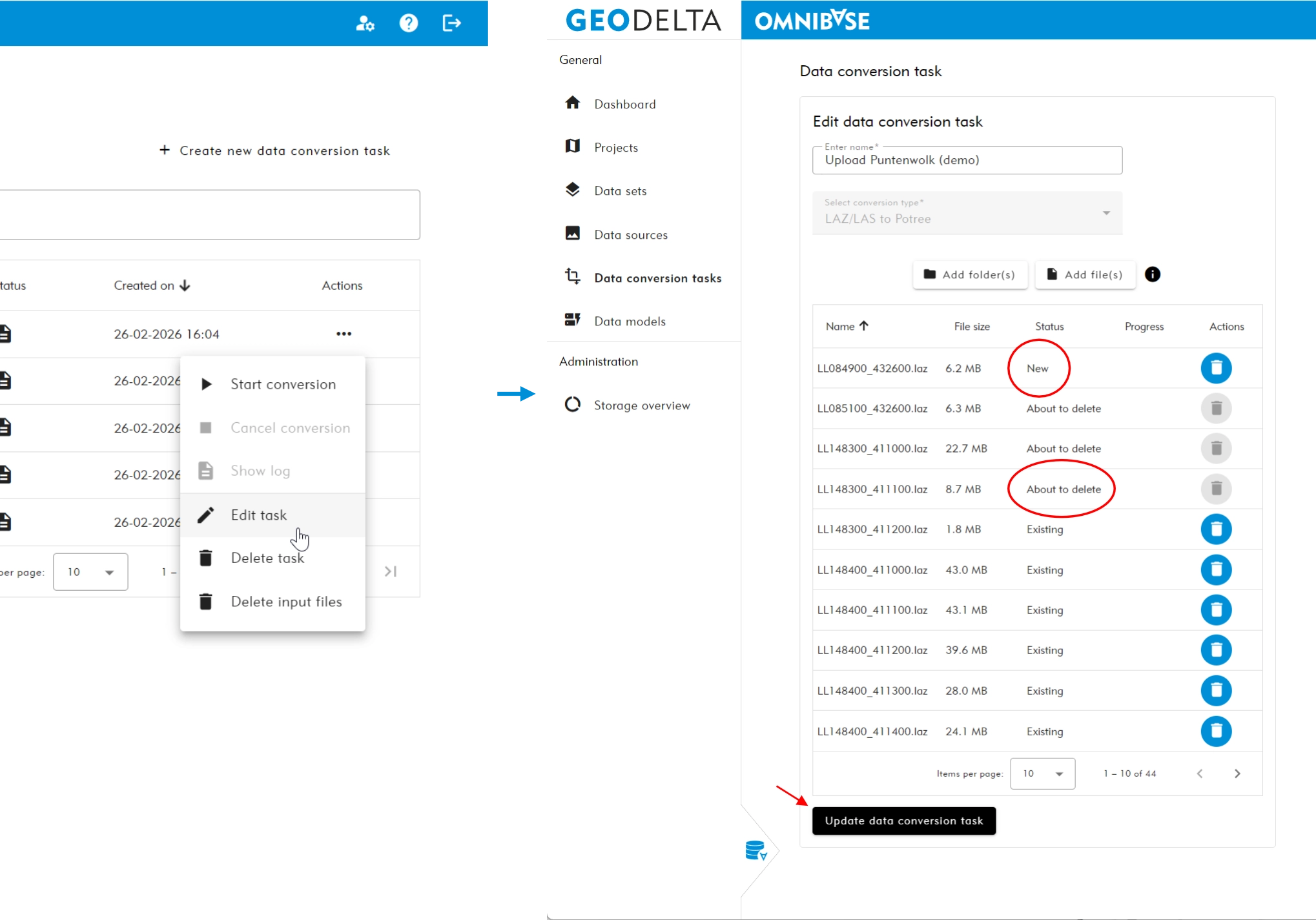
Editing a data conversion task (left) and the status of a newly added file and a file marked for deletion (right).
If you do not wish to apply changes, click the data conversion tasks menu on the left side of the Omnibase menu and confirm the message ‘Close with unsaved changes’.
2.6 Delete task
Deleting a task permanently removes all converted files, including all data sources created from this data conversion task. Only delete a data conversion task if you are certain that the data is no longer required.
Any created dataset(s) and project(s) are not automatically deleted, as they may contain a combination of data from multiple data conversion tasks.
When deleting a data conversion task, the converted data is permanently deleted and cannot be restored.
Verify carefully whether a data conversion task can be deleted.
2.7 Delete source files
Deleting the source files removes all uploaded raw files. This can be useful to reflect correct values in the storage overview. Source files are automatically deleted one month after upload. Ensure that conversion is completed within this period.
3. Status of data conversion tasks
The status of data conversion tasks is updated automatically. In the example below, one conversion is running (status shows running and the progress percentage is visible), one conversion is completed (status shows completed with a check mark), and several conversions have been created (status shows created with a file icon).