Data sources
This menu is only available for users with the permissions: Admin or SuperUser.
How are data sources created, modified, or deleted
Within the data sources menu, data sources are created from data conversion tasks. A file is linked to additional metadata so it can be visualized in the viewer.
If a data conversion task is deleted, all data sources created from that data conversion task are automatically deleted. Any datasets and projects are not automatically deleted, as they may contain data combined from multiple data conversion tasks.
The following data sources can be created (click the name to navigate directly to the relevant section):
- Point clouds
- Aerial imagery (referred to here as Deep Zoom Image)
- Panorama photos
- 3D models (3D-Tiles)
- OGC features (this menu will be extended with additional settings in a future update)
- WMTS layer
Creating data sources within the dataset or data sources menu
Data sources can be created in two locations:
-
Within the data sources menu
- Click
+ Create new data source. - The data source menu opens: select the required data source type.
- Complete the configuration.
- Click
-
Within a dataset in the datasets menu
- Click the blue folder icon with a plus symbol.
- Data sources are created directly within this dataset (and are automatically linked to it).
- The data type is predefined and cannot be changed.
- Complete the configuration.
Use the second option when creating large numbers of data sources. An additional advantage is that all data sources are immediately linked to the dataset.
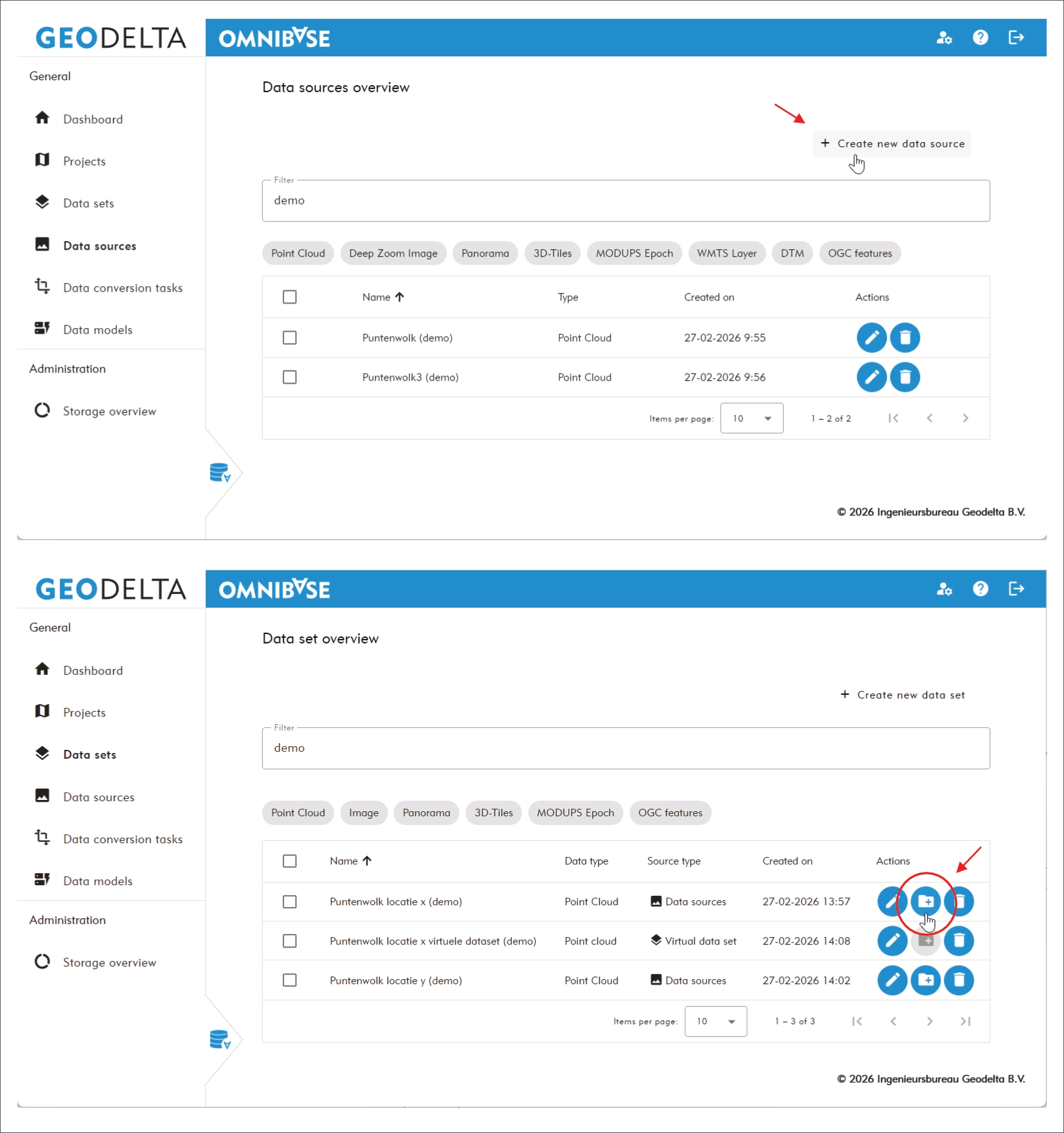
Creating data sources via the data sources menu (top) and within a dataset (bottom).
Creating and modifying data sources
Each data source type has its own configuration workflow.
For point clouds and 3D models, only a link to a data conversion task is required.
For aerial imagery and panorama photos, additional orientation and camera calibration parameters must be provided.
1 Creating point cloud data source
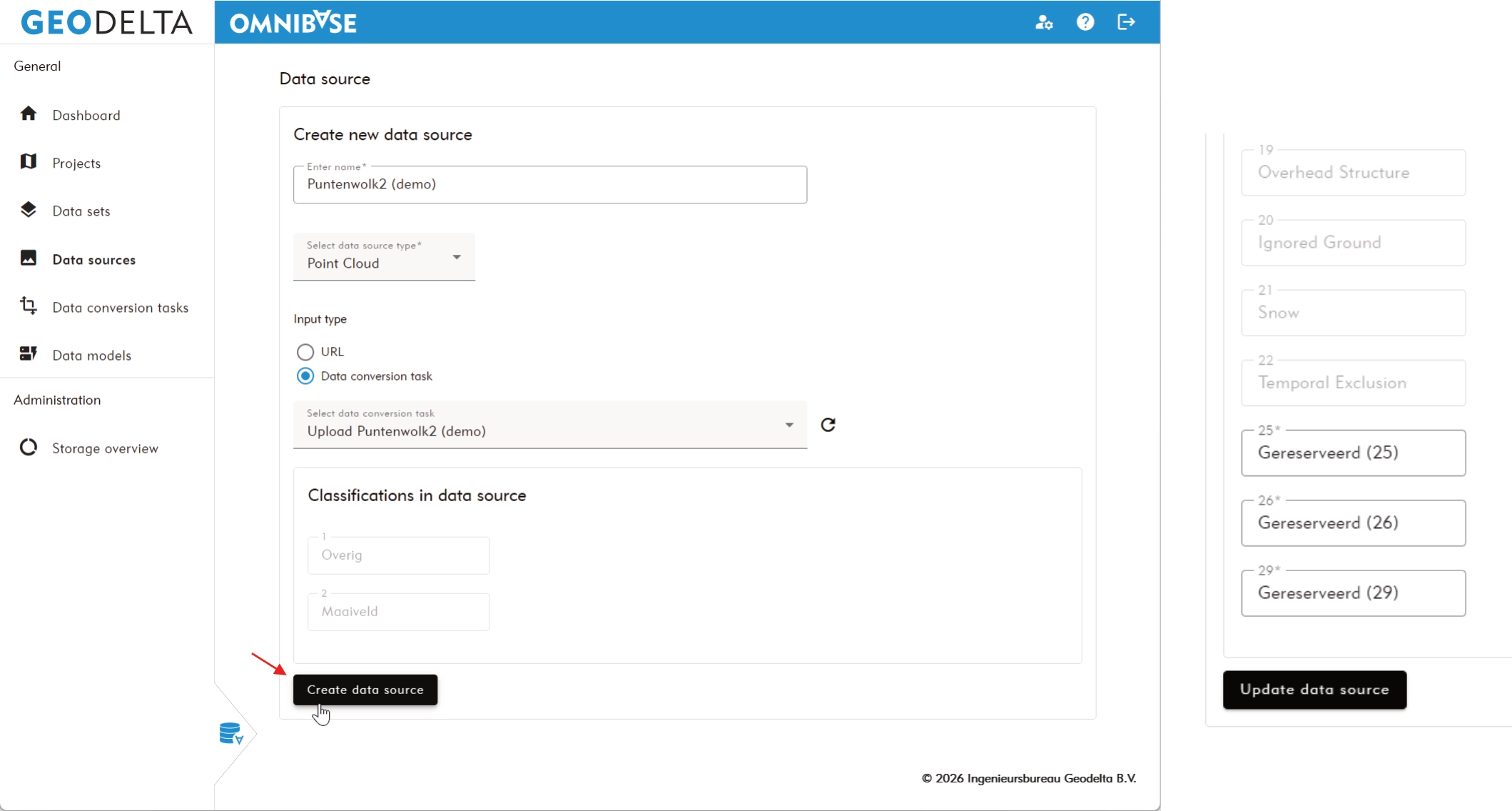
A point cloud data source always refers to one converted point cloud data conversion task. During conversion, the original source files (if multiple) are merged and optimized for cloud visualization. This can result in a Potree point cloud or a COPC-LAZ point cloud.
Provide the following information:
- Enter the name of the new point cloud data source.
- Select source data type: Point cloud.
- Select input type: Data conversion task.
- Select the appropriate data conversion task.
- Optionally search by entering the task name.
- Review classification settings:
- LAS-standard classifications are shown in grey and cannot be modified.
- Custom classification IDs must be assigned a display name for use in the viewer.
Classification IDs (for example 25, 26 and 29) cannot be changed. These are taken directly from the source point cloud file. Only the display name used in the viewer can be modified.
Click Create data source to finalize.
After creation, you will return to the data sources overview page.
2 Creating aerial imagery data source
An aerial imagery data source refers to one individual image within a "Photos to SZI" data conversion task. The image is converted into a cloud-optimized format during processing.
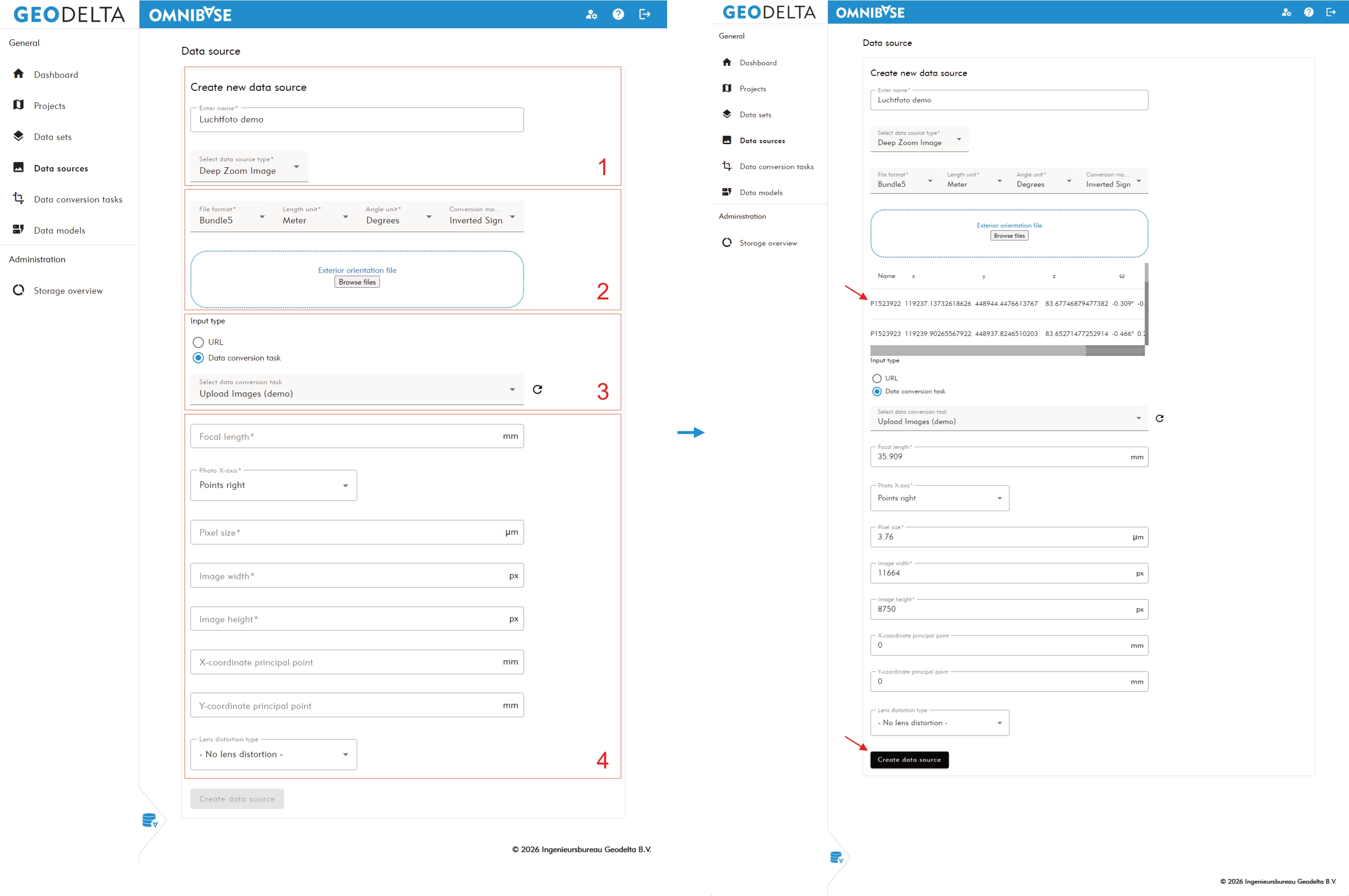
2.1 Enter general information
- Enter the prefix name for the new aerial imagery data sources.
- This prefix is added to each image name.
Example: imageP1523924with prefixprojectname-X→projectname-X P1523924. - There is a maximum allowed total name length (prefix + original filename).
- If exceeded, the error message “Maximum field length exceeded” appears.
- Shorten the prefix if necessary.
- Changing the name in the external orientation file will not solve this; filenames must match exactly for correct linking.
- This prefix is added to each image name.
- Select source data type: Deep Zoom Image (aerial imagery).
2.2 Configure the external orientation file
Enter all required orientation settings.
- Select file format:
- Bundle5 (space-separated), Bingo, IGL, Pat-B or UltraMap.
- Select length unit:
- Meter or Millimeter.
- Select angle unit:
- Degrees, Radians or Gon.
- Select conversion model:
- Normal (Geodelta), Inverted sign, Phi-Omega-Kappa, Phi-Omega-Kappa (inverted), Matrix, Matrix (transposed), Pat-B, Quaternion or Panorama.
- Upload the external orientation file via
Browseor drag-and-drop.
2.3 Select the data conversion task
- Select input type: Data conversion task.
- Select the correct conversion task.
- Only image-type conversion tasks are shown.
2.4 Enter camera (calibration) parameters
Provide the camera calibration parameters:
- Focal length (mm)
- Photo X-axis orientation (usually “Points to the right”)
- Pixel size (μm)
- Image width (pixels)
- Image height (pixels)
- Principal point X (mm)
- Principal point Y (mm)
- Lens distortion model (currently only Geodelta model supported)
Click Create data source to finalize.
If you are unsure about the orientation or calibration settings, contact support via contact. Incorrect parameters will result in incorrect positioning or rotation in the viewer.
3 Creating panorama photo data source
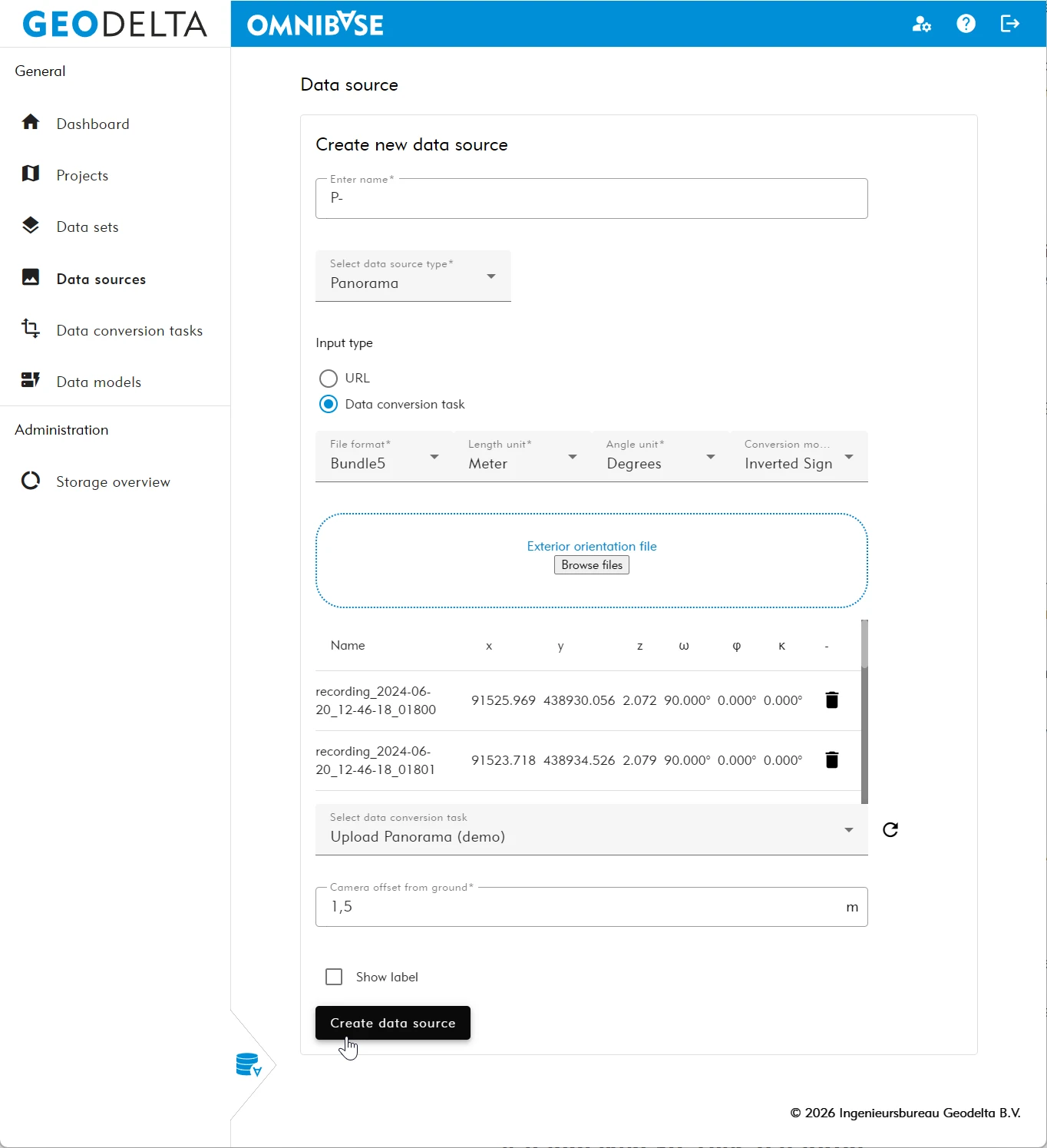
A panorama photo data source refers to one individual panorama image within a panorama upload data conversion task.
3.1 Enter general information
- Enter the prefix name (same logic and constraints as aerial imagery).
- Select source data type: Panorama.
- Select input type: Data conversion task.
3.2 Configure the external orientation file
Use the same orientation configuration options as described for aerial imagery.
3.3 Select the data conversion task
Select the appropriate panorama conversion task.
3.4 Configure panorama-specific settings
- Enter the camera height relative to ground level.
- This ensures panorama markers are visualized at ground level in the 3D viewer.
- Optionally enable the label display for smaller datasets.
Click Create data source to finalize.
4 Creating 3D-Tiles data source
A 3D-Tiles data source refers to one converted 3D-Tiles data conversion task.
Provide the following:
- Enter the name of the new 3D-Tiles data source.
- Select source data type: 3D-Tiles.
- Select input type: Data conversion task.
- Select the correct conversion task.
- If required, select conversion from ECEF to RD New.
- Most 3D-Tiles exports are delivered in ECEF unless already stored in RD/NAP.
Click Create data source to finalize.
5 Creating OGC Features data source
Creating an OGC Features data source consists of adding a public OGC API Features endpoint.
Provide:
- Name of the data source.
- Source data type: OGC features.
- OGC Features URL ending with
*/collections/{collectionID}.
Click Create data source to finalize.
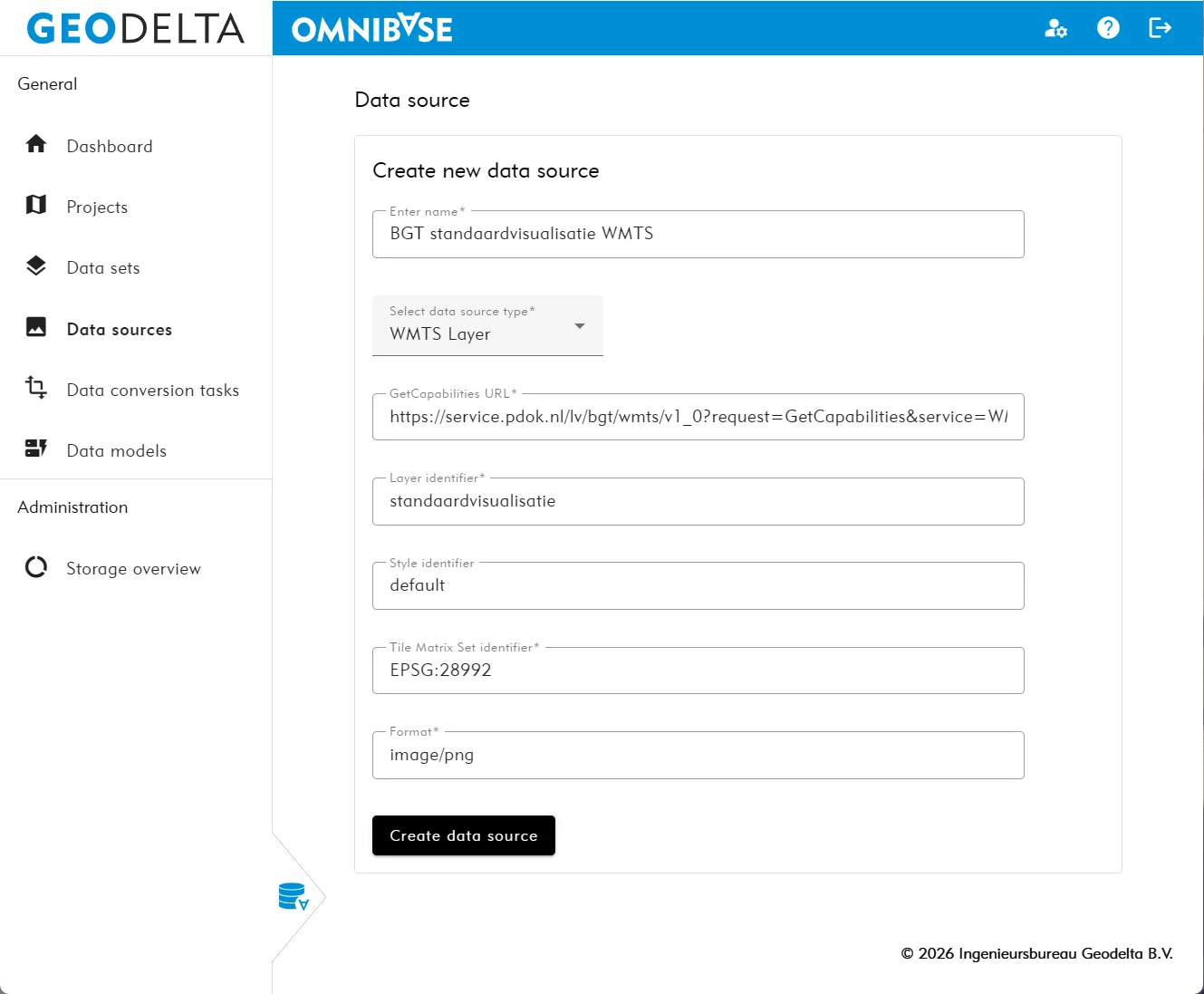
6 Creating WMTS layer data source
Creating a WMTS layer consists of adding a public WMTS endpoint.
Provide:
- Name of the WMTS data source.
- Source data type: WMTS layer.
- WMTS GetCapabilities URL.
- Layer identifier (Identifier).
- Style identifier (usually “default”).
- TileMatrixSet identifier (for the Netherlands typically
EPSG:28992). - Format (usually
image/pngorimage/jpg).
Click Create data source to finalize.
If creating a data source does not work or you are unsure about the required parameters, contact support via contact.