Datasets
This menu is only available to users with the roles: Admin or SuperUser.
Creating, modifying, and deleting datasets
Datasets are created based on data sources. Multiple data sources can be grouped into a single dataset, which is displayed as one layer in the viewer.
The dataset overview shows:
- Name
- Type
- Source type
- Creation date
A dataset may appear empty if its linked data sources were removed.
Verify whether associated data sources were automatically deleted after removing a data conversion task.
Two dataset types are available:
1. Dataset with data sources
- Combination of individual data sources.
- Each dataset is displayed as a separate layer in a project.
- Source type: Data sources.
2. Virtual dataset
- Combination of existing datasets of the same type.
- Requires previously created datasets.
- Designed for future timeline filtering.
- Displayed as a single layer but may contain multiple acquisition years.
- Source type: Virtual dataset.
Creating a new dataset
Click + Create new dataset (top right).
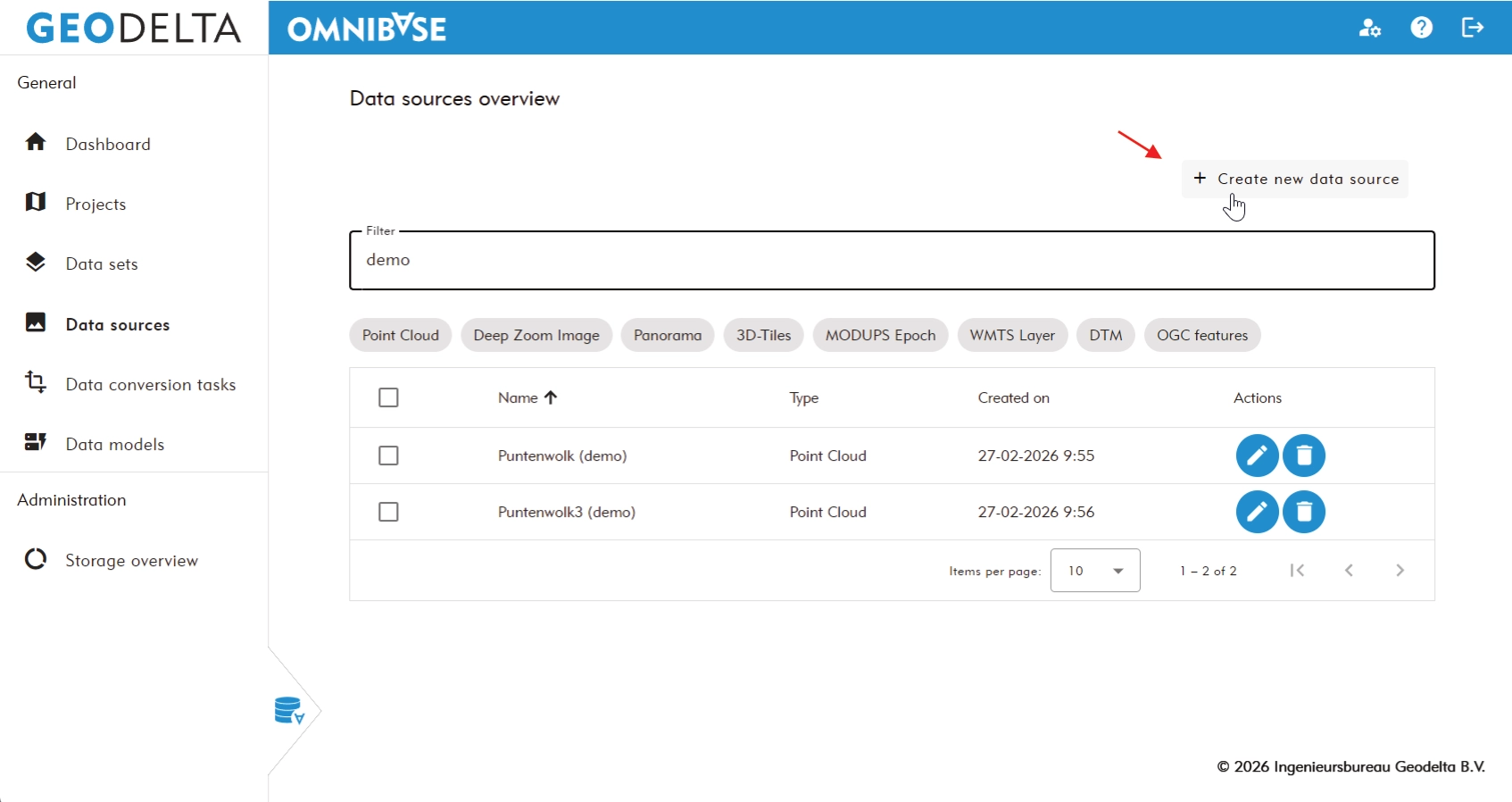
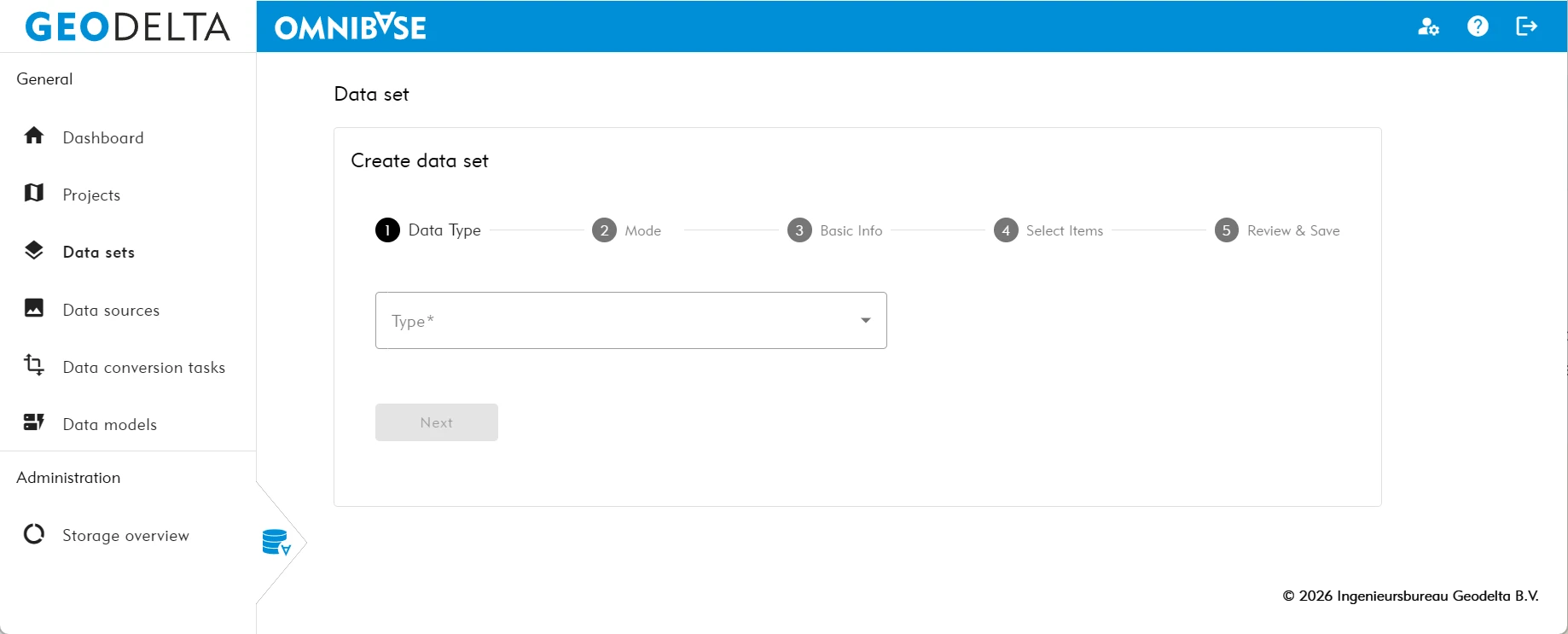
Creation follows a step-by-step workflow.
Step 1 – Select dataset type
Choose the dataset type. Only matching data sources will be shown in later steps.
Available types:
- Aerial images
- Panorama images
- Point clouds
- 3D Tiles (3D models)
- OGC API Features
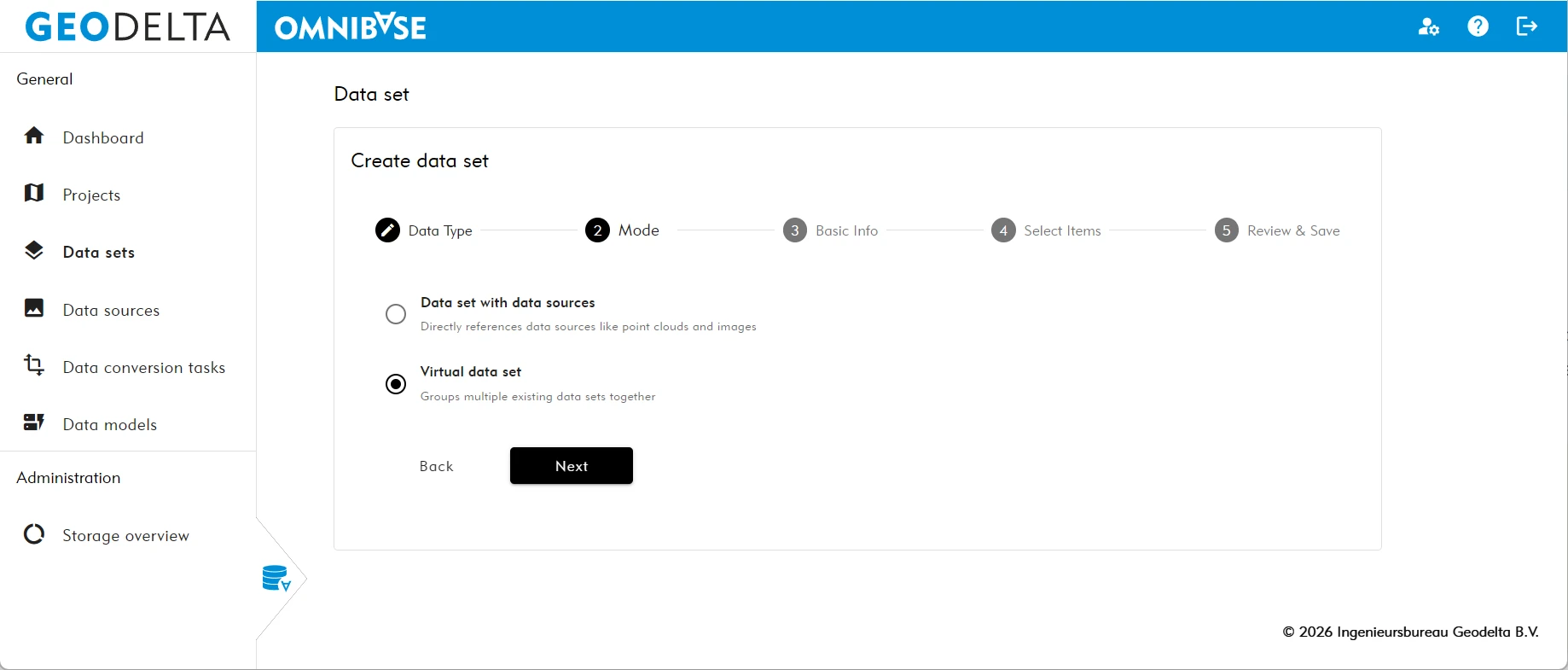
Step 2 – Select mode
Choose one of the following:
Dataset with data sources
Standard dataset based on data sources.
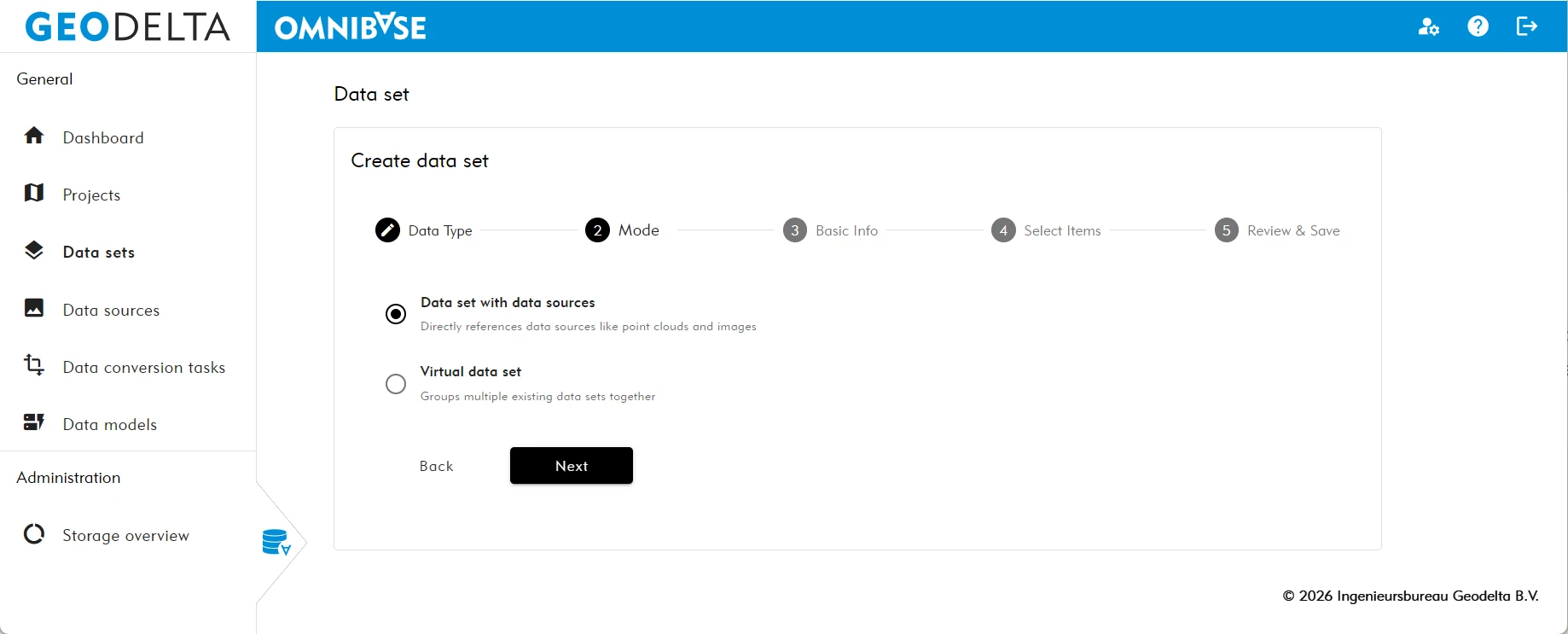
Virtual dataset
Combination of existing datasets.
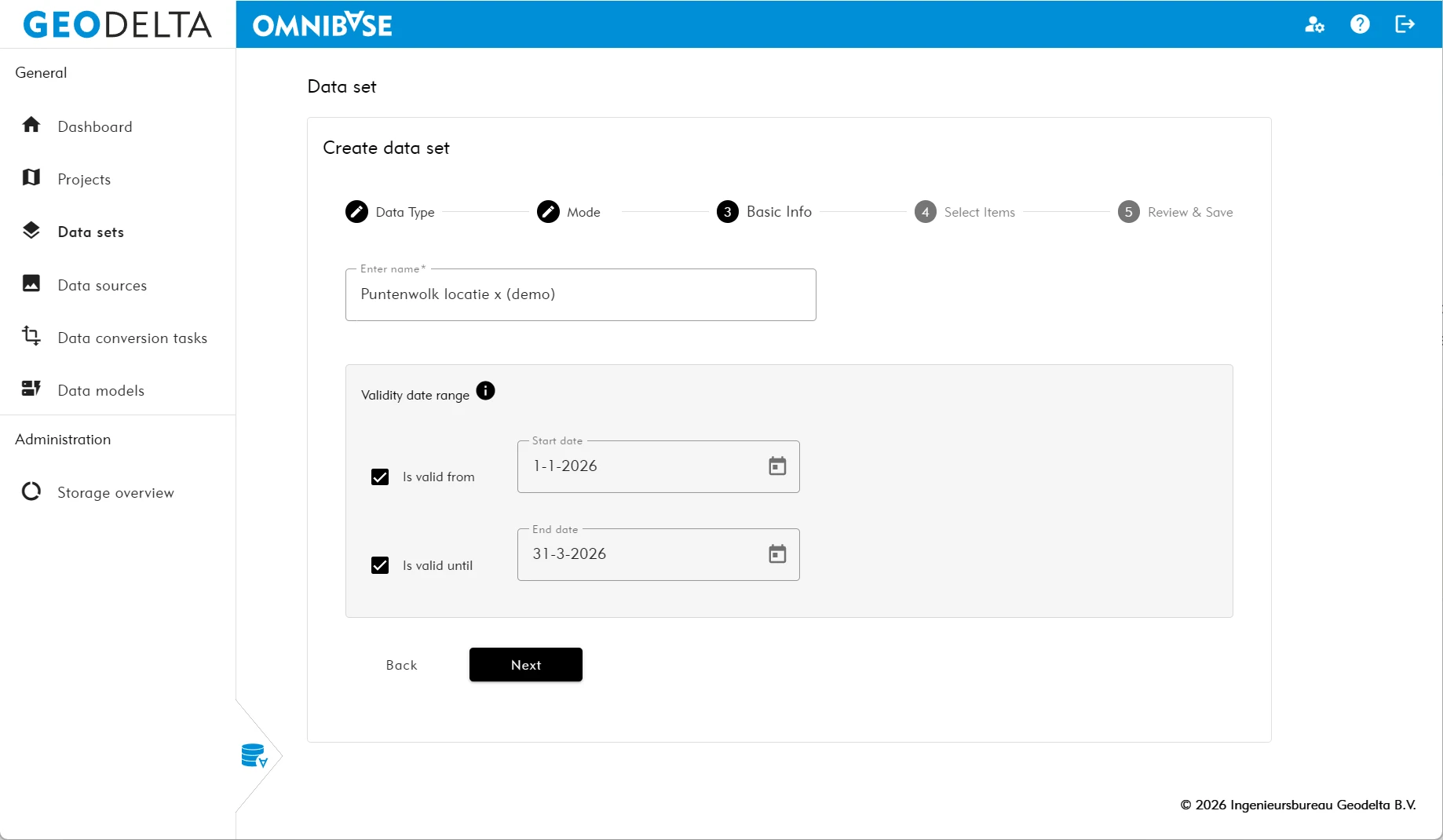
Step 3 – Basic information
Dataset with data sources
- Enter dataset name (visible in the viewer layer menu).
- Optionally define a validity period.
This will support timeline-based switching between acquisition moments. - Only for a panorama dataset: optionally set the color of the panorama locations.
- This color is used to visualize the panorama photo locations in the viewer.
- The color can be configured per panorama dataset.
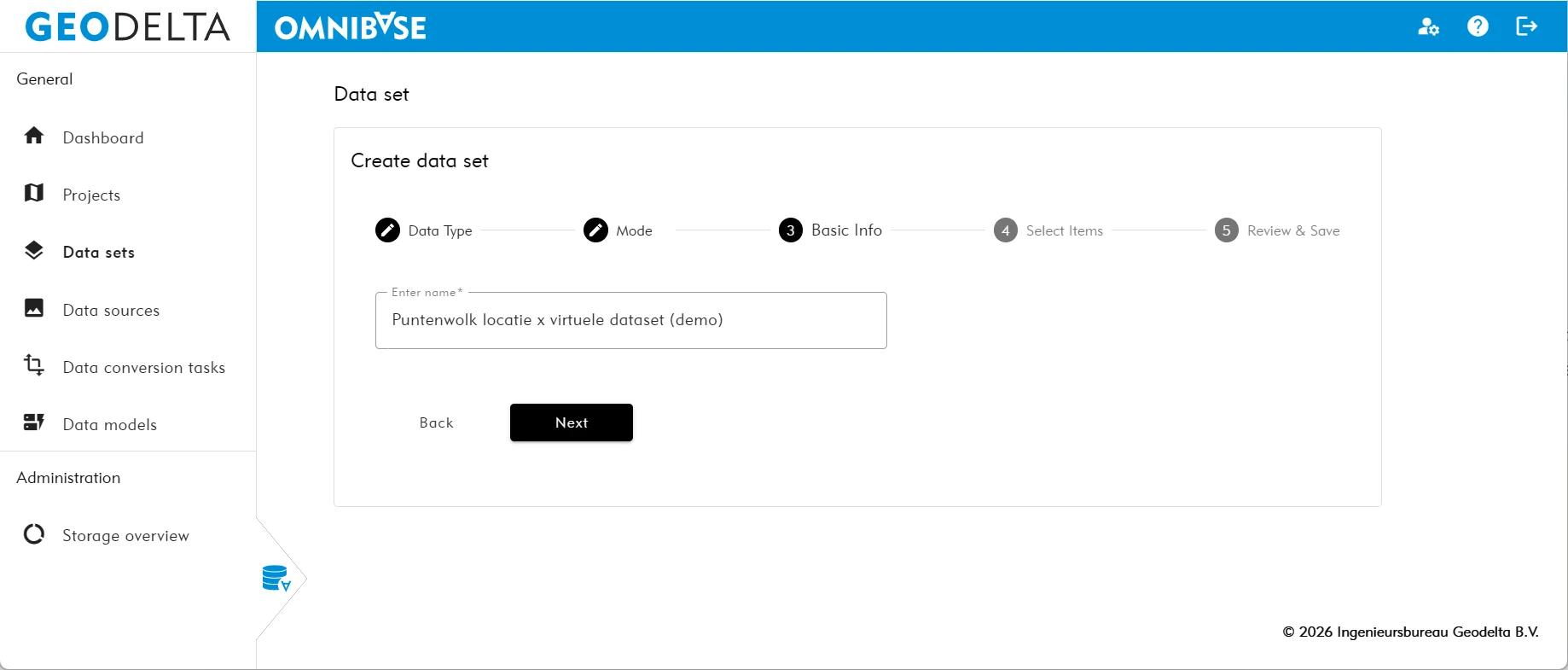
Virtual dataset
- Enter dataset name (visible in the viewer layer menu).
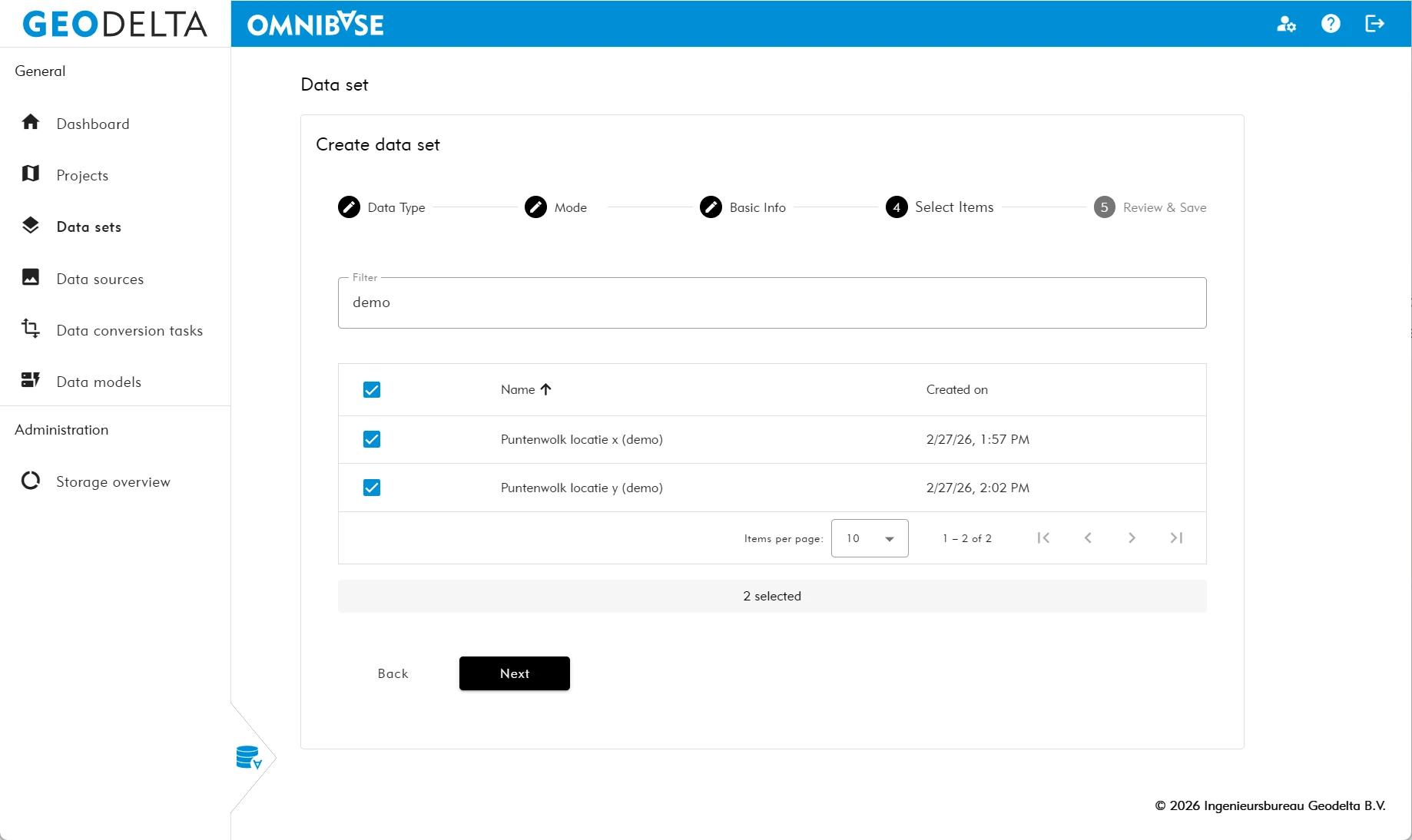
Step 4 – Select items
Dataset with data sources
Select and add relevant data sources.
Examples:
- Point clouds → multiple point cloud sources
- Aerial or panorama images → multiple image sources
- 3D Tiles → multiple 3D model sources
- OGC API Features → multiple feature sources
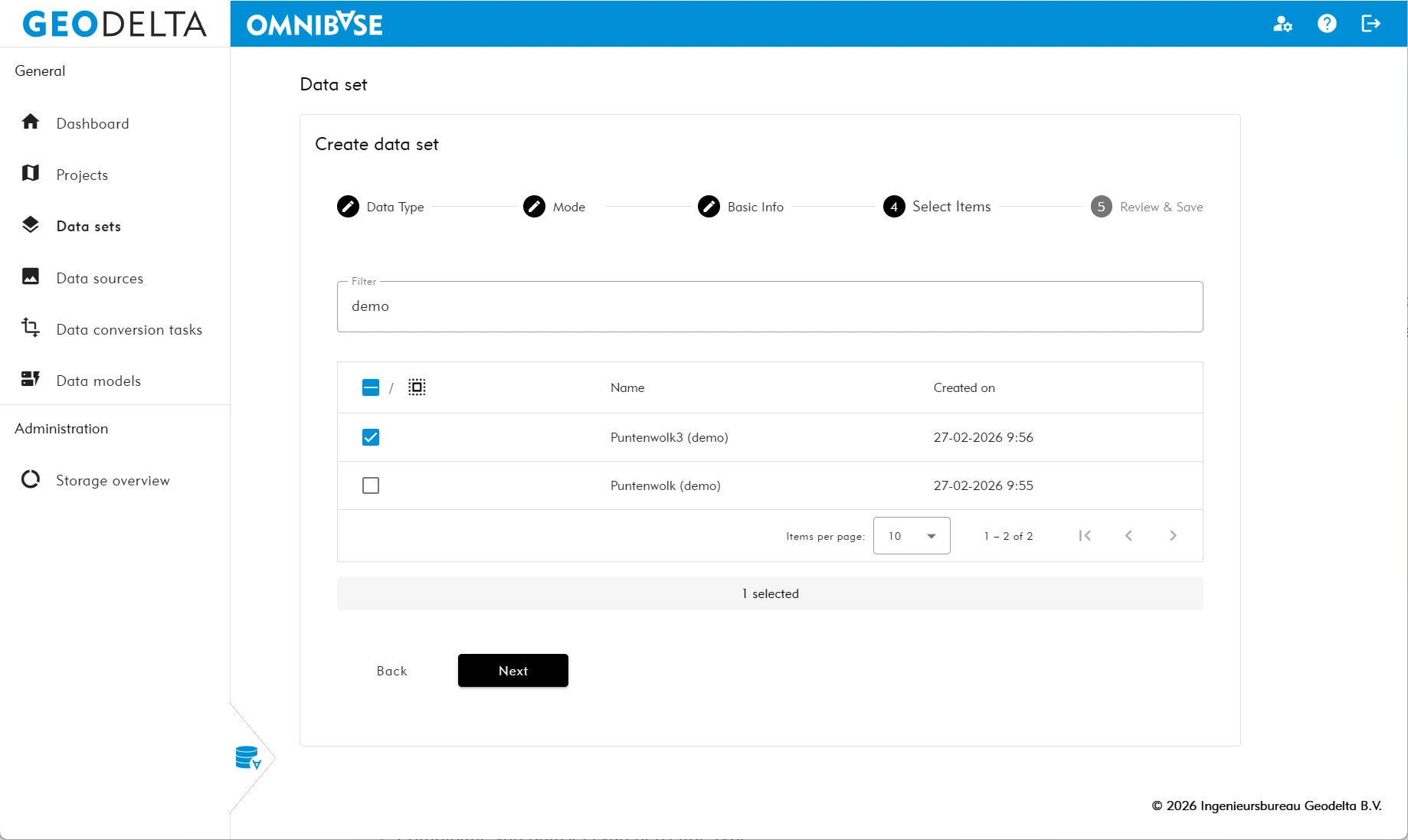
Virtual dataset
Select existing datasets of the same type.
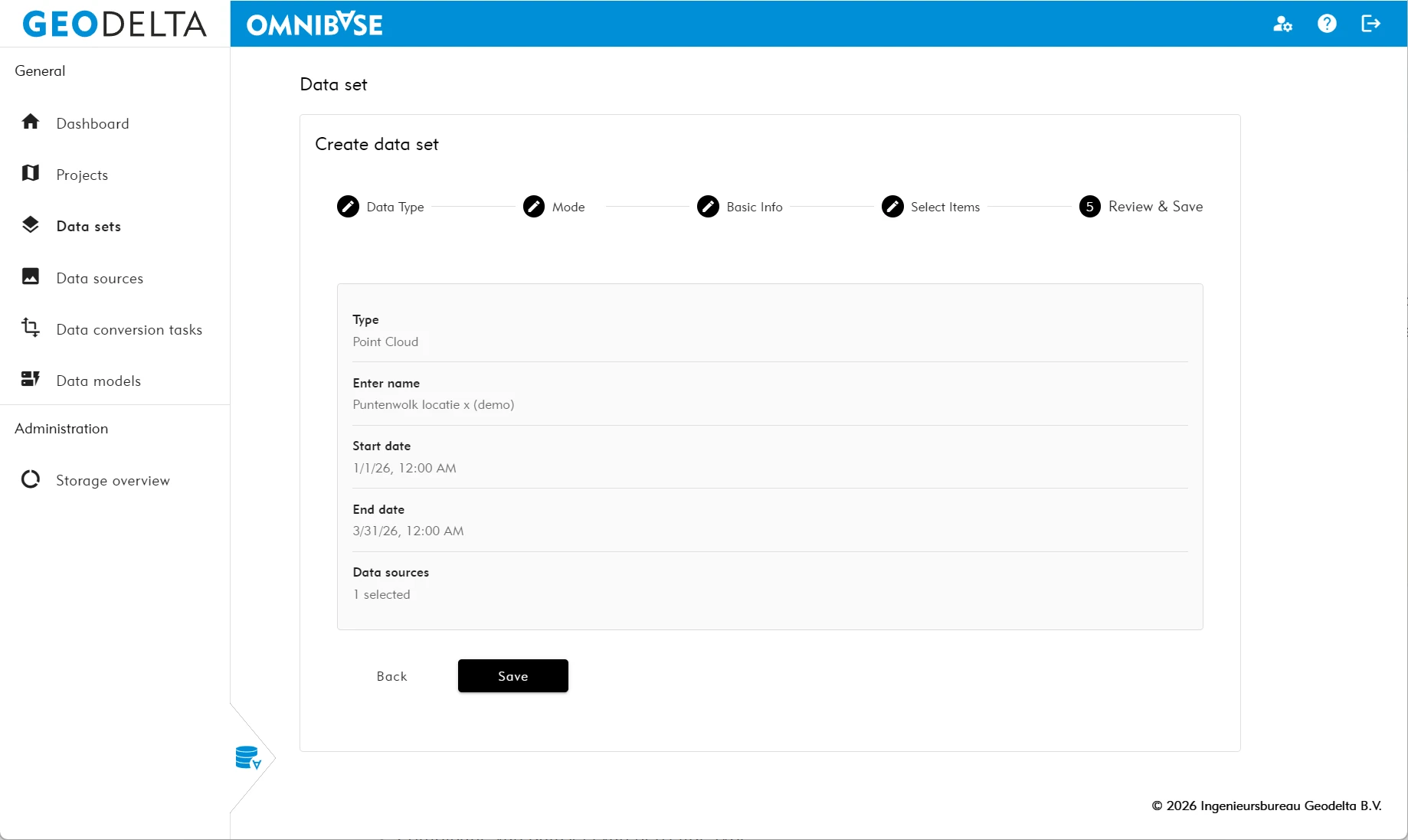
Step 5 – Review and save
Verify all settings and click Save.
Modifying a dataset
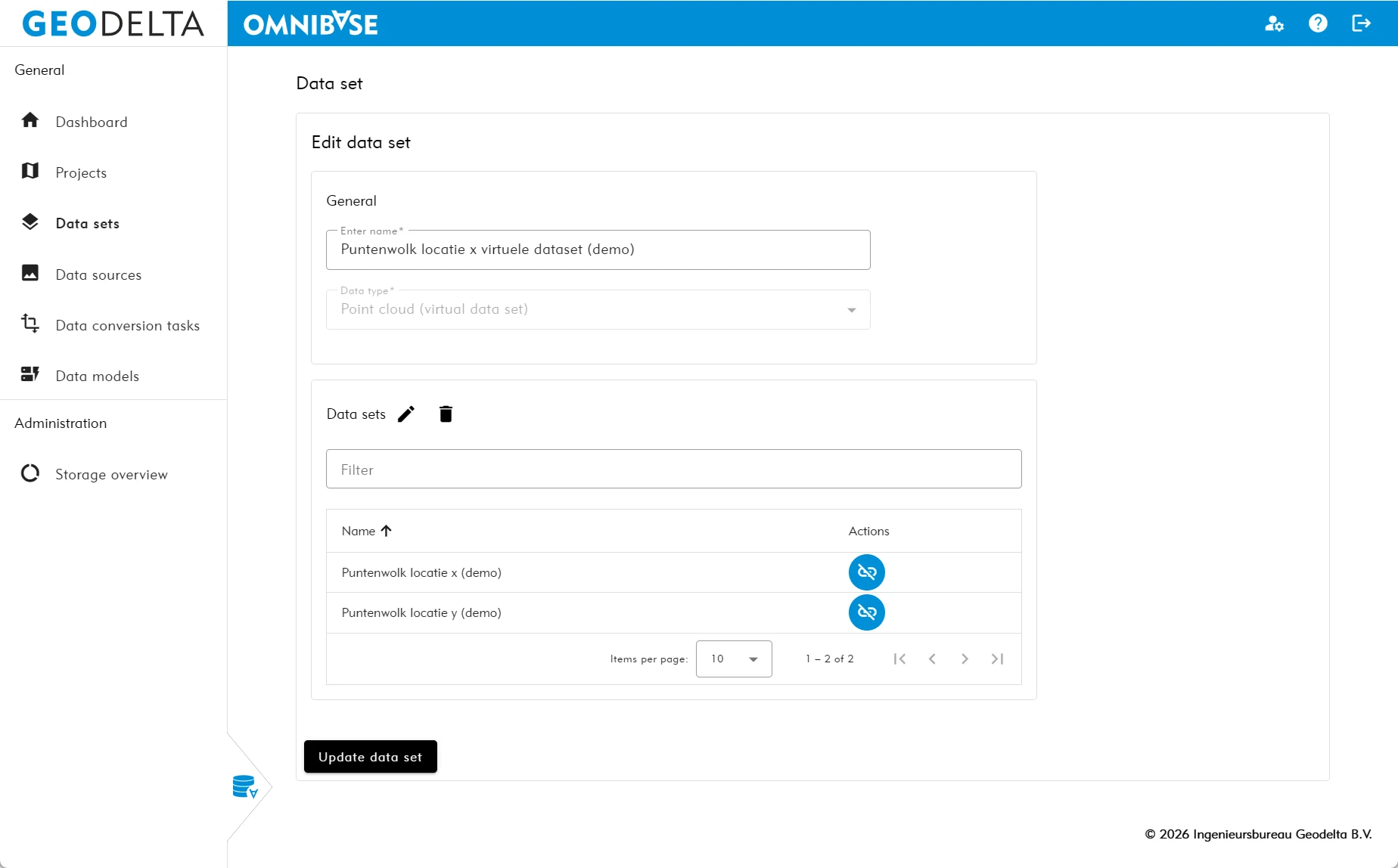
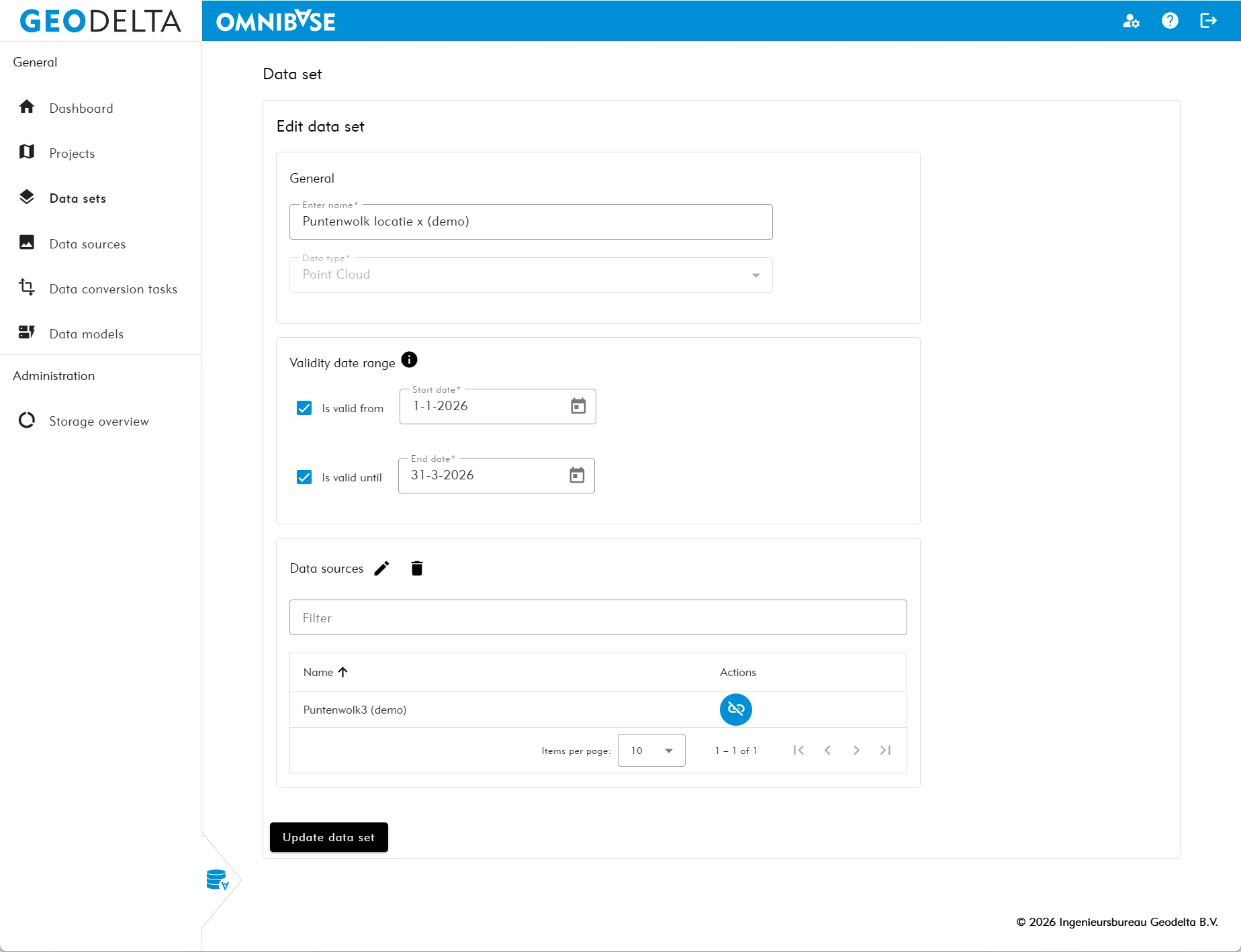
Editing a dataset opens a single configuration menu.
Dataset – Source type: Data sources
Possible changes:
- Modify name
- Modify validity period
- For a panorama dataset: modify the color of the panorama locations
- Update linked data sources
- Pencil icon → add data sources
- Trash icon → remove all linked sources
- Apply optional filter
- Remove individual sources via action icon
Dataset – Source type: Virtual dataset
Possible changes:
- Modify name
- Update linked datasets
- Pencil icon → add datasets
- Trash icon → remove all linked datasets
- Apply optional filter
- Remove individual datasets via action icon