Logging in to Omnibase
Logging in with a username and password
You can log in to Omnibase in 2 ways: with your username and password or with your own Microsoft login details from your organization.
This can be done by navigating to www.omnibase.cloud.
Here you enter your organization ID that you received during the creation of your account and then continue logging in with your credentials.
The screen will look as follows:

Go to www.omnibase.cloud/organisatienaam/login, where you enter the name you received during the creation of your account in place of organisatienaam.
The screen will then look as follows (for example, with the organization Geodelta):
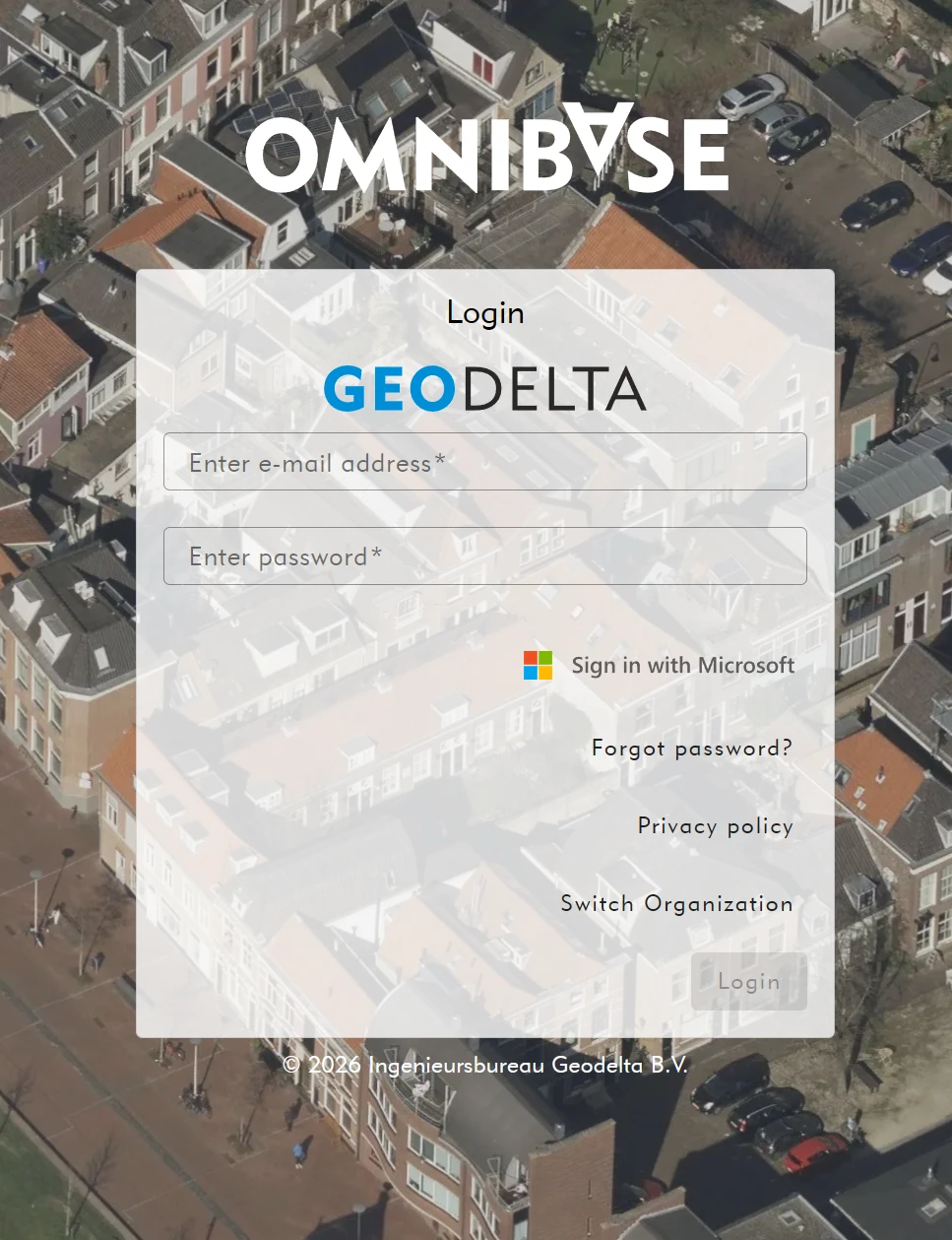
Other options are also available, such as:
- Logging in with Microsoft (if this is enabled for your organization)
- Forgot password
- Privacy statement
- Change Organization (if you open Omnibase with the Organization ID in the URL)
Logging in with a Microsoft account
If logging in with Microsoft for Omnibase has been approved within your organization and you have been added as a user within an Omnibase organization, you can log in to Omnibase in another way than only with your username and password. You can also log in directly to Omnibase with your own Microsoft organization credentials by clicking the "Log in with Microsoft" button.
Note: the Microsoft Entra ID administrator of your organization’s ICT department must always approve this first before it can be configured.