Open a project
Open a project from the Dashboard
A project can be opened by clicking on the desired project image within the dashboard:
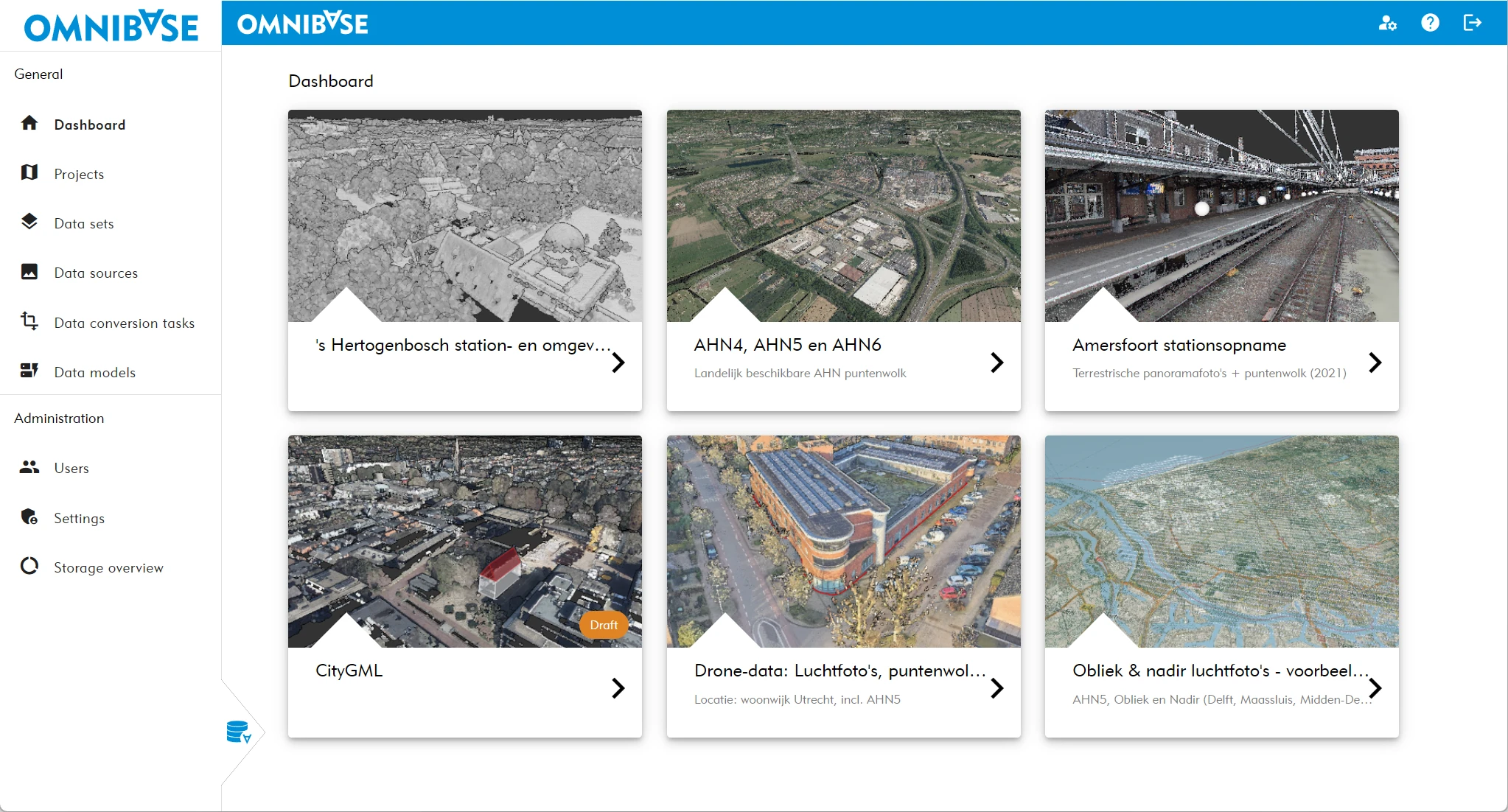
A project may display an orange label with Concept. This is a project created by a SuperUser or an Admin that has not yet been published. This can be useful if part of the required data has already been converted and added to the project, but cannot yet be published. When the data is complete, the project can be released and published immediately.
Both in the Dashboard and on the Projects page, this project is shown with the status Concept.
A SuperUser can only see their own concept projects, and an Admin can see all concept projects. Other users will not see this project as long as it has the Concept status.
Open a project from the Projects overview
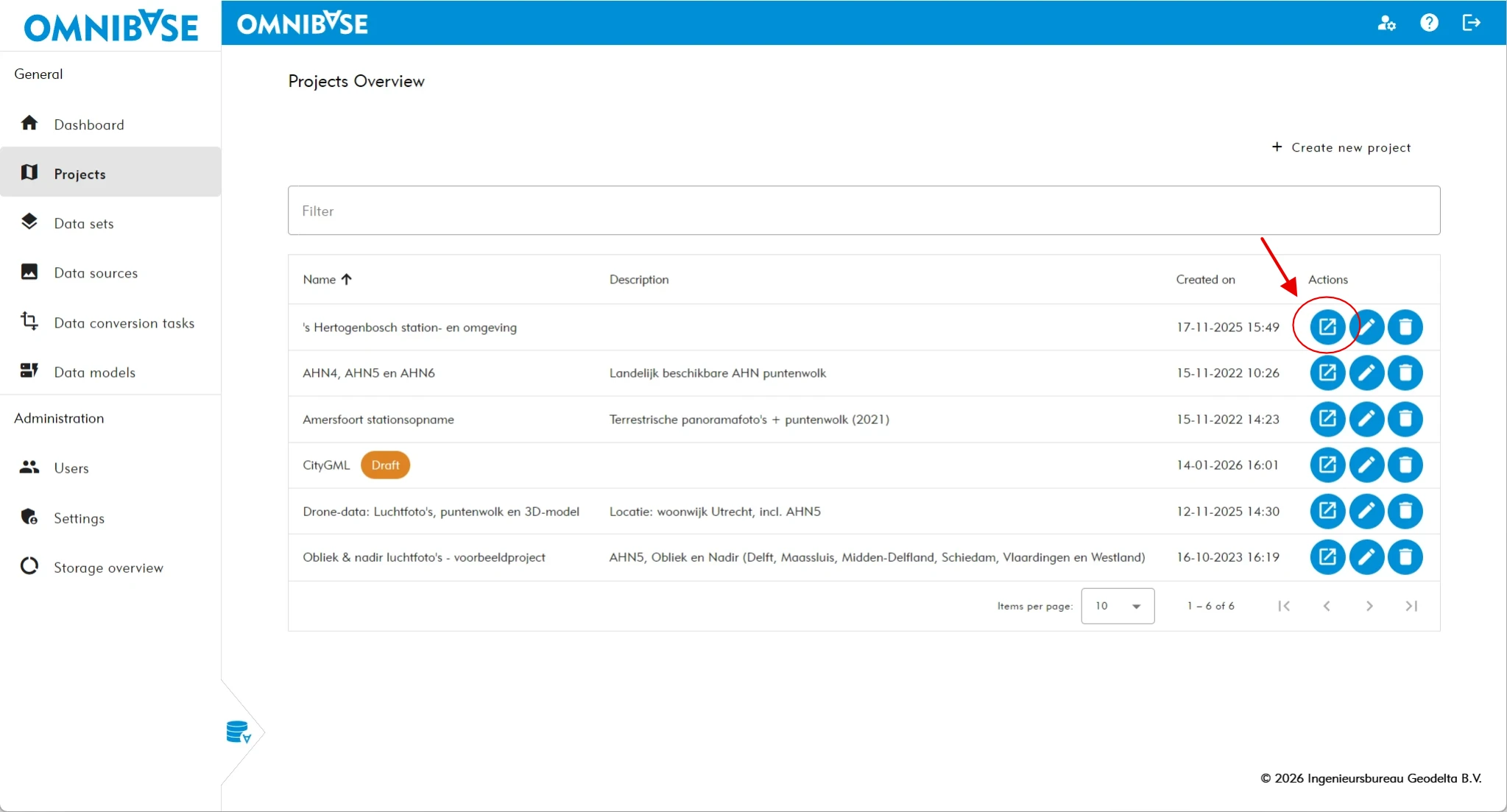
A project can also be opened from the Projects overview. The leftmost action, indicated by the red arrow below, can be used to open a project.
Most users (viewers and users) will only see the Dashboard and the Projects overview. In the Projects overview, the actions create, edit, and delete projects are therefore greyed out or not available for these users.
Open a project via a URL
As a third option, an Omnibase project can be opened using a standard URL from the browser. This also makes it possible to open Omnibase directly from another application, if that application supports opening a web browser based on a URL including parameters.
The following parameters can be set (parameters can be either uppercase or lowercase):
- Open Omnibase directly at an XY location.
- Open Omnibase directly in 2D or 3D mode.
- Directly open an aerial image or panoramic image, which will immediately rotate to the XY coordinate in split-screen mode.
- Directly open a specific viewing direction of an oblique image.
URL structure
The URL must be structured as follows: open a project, copy the full URL, and add a ‘?’ at the end. Then add one or more of the options below as URL parameters. For example:
https://www.omnibase.cloud/projects/{project-uuid}/view?modus=2d&x=85058.045&y=447164.847
Configurable parameters
- URL query parameter to open viewer at XY location:
- Open Omnibase directly at an XY location
project-url?x=85057.604&y=447166.311
- URL query parameters for 3d/2d mode:
- Open Omnibase directly in 2D or 3D mode
project-url?modus=2d, orproject-url?modus=3d
- URL to directly open data source in split screen:
- Directly open an aerial image or panoramic image (dataset name must contain this name), for example:
project-url?dataset=obliek, orproject-url?dataset=panorama
- **URL parameter for direction of opened image