Aerial imagery
Measurements in aerial imagery
Measurements within aerial imagery work quickly and intuitively in Omnibase. An intersection with an available point cloud or 3D model is always performed first to estimate the height of the measurement point. If the measurement point is not yet positioned correctly, it can be adjusted easily and quickly using a single slider so that the correct measurement point becomes visible in all images.
A measurement in an aerial image is based on an initial point cloud intersection, followed by optional fine-tuning through forward intersection in the aerial images.
The video below shows how a measurement is performed. The measurements are visible in all data sources and open views, enabling immediate control and quality assurance. If there was no simultaneous acquisition of point cloud and aerial imagery, Omnibase provides an estimate based on the available AHN point cloud file, which can be corrected quickly.
The table below shows which actions are performed in the video above:
| Time | Actions performed |
|---|---|
| 0–14 sec. | (1) Zoom to location in image, (2) center all views based on image view, (3) open next image in this direction, (4) zoom to corner point and (5) select perform polyline measurement. |
| 15–25 sec. | (1) Start measurement, (2) adjust side images, (3) fine-tune measurement point using the (height) slider and (4) accept first measurement point with spacebar. |
| 26–57 sec. | (1) Perform multiple measurements, (2) select an image from the other viewing direction, (3) choose another side image, (4) review the measurement point, (5) adjust measurement point with the (height) slider if necessary. |
| 0:57–1:06 min. | (1) Connect to the first measurement point, (2) zoom out and (3) review measurement in relation to the point cloud. |
Performing measurements in aerial imagery
An aerial image measurement starts by opening an image and navigating to the correct location. Right-click in the 2D or 3D view and Omnibase opens the best image for that location. A measurement is started by selecting the measurement type and then clicking on a location in the image.
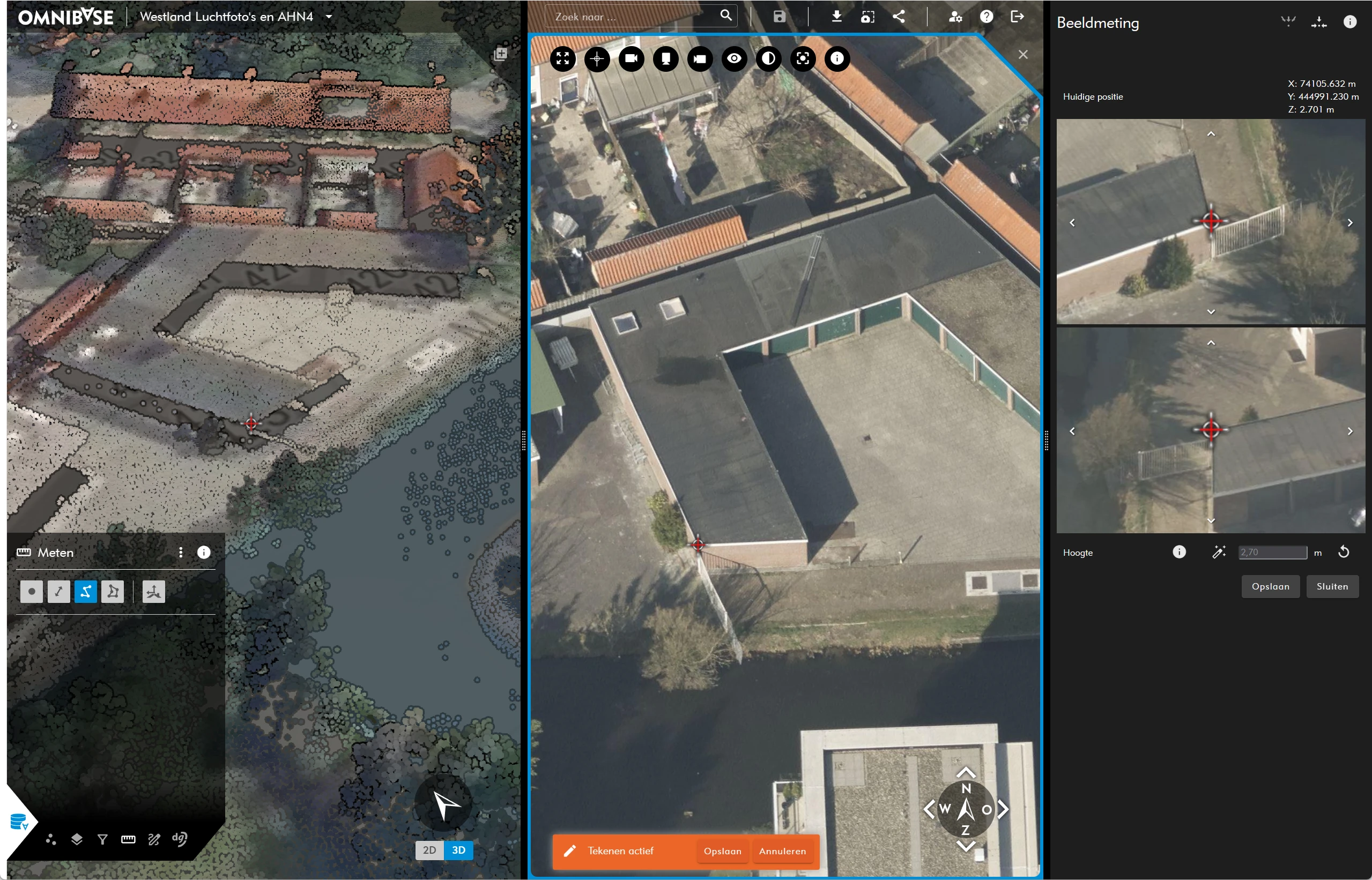
Start aerial image measurement
Workflow for aerial image measurements
- Select the measurement type (point, distance, polyline, or polygon).
- Click on the location in the image view for the first measurement:
- At the first measurement, the aerial image measurement menu is displayed on the right side of the screen.
- At the first click, an intersection with a point cloud or 3D model is always performed.
- Adjust the height slider if necessary by:
- Dragging the height slider from left to right while holding the left mouse button.
- Use keyboard shortcuts to adjust the height value (see information icon in the aerial image measurement menu):
- Windows:
Alt + scrollfor a large height adjustment, for fine adjustmentAlt + Shift + scroll. - macOS:
option + scrollfor a large height adjustment, for fine adjustmentoption + Shift + scroll
- Windows:
- Change the viewing direction of the side images by switching at the top of the measurement menu between:
- Parallel auxiliary images: for images with the same viewing direction as the aerial image in which you are measuring.
- Perpendicular auxiliary images: for images perpendicular to the viewing direction of the aerial image in which you are measuring.
- Press the
spacebar,enter, or thesavebutton to accept the measurement and continue to the next measurement point. - Press the
spacebarorenteragain to fully complete the measurement.
Since objects are often measured at the same height, the measurement retains the same height value (Z value) for subsequent measurement points. This is also referred to as height lock. This allows a measurement of an object to be performed entirely from the opened image, with minor adjustments to the height slider if certain points of an object are lower.
Also note that during an aerial image measurement, a measurement can be performed in the point cloud in the 3D screen on the left.
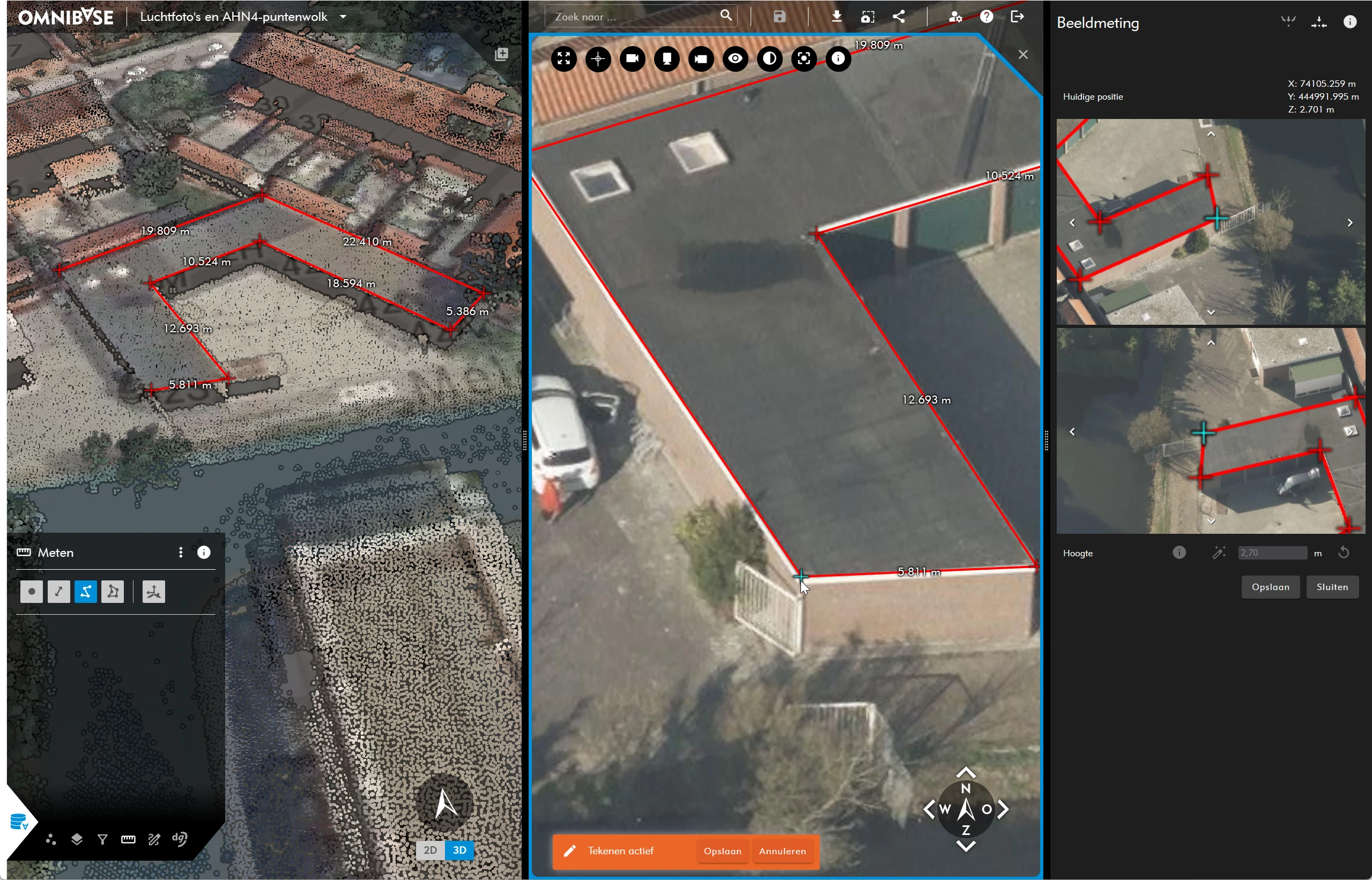
Completing aerial image measurement
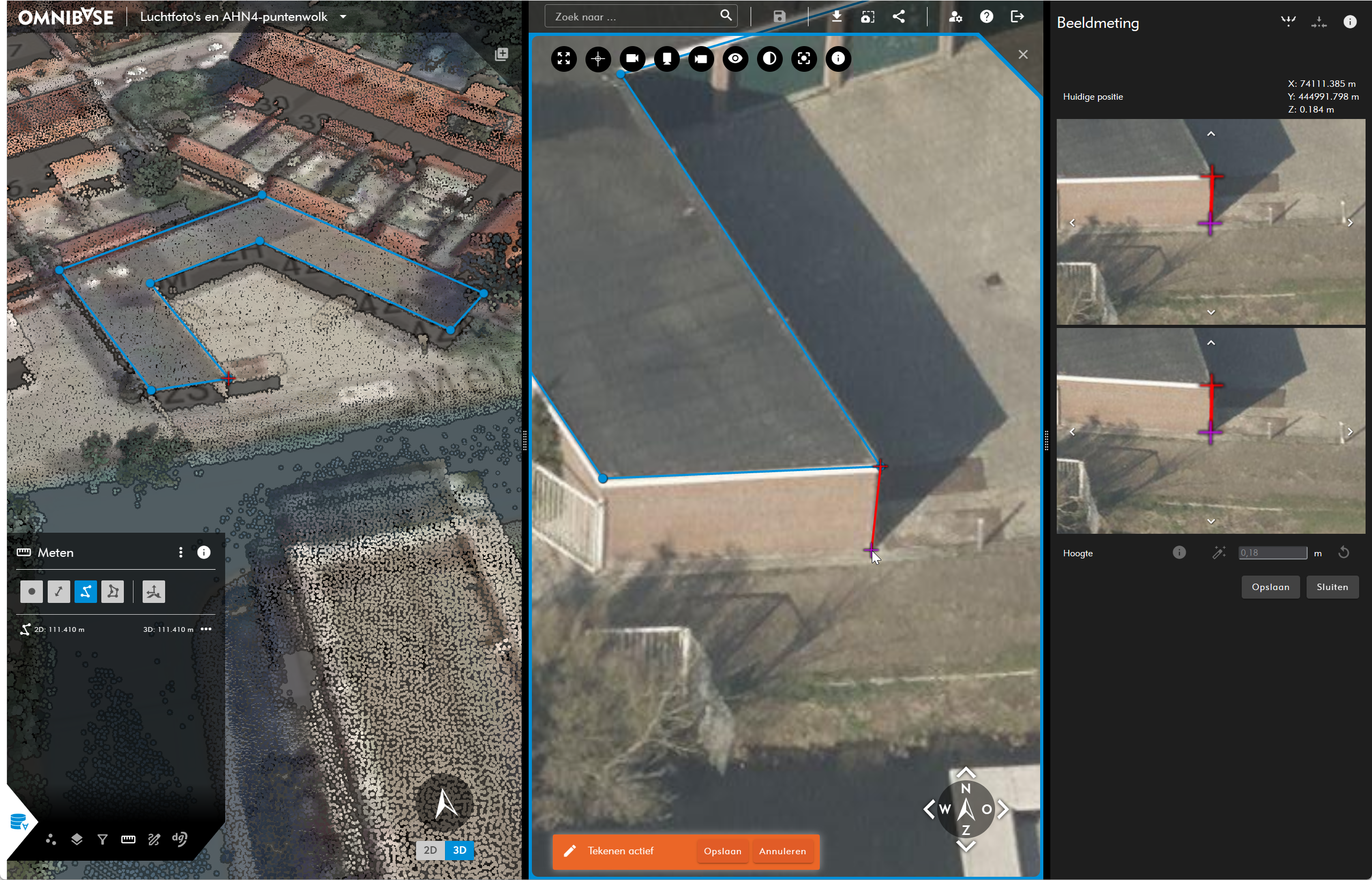
Within the aerial image measurement tools, you can also select a mode to perform a point cloud intersection at each click in the image. In this case, the height lock is temporarily or completely disabled.
Change the height determination method
Change the height determination method during an active aerial image measurement as follows:
- Use the ' h ' key to switch the height determination method.
- The cursor turns purple: an intersection with the point cloud is performed for each click.
- Select this option when measuring objects with significant height differences.
- Hold down the ' m ' key to temporarily change the height determination method.
- Hold down the ' m ' key while clicking in the image.
- Release the ' m ' key after the measurement:
- The height determination method returns to default: the same Z value is retained.
- The cursor is displayed in red again.
Automatic measurement in aerial imagery
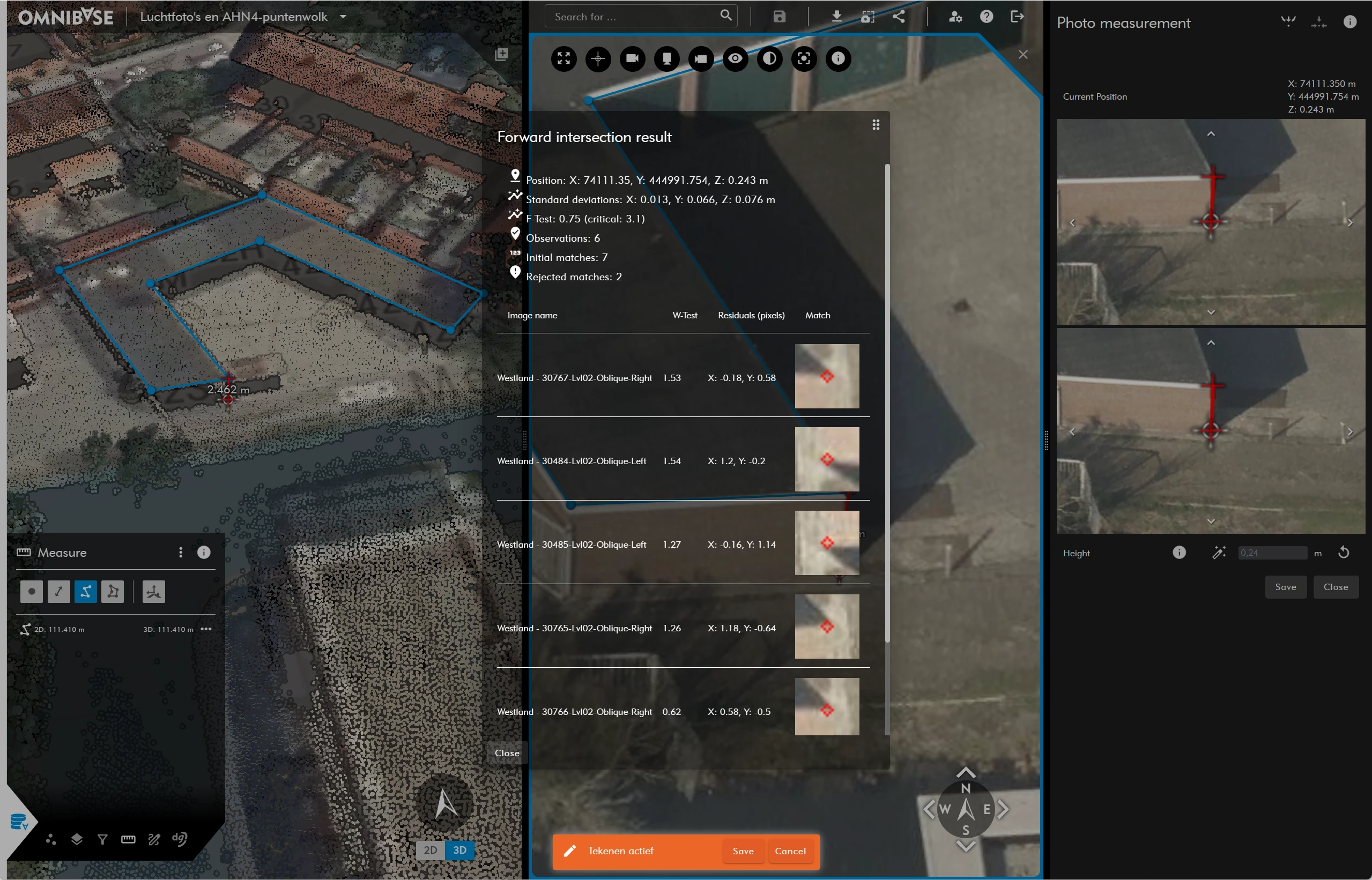
Use automatic measurement (the magic wand) when you have a clearly visible object for which an automatic measurement (forward intersection) with photogrammetric adjustment can be performed. The first time, it may take a short moment before a result is shown because a service within Omnibase is started. After that, the calculation should complete within a few seconds.
The resulting coordinate is derived from a template-matching algorithm that uses images from the same direction. The marked coordinate is used for the template to which overlapping images are matched. A combination of these matches results in a photogrammetric calculation with observations in multiple images. These observations are checked for errors within the calculation and, if necessary, rejected. This calculation also allows a standard deviation in the X, Y, and Z directions to be computed.
View the result of the forward intersection calculation by clicking the information button next to the magic wand. If there are insufficient (correct) matches, an error message will appear after using the magic wand.