Point clouds / 3D model
Measurements in point clouds
The figure below shows that measurements within a point cloud can be performed easily.
You always click on an available point in the point cloud. By zooming in, the highest level of detail of the point cloud is loaded. During the measurement, you can rotate around the point to verify that the correct measurement point has been selected. An incorrect measurement point can also be corrected later by editing the measurement.
Workflow for performing a new measurement:
- Select the measurement type (point, distance, polyline, or polygon).
- Pan or zoom in the 3D view:
- Hold the left mouse button to pan.
- Hold the right mouse button to rotate around a pivot point or press the middle mouse button to rotate from the same position.
- Click with the left mouse button to perform a measurement (you snap to a point in the point cloud).
- Optionally rotate around the point to verify it has been measured correctly and continue with the next measurement points.
- If a measurement point is incorrect, use the key combination
Ctrl + ZorBackspaceto remove a measurement point.
- Complete the measurement:
- For a point measurement, each click immediately places a point.
- For a distance measurement, after placing the distance (2 measurement points), the measurement is not saved immediately. Click a new measurement point or press the
spacebarorEnter. - For a polyline measurement, after placing the polyline, the measurement is not saved immediately. Use the
spacebaror pressEnter. - For a polygon measurement, the measurement is completed when snapping back to the first measurement point; the cursor turns blue. Use the
spacebaror pressEnterto close the polygon and Omnibase will automatically close the polygon to the first measurement point.
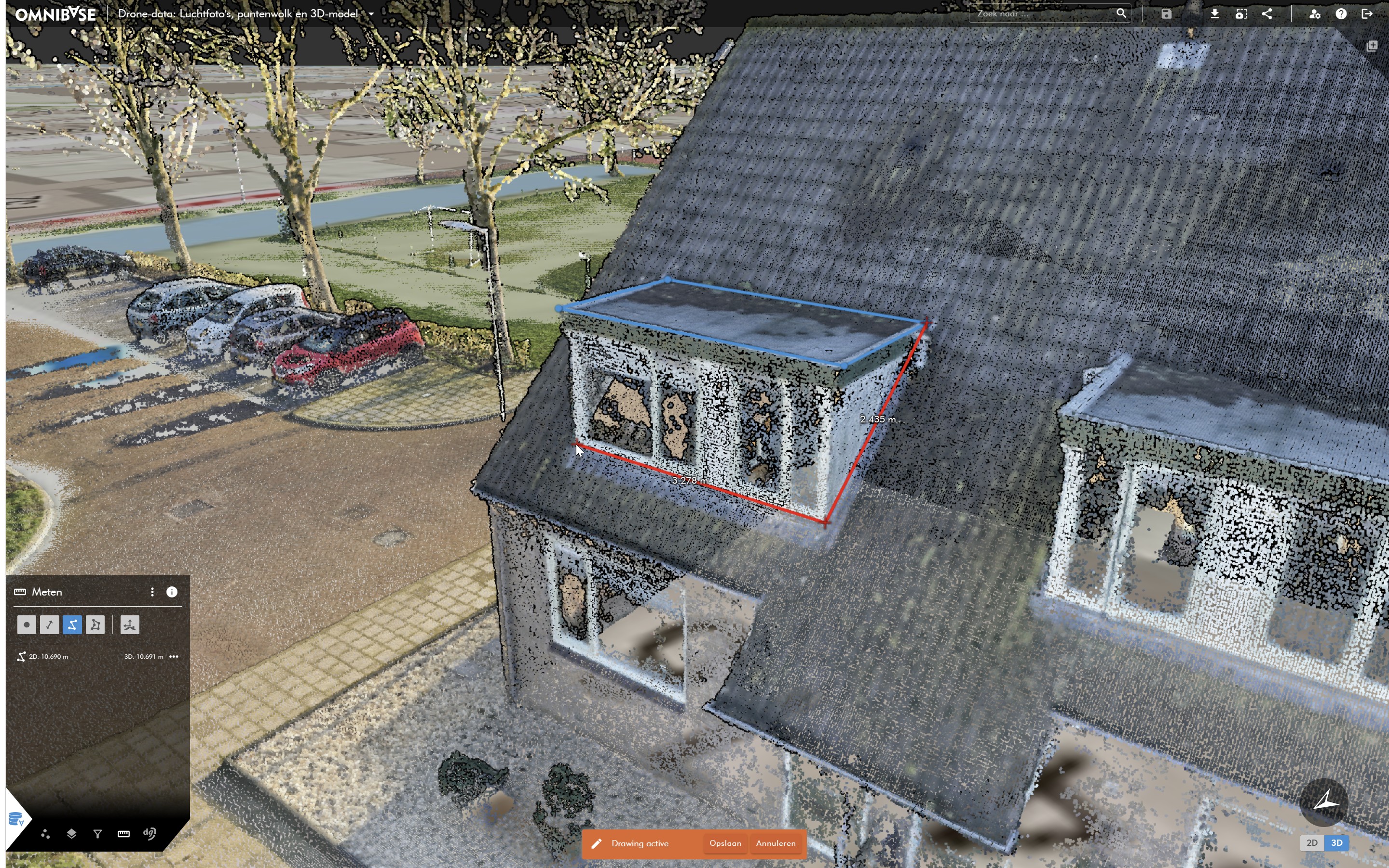
Measurement within a point cloud
Measurement within a point cloud using the cross-section tool
When, for example, a corner point needs to be determined, this can be done based on a cross-section measurement in Omnibase. This is activated by enabling the cross-section icon when performing a measurement. When active, the icon is displayed in blue.
The cross-section measurement can be enabled or disabled for each vertex by clicking this icon.
This is how the cross-section functionality is enabled and used:
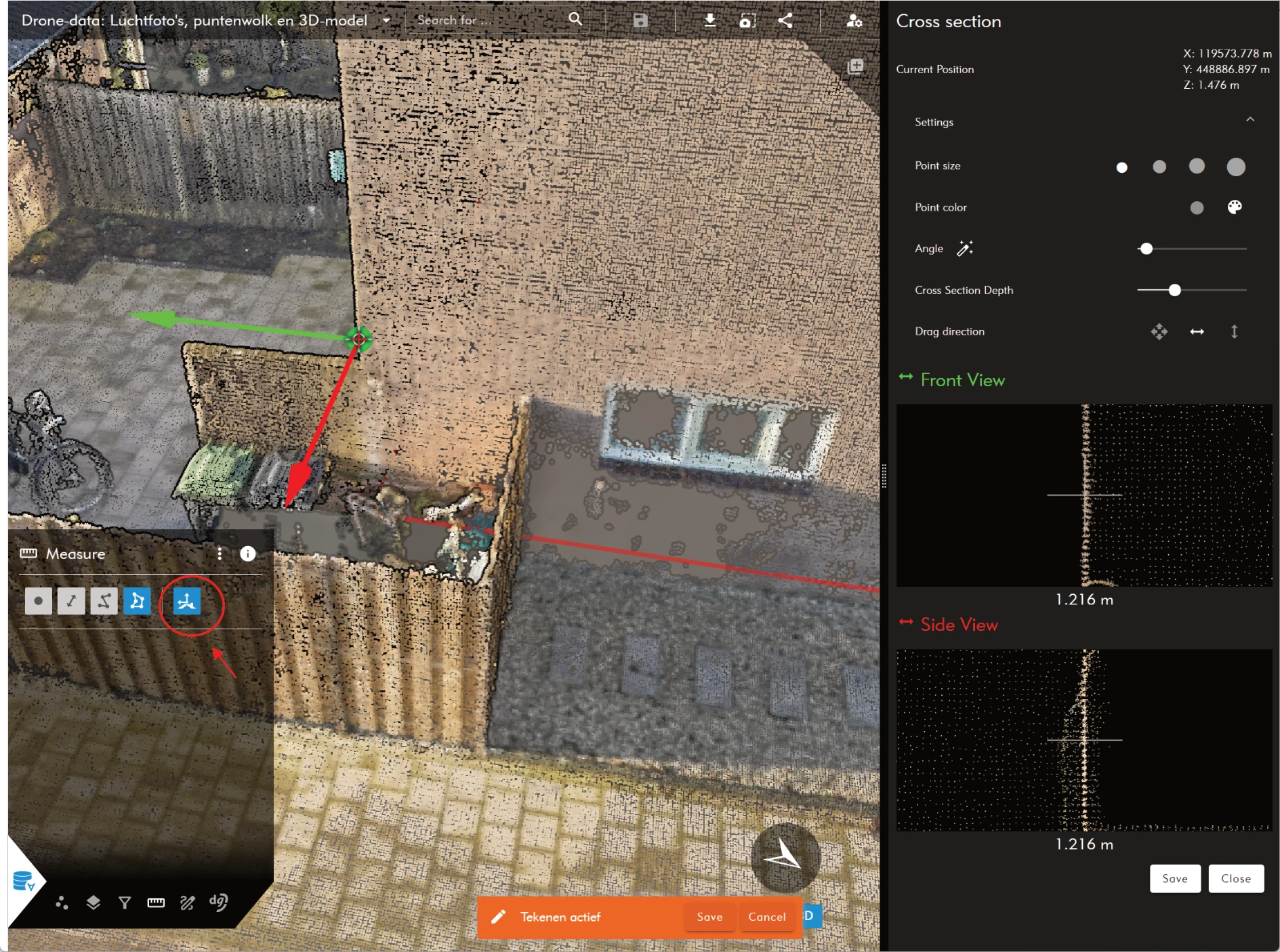
Start cross-section measurement
Workflow for using the cross-section tooling for a measurement point:
- Select the measurement type (point, distance, polyline, or polygon).
- Optionally perform a number of measurements in the normal way (described above).
- Click the cross-section icon to display point clouds in cross-section (side views) for the next measurement.
- Click the new measurement point: the two side views appear (see example above).
- Expand the cross-section settings menu (as shown below):
- Adjust the point size and/or point color of the side views.
- The cross-section tooling attempts to find the best rotation of the coordinate system, but sometimes this does not work well.
Adjust the system by:- Using the magic wand next to rotation (automatically determine coordinate system again)
- Manually changing the rotation by adjusting the rotation slider.
- A third option is to click the green or red arrow with the left mouse button and then select another point in the 3D view to adjust the rotation of the coordinate system.
- Optionally adjust the thickness of the cross-section using the slider.
- Adjust the measurement point by selecting the Move direction:
- Move the measurement point in all directions (first icon with 4 arrows)
- Lock movement of the measurement point from left to right only (second icon).
- Lock movement of the measurement point from top to bottom only (third icon).
Move the mouse in the cross-section screens based on the selected movement direction and ensure that the measurement point is positioned correctly.
- Press the
spacebaror thesavebutton on the right in the cross-section menu to accept the measurement point and continue to the next measurement point.
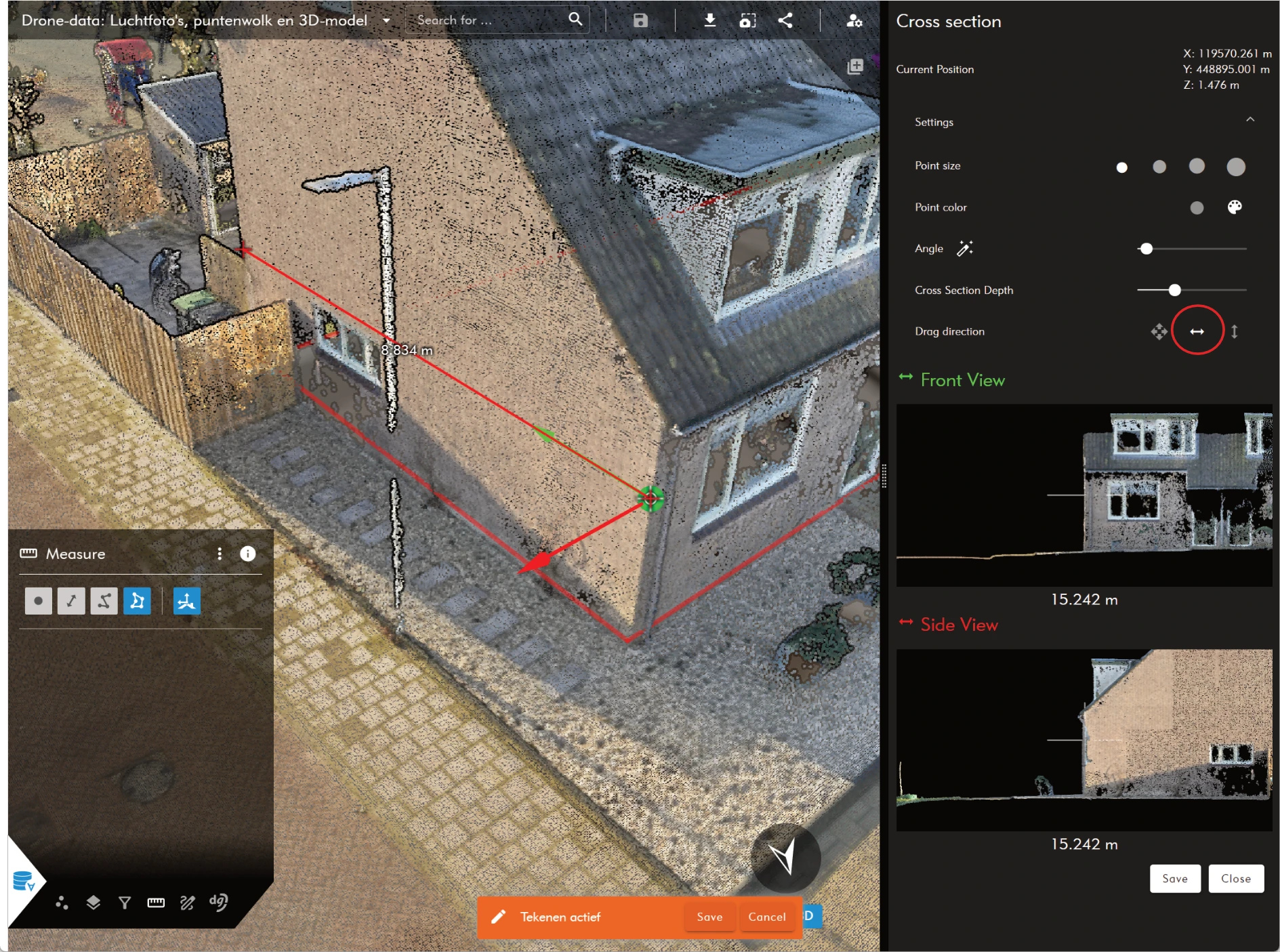
Cross-section measurement within a point cloud
Measurements in a 3D model
Measurements within a 3D model are very easy and intuitive. Use the same workflow as for point clouds to measure directly on a 3D model. The workflow is exactly the same for annotations as well.
The only difference is that the 3D model is not available in combination with the cross-section tooling. This is primarily used to measure corner points and other objects based on a point cloud.