Panoramic images
Measurements in panoramic images
Measuring in panoramic images works with the same technique as aerial image measurements. The main difference is that during a panoramic image measurement, the guide lines of the two side images can be displayed, allowing you to easily verify in the 3D view whether the measurement point aligns with point cloud reference data.
A panoramic image measurement starts by opening an image and navigating to the correct location. Right-click in the 2D or 3D view and Omnibase opens the best image for that location. A measurement is started by selecting the measurement type and then clicking on a location in the image.
A measurement in a panoramic image is based on an initial point cloud intersection, followed by optional fine-tuning through forward intersection in the panoramic images.
For panoramic measurements, there is also the option to first perform an intersection with the point cloud. After that, fine adjustment can be done by moving a slider. This allows you to position the measurement point precisely, based on a forward intersection in 3 or other selected panoramic images.
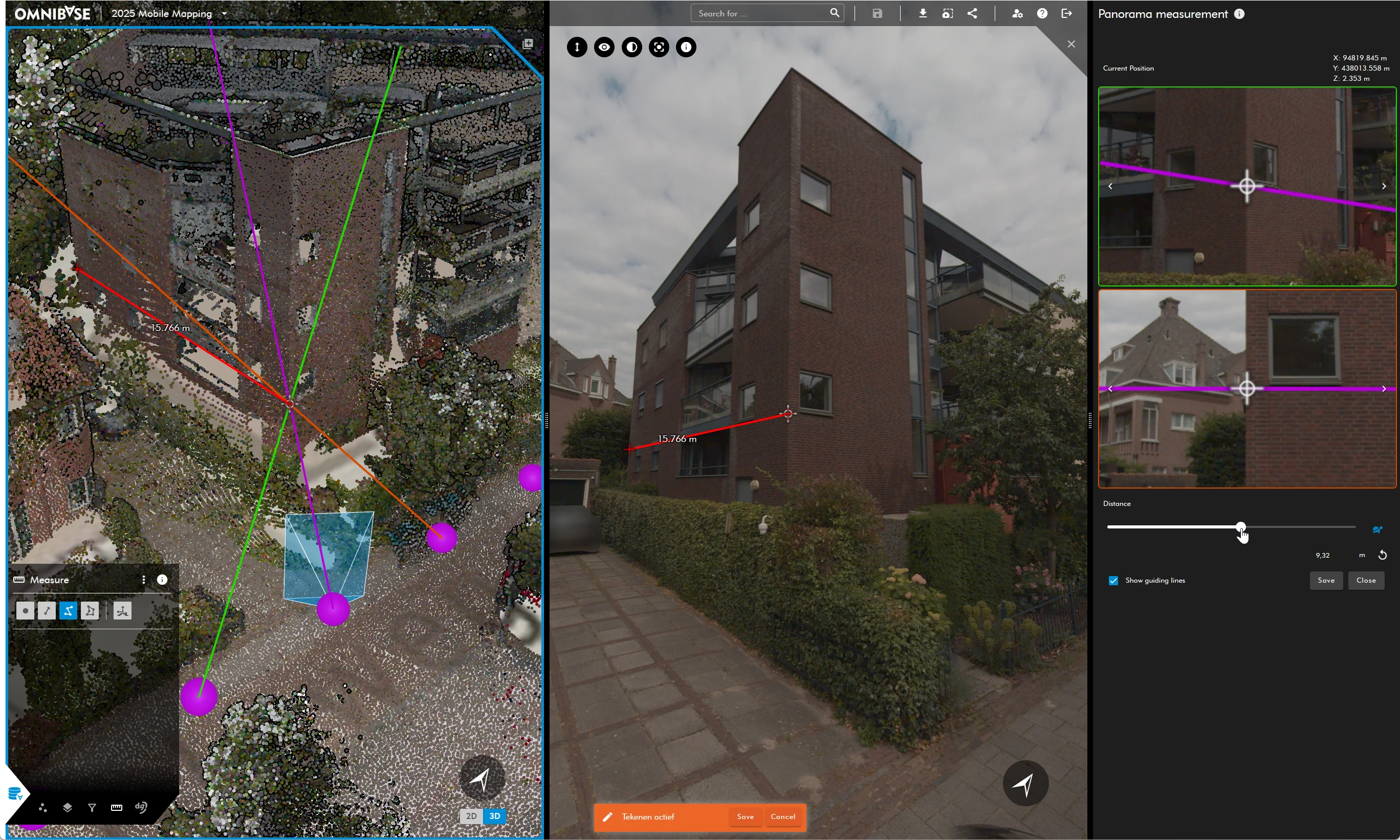
Workflow for panoramic image measurements
- Select the measurement type (point, distance, polyline, or polygon).
- Click on the location in the image view for the first measurement:
- At the first measurement, the panoramic image measurement menu is displayed on the right side of the screen.
- At the first click, an intersection with a point cloud or 3D model is always performed.
- Use this result if the measurement point is correctly positioned in all panoramic images.
- Adjust the distance slider if necessary by:
- Dragging the distance slider from left to right while holding the left mouse button.
- Optionally select the turtle icon to activate fine adjustment. When this setting is activated, the icon is displayed in blue.
- Use keyboard shortcuts to adjust the distance value (see information icon in the panoramic image measurement menu):
- Windows:
Alt + scrollfor a large height adjustment, for fine adjustmentAlt + Shift + scroll. - macOS:
option + scrollfor a large height adjustment, for fine adjustmentoption + Shift + scroll
- Windows:
- Dragging the distance slider from left to right while holding the left mouse button.
- Change the additional panoramic images used by clicking the left or right arrows in the viewer of the two smaller auxiliary panoramic images to select a nearby image.
- Use the guide lines by checking the show guide lines option to display the intersection lines of the panoramic images:
- Side images: red and green line.
- From the image you are measuring in: purple line.
- The three lines intersect at the 3D measurement point. In all images, the cursor must be positioned correctly to perform a proper photogrammetric measurement.
- Press the
spacebar,enter, or thesavebutton to accept the measurement and continue to the next measurement point. - Press the
spacebarorenteragain to fully complete the measurement.
Also for panoramic photos, there is the option for a Z-value lock. For subsequent measurement points of an object at the same height, the Z-value is retained, allowing these measurements to be performed quickly. With panoramic photos, it can also be useful to create an intersection with the point cloud at each click. In that case, select the other height determination method by activating it with the ' h ' key (purple cursor).
Change the height determination method
Change the height determination method during an active panoramic image measurement as follows:
- Use the ' h ' key to switch the height determination method.
- The cursor turns purple: an intersection with the point cloud is performed for each click.
- Select this option when measuring objects with significant height differences.
- Hold down the ' m ' key to temporarily change the height determination method.
- Hold down the ' m ' key while clicking in the image.
- Release the ' m ' key after the measurement:
- The height determination method returns to default: the same Z value is retained.
- The cursor is displayed in red again.