Editing measurements/annotations
How to edit a measurement
Below is an explanation of how a measurement or annotation can be modified within Omnibase. When editing a measurement or annotation, all data sources can be used again and the geometry can be modified per vertex. In addition, holes can be added and Omnibase checks whether the geometry is topologically valid. Checks are also performed on self-intersecting polygons. Everything starts by putting a measurement into edit mode.
Start editing a measurement
Editing measurements can easily be started by:
- Right-click on geometry:
- Select the correct measurement
- Click the pencil with the text
Edit geometry
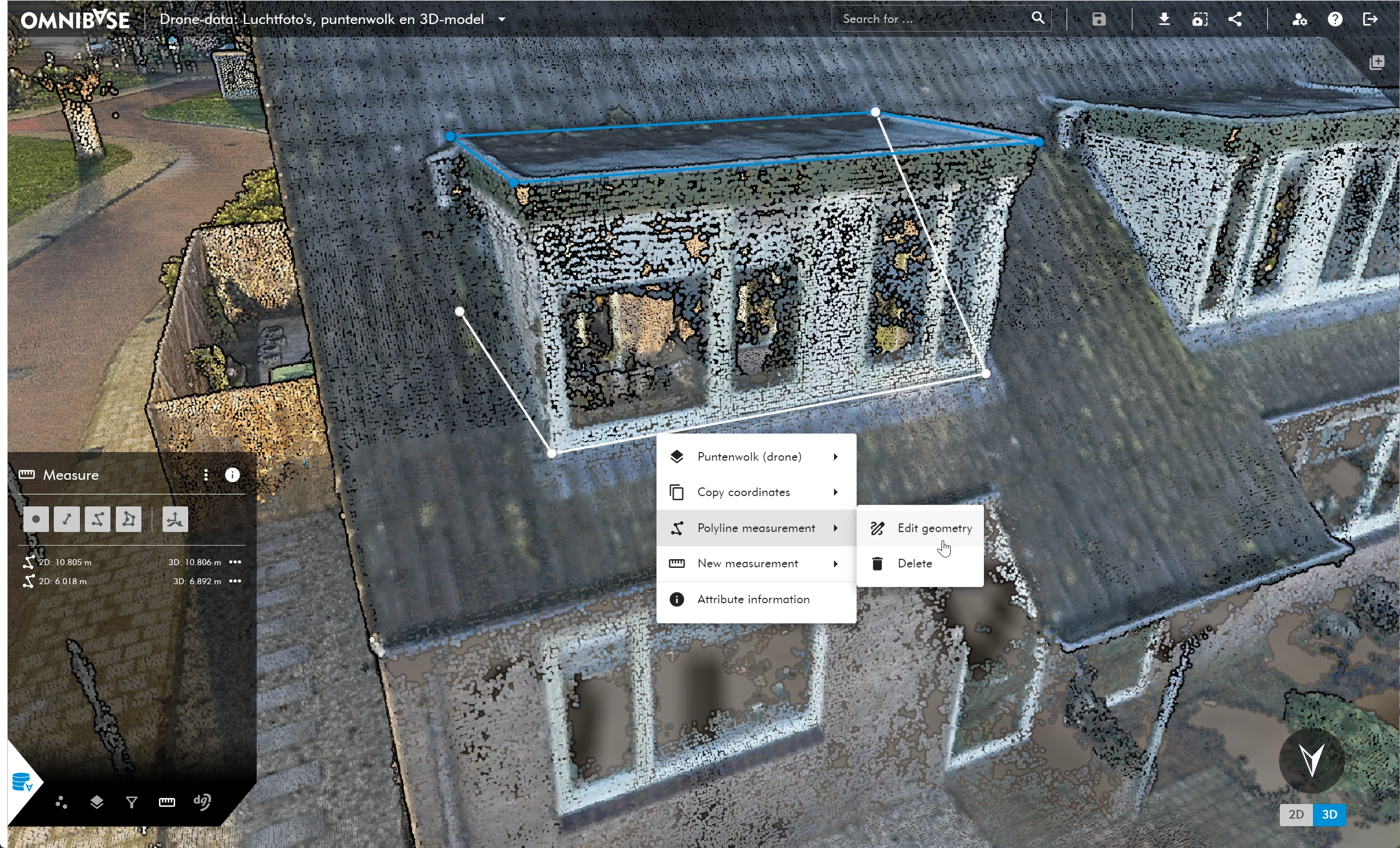
Editing measurements: select measurement + activate edit mode
- Within the measurements menu:
- Select/search for the correct measurement
- Click the 3 horizontal dots on the right side of the measurement
- Choose
Edit geometry
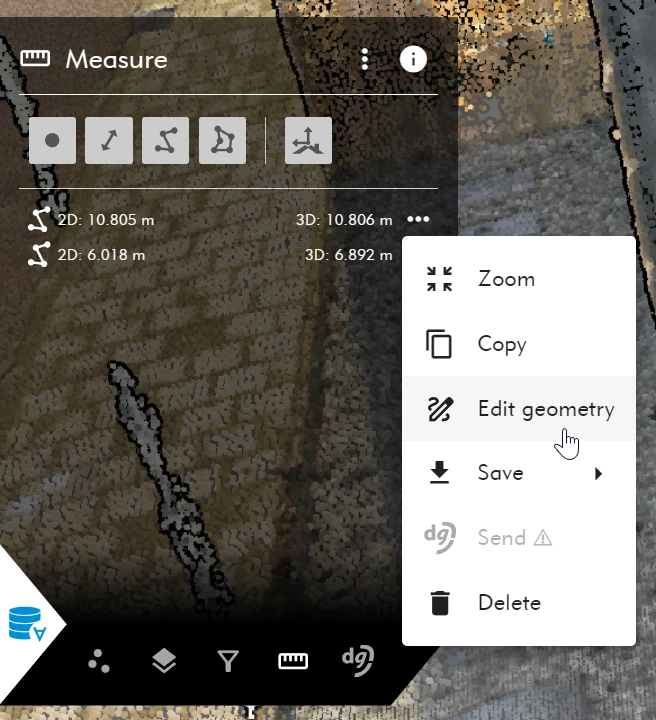
Editing measurements: select measurement + activate edit mode
Edit mode has now started, which is visible at the bottom of the viewer by the orange bar. Within this mode, the selected geometry can be modified.
The geometry can now be changed by moving, deleting, or inserting a vertex.
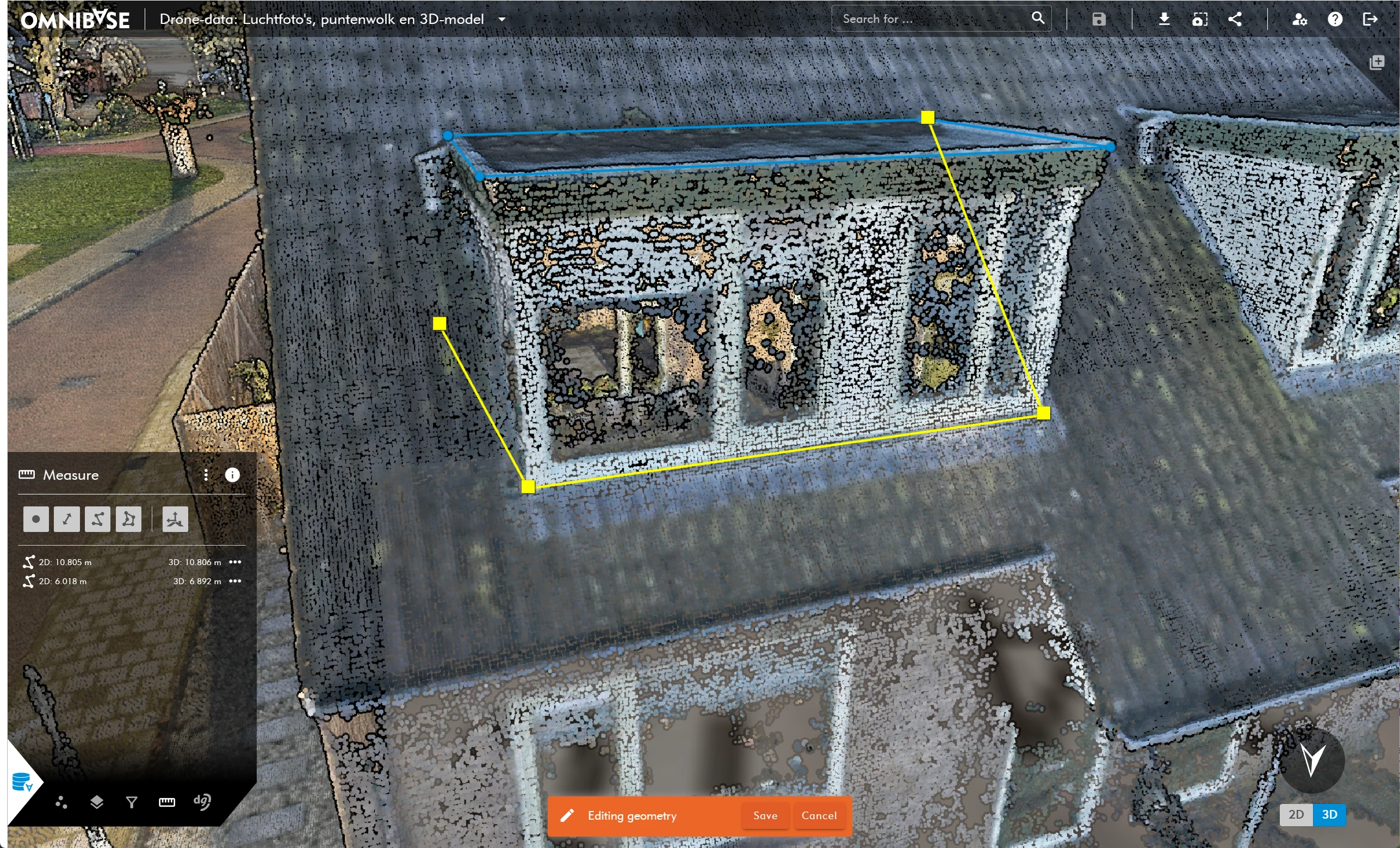
Editing measurements: edit mode active
Editing a measurement
Moving geometry vertices
Editing a vertex of the geometry can be done easily by selecting the point with the left mouse button. The vertex of the selected point turns red and can now be remeasured in the point cloud or by means of a cross-section measurement, aerial image measurement, or panoramic image measurement. The point to be moved can also be snapped to another geometry.
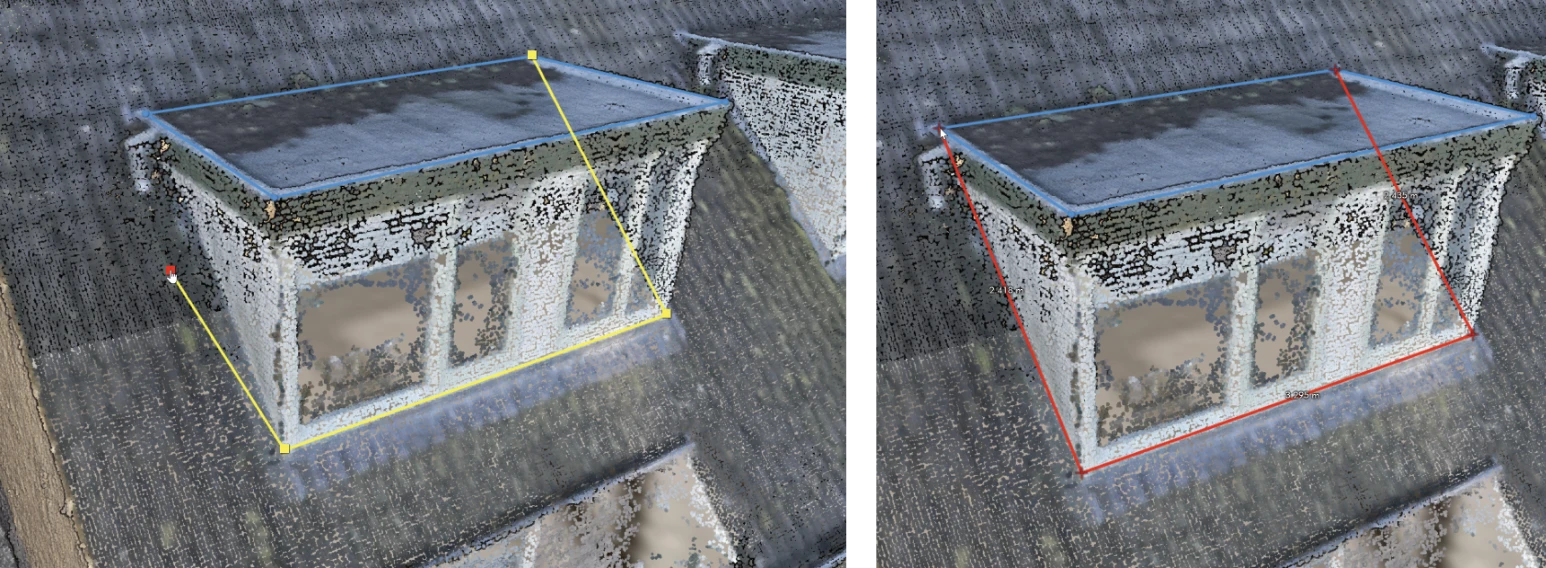
Editing measurements: select + modify geometry vertex
Adding intermediate points (extra vertices) to the geometry
Adding an intermediate point is also possible. Click approximately in the middle between two vertices on the red + symbol that appears when the mouse cursor is navigated to that location (see left below). Then measure a point in the point cloud or by means of a cross-section measurement, aerial image measurement, or panoramic image measurement. The intermediate point can also be snapped to another geometry.
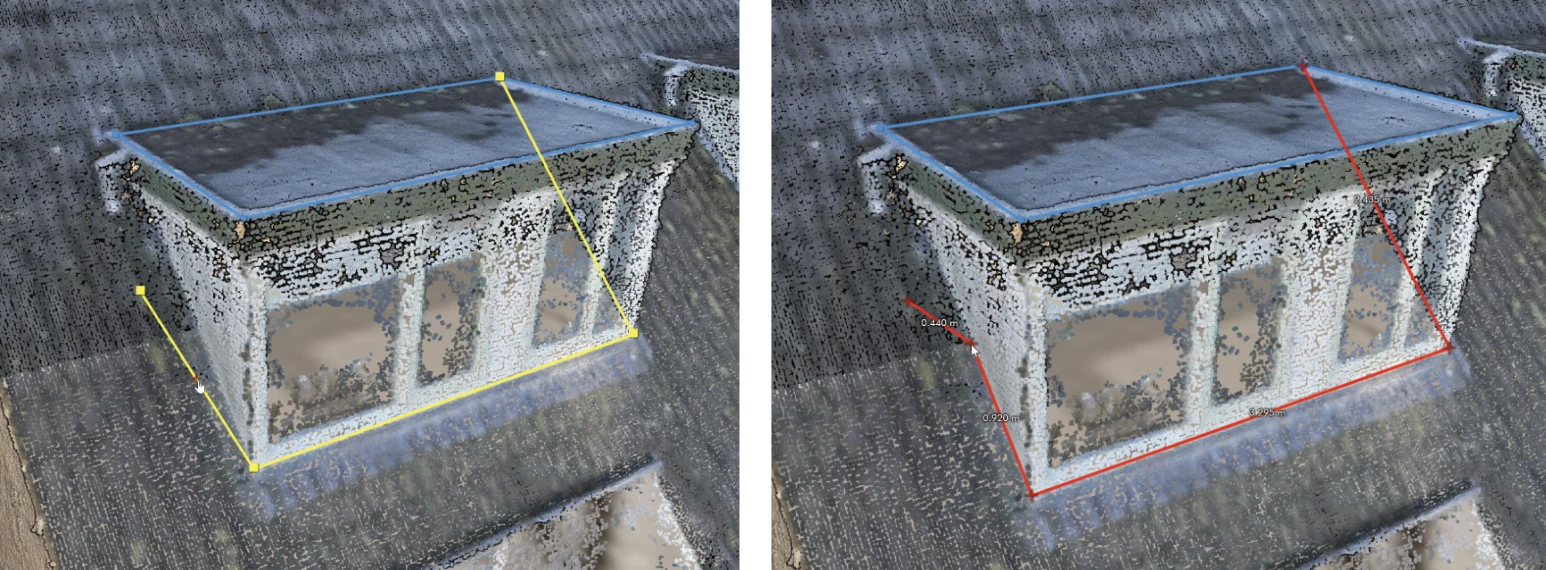
Editing measurements: inserting intermediate point in the geometry
Moving or copying a geometry
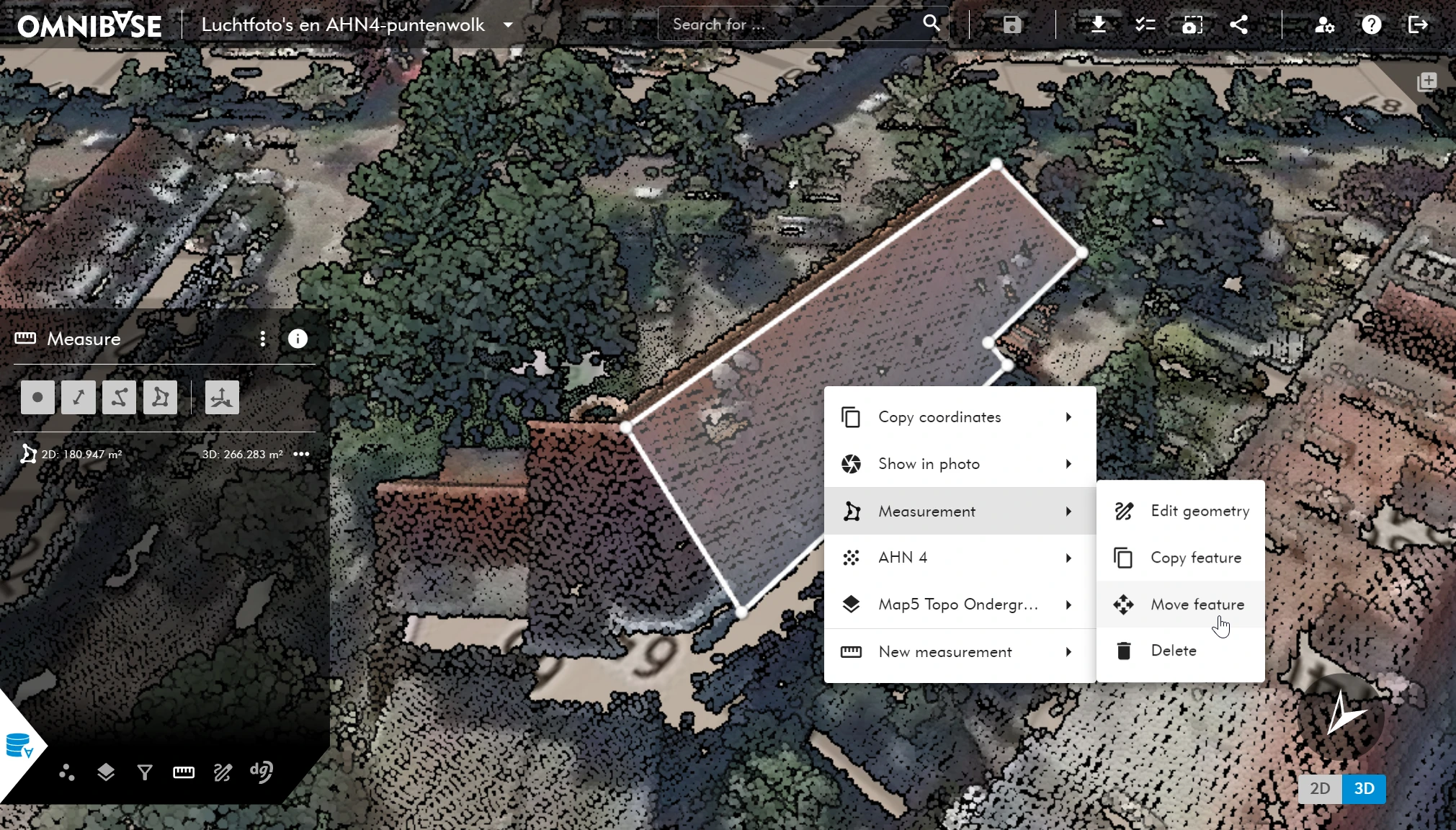
A complete geometry can also be moved or copied. This works the same way for annotation geometries.
- Select the geometry you want to move or copy with the
right mouse button.- This can also be done from the measurements menu by clicking the three horizontal dots behind the measurement.
- Choose
Move objectorCopy object. - Move the geometry to or paste the copied geometry at the desired location.
- The nearest vertex of the selected geometry is used as the anchor point for moving or pasting the object.
- After moving the geometry, you can still adjust a vertex or add an extra vertex if needed.
Completing the edit of a measurement
When editing is complete, click Save on the orange bar at the bottom of the viewer to apply the changes or Cancel to discard the changes.
Editing an annotation
Editing an annotation is done in the same way as described above.
- Select the annotation to be modified in the viewer or the annotation menu.
- Viewer: Right-click on the geometry to be modified to:
- View the selected annotation.
- Modify the geometry of the annotation.
- Delete the annotation.
- Annotation menu: Select/search for the correct annotation and click the 3 horizontal dots on the right side of the annotation to:
- View the selected annotation.
- Zoom to the selected annotation.
- Modify the geometry of the annotation.
- Delete the annotation.
- Viewer: Right-click on the geometry to be modified to:
- Choose the
Edit geometryoption.- Apply the geometric changes.
- Click
Opento:- View the annotation.
- Zoom to the annotation.
- Modify the annotation fields.
- Completely delete the annotation.
Note: it is no longer possible to change the data model of a created annotation.
- Click
Saveand the geometry of the annotation is updated. - Open the annotation to apply attribute changes.
Deleting an annotation with a keyboard shortcut
When an annotation is opened or selected in the annotation window, it can also be deleted with the Delete key on the keyboard. By default, Omnibase asks for confirmation before deleting the annotation.
For each browser session, you can choose to perform delete actions with the Delete key immediately, without showing the confirmation pop-up. When the Omnibase browser is closed, the session ends. In the next session, Omnibase shows the confirmation pop-up again when deleting with the Delete key.
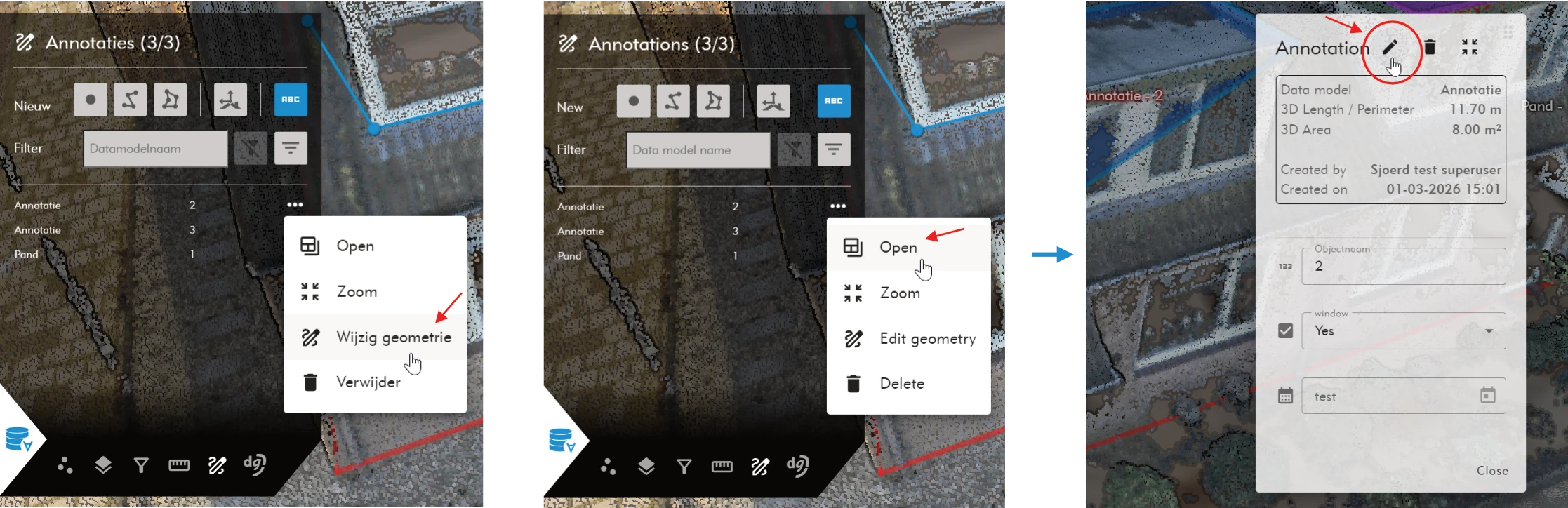
Editing annotation: select annotation + activate geometry edit mode (left), open annotation (middle) and start modifying annotation attribute data (right)
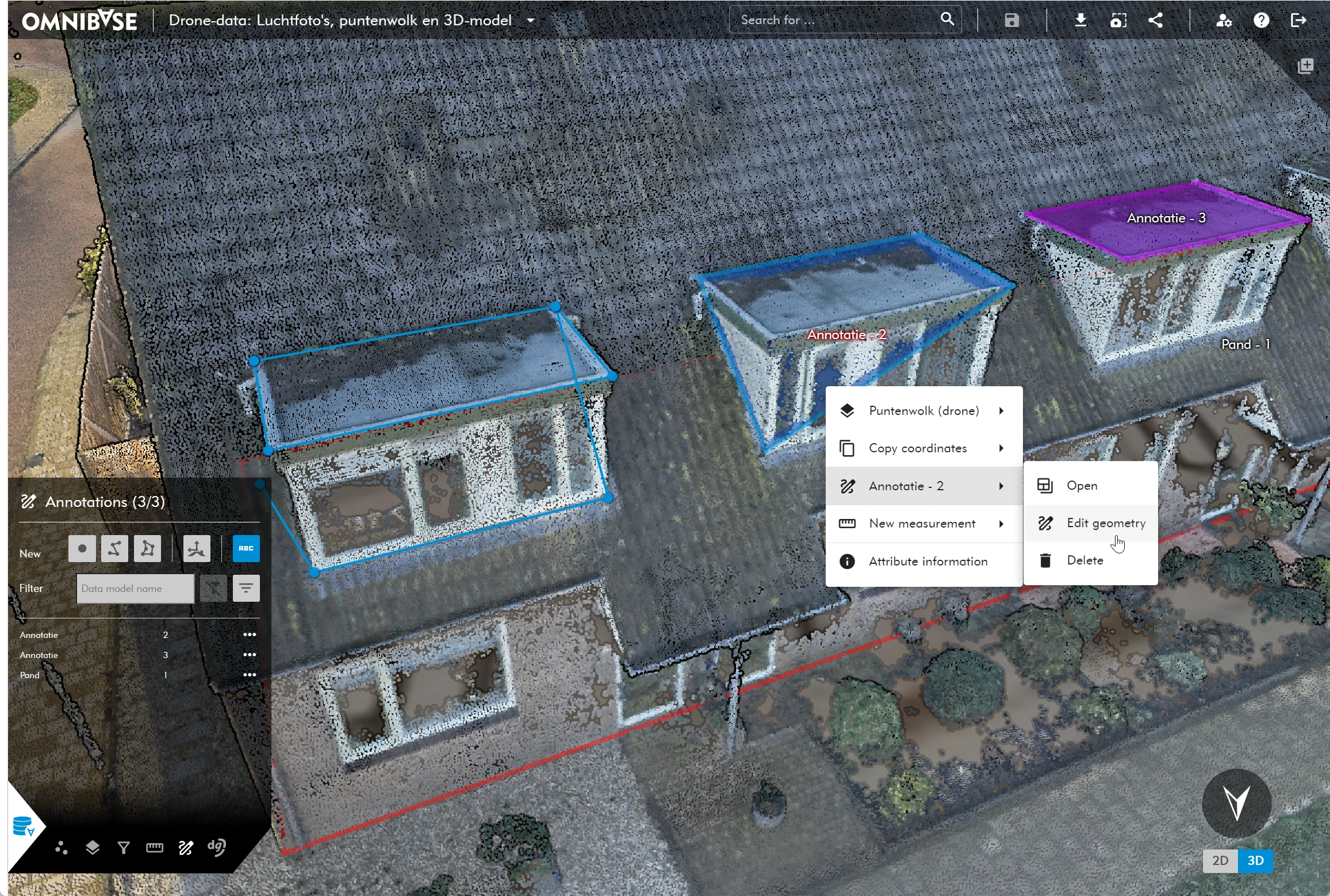
Editing annotation: select annotation + activate edit mode