Annotation measurements
Add new annotation
A new annotation measurement is always started from the annotation menu. Click on the geometry type you want to add and draw the geometry based on the available data (annotation measurements work exactly the same as measurements in the measurements menu, as described in the chapter Measurements and Annotations.
Starting a new polygon annotation:
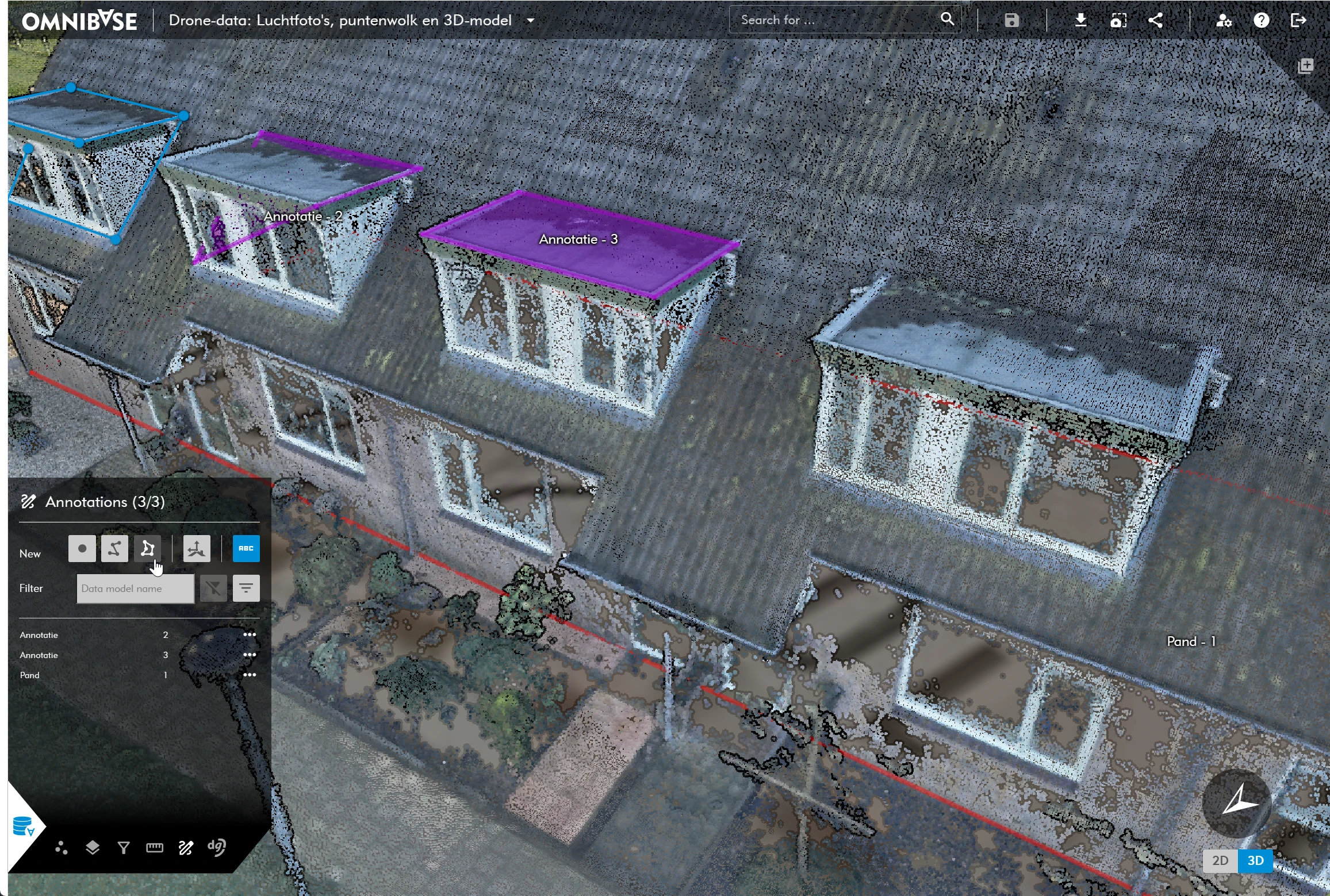
When the new annotation is added, it visually appears the same as performing a measurement. Complete the annotation measurement and, after finishing the geometry, the window to select the annotation data model opens automatically.
Fill in the following fields:
- Data model: select the desired data model.
- Data model filter: use the dropdown in the annotation window to filter the list of available data models.
- Additional fields: enter the (required) additional fields associated with the data model.
- Slope angle: for annotations with two measurement points, Omnibase shows the slope angle between these points in the annotation window.
- Choose the
Savebutton to save the annotation and not proceed with another annotation measurement. - Choose the
Save and repeatbutton to immediately perform a new annotation measurement.- With this option, you can still change the measurement type in between by selecting another type.
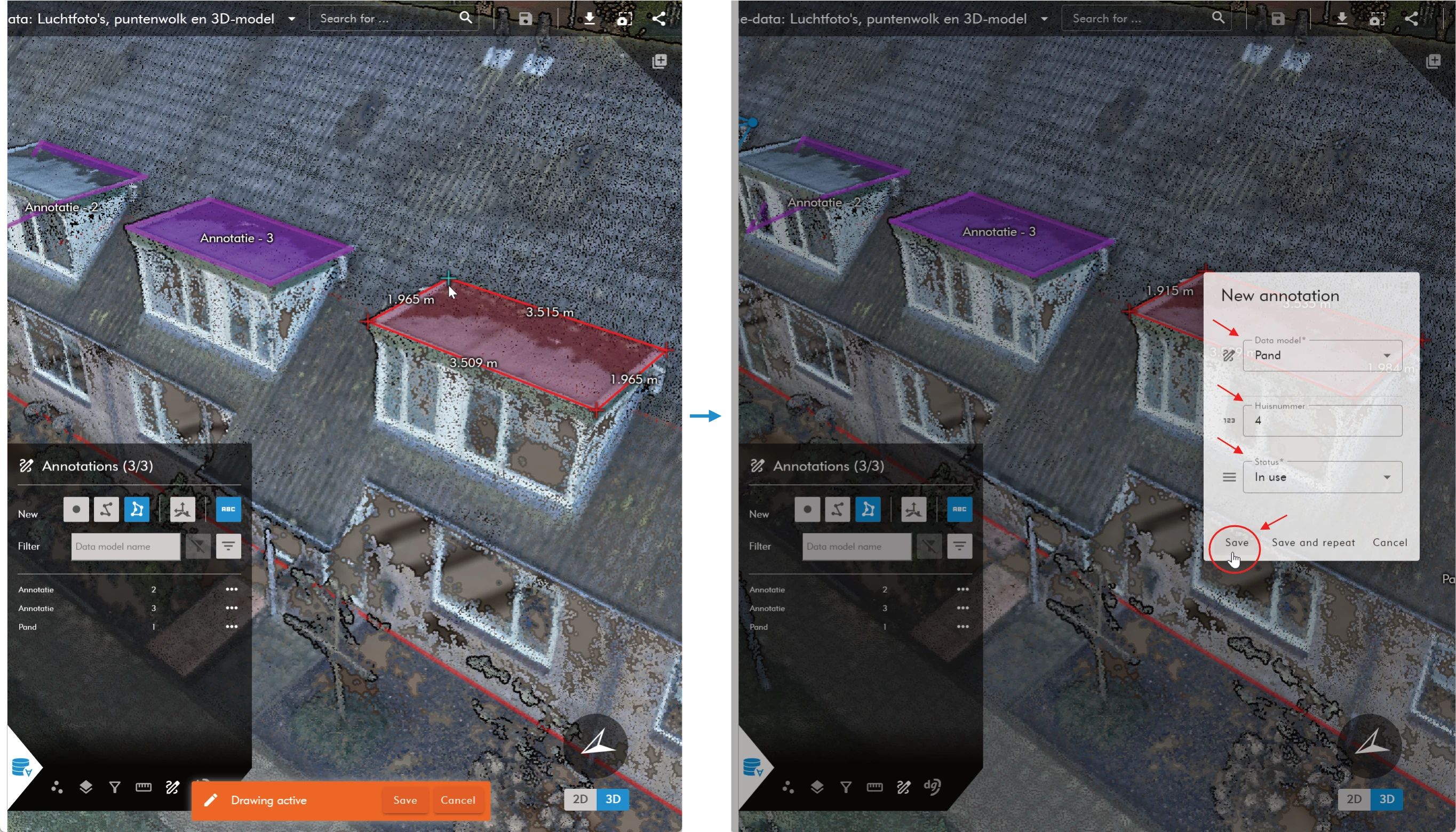
Annotation measurements in a point cloud (left) and the subsequent selection of the data model and any additional required fields (right).