Project interaction
Within an Omnibase project, there are many project interactions. This includes navigating within the 3D viewer, but also navigating to other images, other (oblique) viewing directions, or searching for a specific coordinate or address.
When a project is opened, it appears as follows:
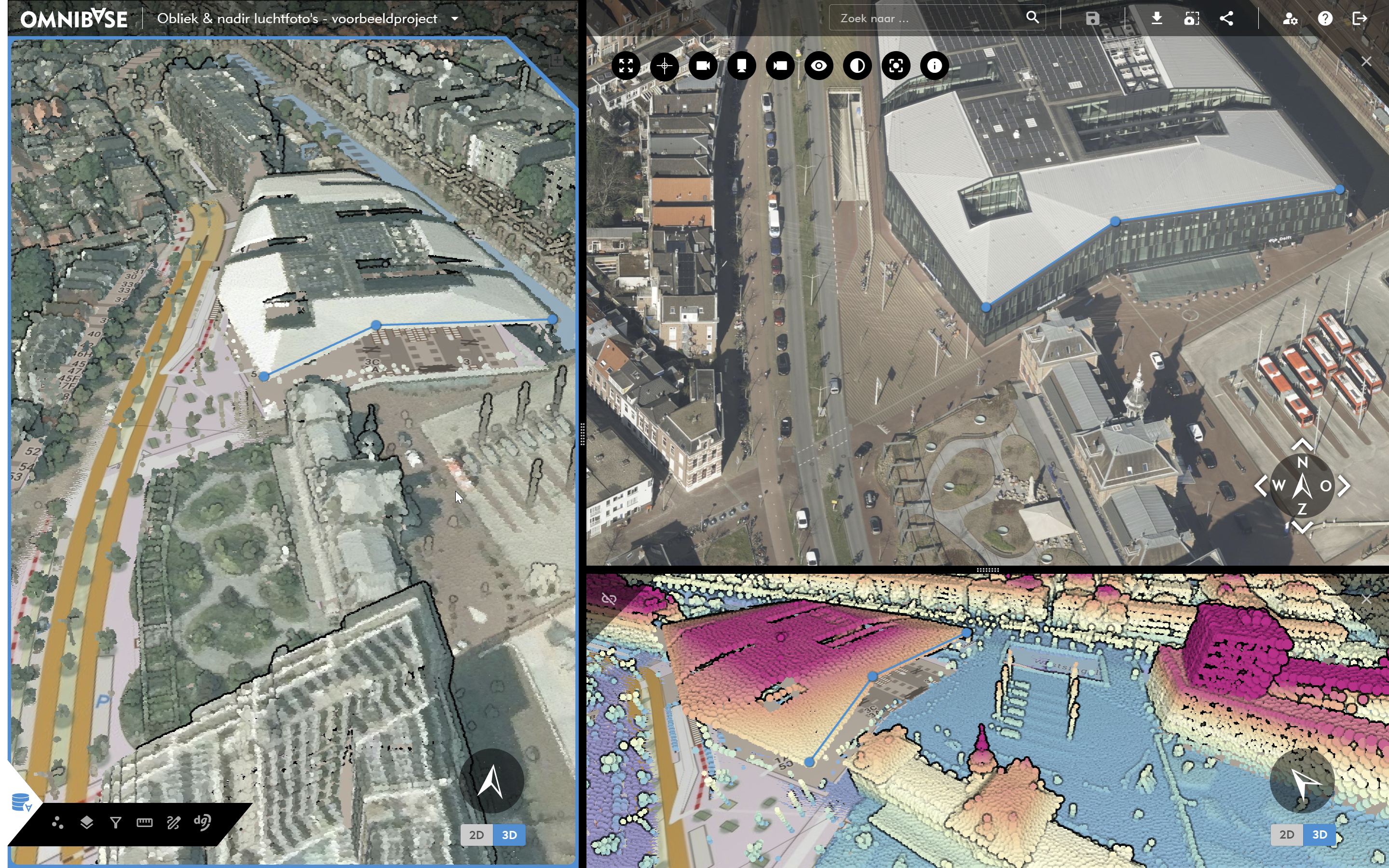
An opened example project with a second 3D point cloud screen and an opened oblique image
In this example, a second screen with an aerial image and a third screen with a 3D view are opened within the project. This is also referred to as Omnibase in split-screen mode. Click here for more information on how split-screen mode works.
The main screen, also called the main view, is always displayed on the left side. At the bottom left within the main screen, the following menus are available from left to right:
- Settings for point cloud visualization.
- Layer settings for enabling and disabling available data within the project.
- Filter tool for applying various filters.
- Measurement tools for performing (3D) measurements directly within Omnibase.
- Optional integrations such as with dg DIALOG BGT.
If multiple views are open, the settings of the specific screen (view) are managed and adjusted from the menu at the bottom left.
The settings are modified for the active screen, indicated by a blue border.
Navigating in an opened project in Omnibase
Navigation within the 2D and/or 3D view in Omnibase is straightforward and intuitive. You can pan with the left mouse button and rotate (in 3D mode) around a viewpoint with the right mouse button. Zooming is done using the scroll wheel. See 2D/3D mode for more information about the 2D and 3D modes and for a detailed explanation.
NEW is that you can now also rotate from a fixed location within the 3D point cloud view. In this case, only the camera rotates from the same position, rather than rotating around a pivot point (as when using right mouse button rotation). This can be done by pressing the scroll wheel and then moving the mouse left or right.
This can also be achieved by pressing the Shift or Ctrl key while simultaneously dragging with the left mouse button.