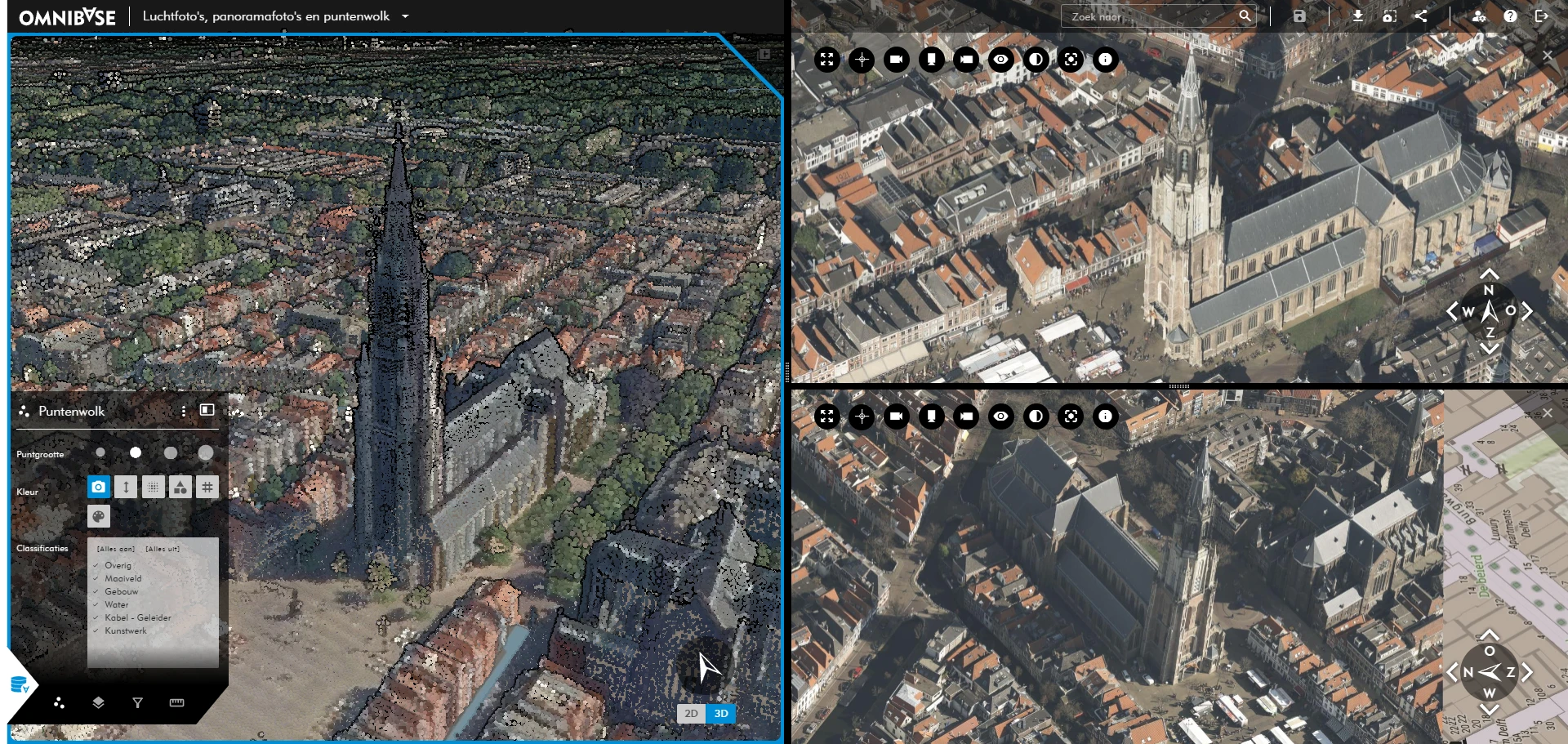
Splitscreen
Using split screen mode in Omnibase
With split screen mode, multiple views can be opened side by side. This allows different data sources to be viewed and used simultaneously. A maximum of three screens can be opened. The size of each view can be adjusted by dragging the black divider between the views.
The main view is always displayed on the left. To adjust point cloud settings, 2D/3D overlays, or transparency per screen, use the black menu at the bottom left of the main view (expanded in the figure below). Changes apply to the active screen.
Applications of split screen functionality
Split screen can be used for:
- Viewing and comparing multiple perspectives of the same object or area:
- Oblique imagery from different viewing directions
- Panorama images from different positions
- Point cloud and/or 3D model views
- Viewing and comparing multiple survey years of the same object or area:
- Oblique and panorama imagery from different years
- Monitoring changes within an area.
- Supporting measurement workflows:
- Measurements are shown in real time in all open screens.
- During a measurement, you can seamlessly switch between screens and data sources.
Active screen
The active screen is indicated by a blue border. An icon in the left-side menu also shows which screen is active.
- The main view remains on the left (1).
- With two views open, this is visualized as shown at (2).
- With three views open, the top-right view is shown as (3) and the bottom-right view as (4).
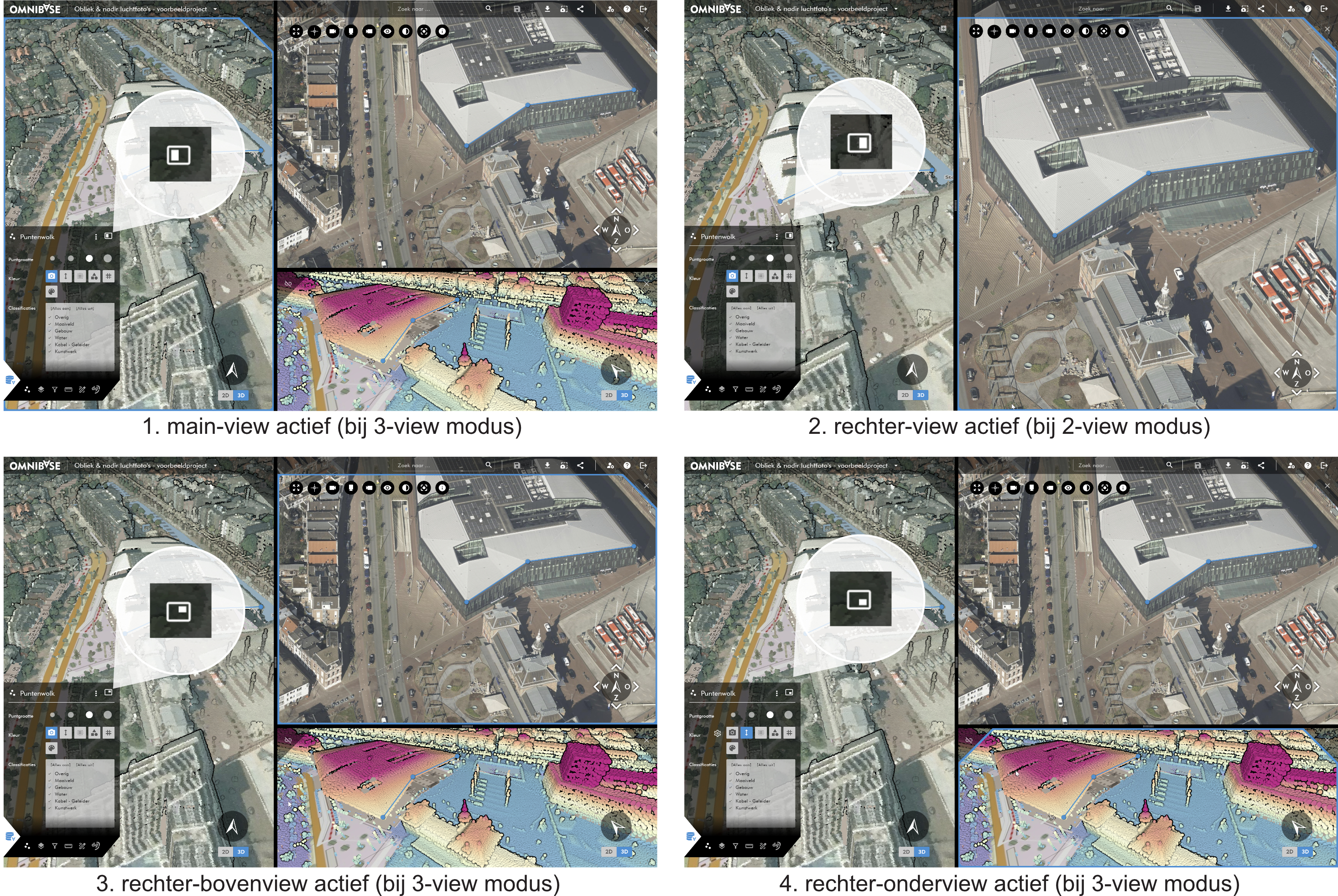
When multiple views are open, settings for a specific screen are managed from the bottom-left menu.
Changes apply to the active screen (blue border).
Opening data in split screen mode
Different data types—such as aerial images, panorama images, 3D point clouds, or 3D meshes—can be visualized simultaneously. This supports comparison of different survey years and perspectives.
When a dataset is opened for the first time (if available in the project), panorama locations are displayed on top of the image. These can be disabled via the layer settings in the bottom-left menu. A basemap is enabled by default beneath images.
Opening an aerial image or panorama
A panorama image can be opened in three ways:
- Click a panorama sphere in the viewer.
- Click a panorama circle in an open image.
- Right-click a location in a 2D/3D view and select
Show Panorama.
An aerial image can be opened in two ways:
- Click a camera frustum (camera icon in the air).
- Right-click a location in a 2D/3D view and select
Show in photo.
For opening a panorama or aerial image, using the right mouse button is recommended. Omnibase selects the nearest image based on the 2D/3D view location.
Workflow:
- Right-click a location in the 2D or 3D view.
- Select Show in panorama to open the nearest panorama image.
- The image rotates automatically toward the selected location.
- Select Show in photo to open the nearest aerial image.
- The image zooms to match the 2D/3D view and aligns with its viewing direction.
- If multiple panorama datasets are available, a selection menu is shown.
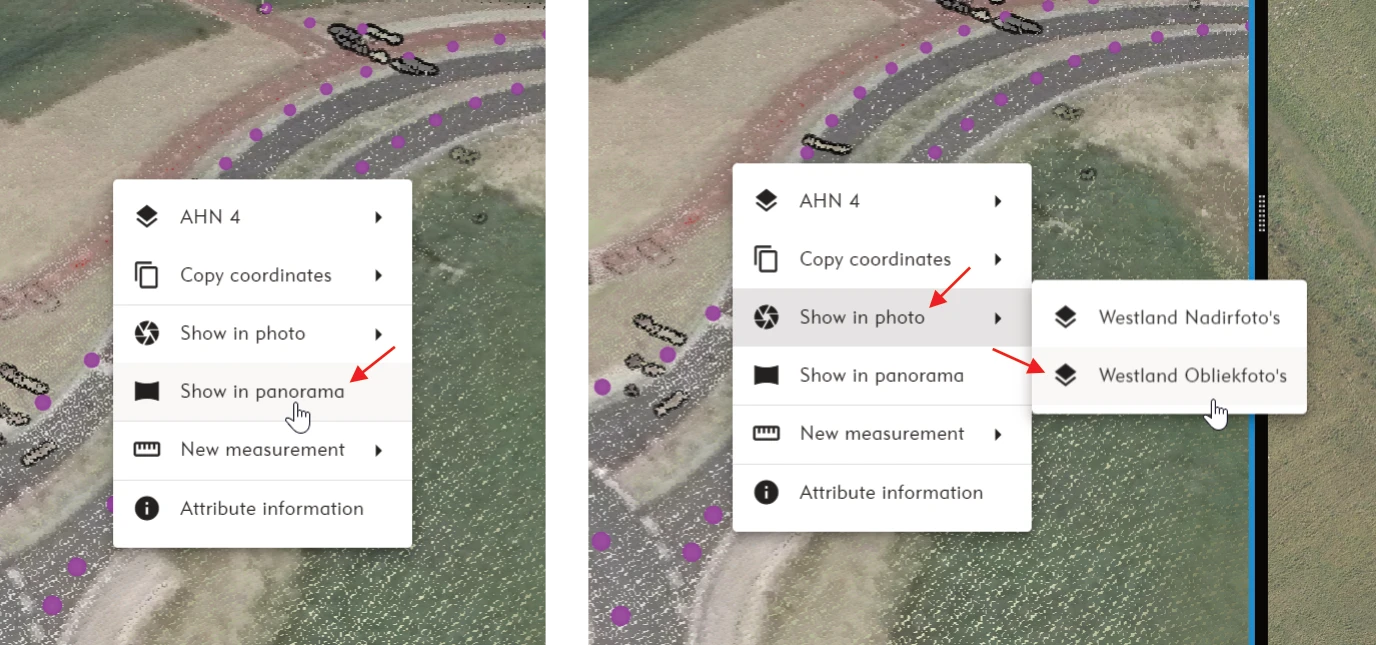
Opening a new 2D/3D split screen view
A new 3D split screen view is opened by clicking the screen+ icon at the top right of the view (see left image below). By default, the new view is linked to the left main view (see right image below).
The second screen can be unlinked by clicking the link icon in the right screen. The icon will then show a strike-through, indicating the screen operates independently.
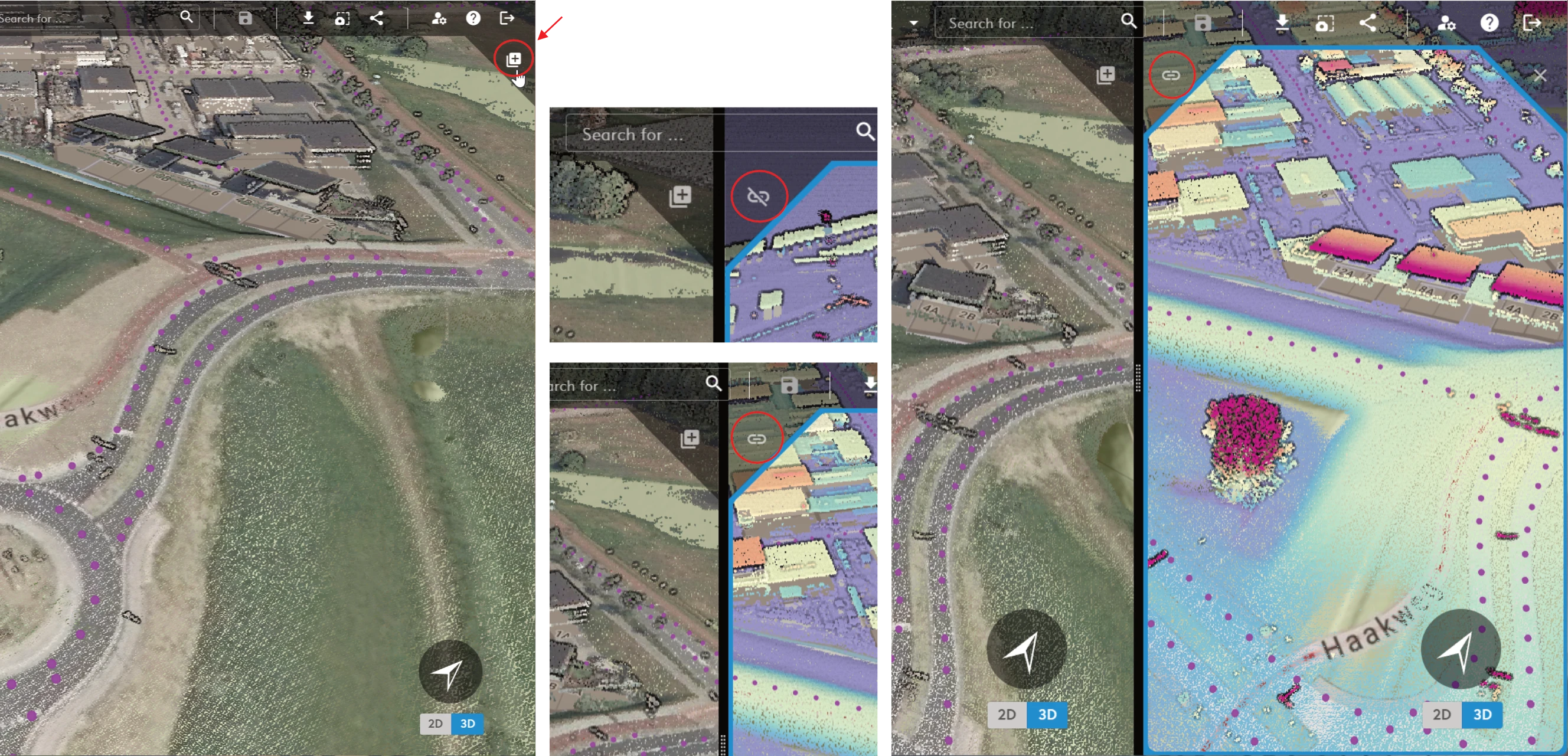
Opening a new 2D/3D split screen (left), link icon status (center), and linked second screen (right).
Linking photo and panorama views to the main screen
A panorama or photo view can also be linked to the main screen with the link button. When a screen is linked, the main screen (left) follows the navigation of the photo or panorama screen. When this link is active, you can still pan in the main screen at any time, but the linked aerial image or panorama image will not change position or viewing direction.
As soon as you pan in the photo screen again, the main screen follows these actions again and is fully linked.
Visibility of the link status for aerial image or panorama image screens
A linked screen is recognizable by the link icon (shown in red in the example below). Click the link button again to unlink the screen. An unlinked screen shows the unlink icon with a line through it. An unlinked screen can be used independently from the main screen.
When the link between a photo and the main screen is active and you move in the main screen, a panorama or photo view shows a triangle with an exclamation mark (shown in orange in the example below). This means that the photo view cannot automatically rotate along with the main screen. The opened photo or panorama remains visible, but it does not automatically follow the viewing direction of the main screen.
As soon as you pan in the photo screen again, the main screen follows these actions again and is fully linked. The triangle with the exclamation mark changes back into the link icon.
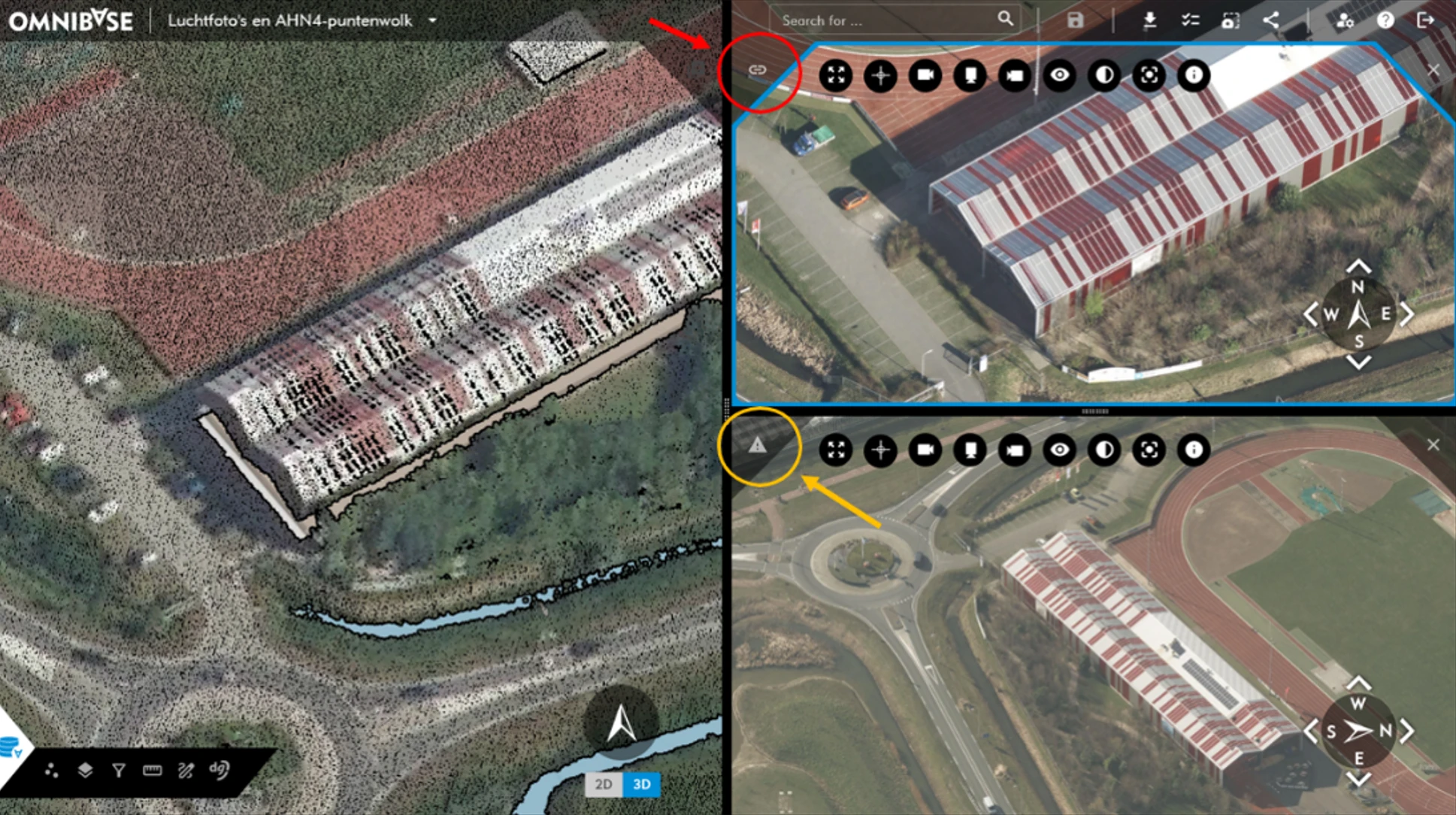
The aerial image split screen at the top right is linked to the main screen (see the link status circled in red).
The aerial image split screen at the bottom right is not linked to the main screen (see the link status circled in orange).
Quickly switching between split screens from menus
Layer menus and other split-screen-specific menus in the black bottom-left menu include a button to quickly switch the active split screen. This lets you directly choose which screen the settings apply to, without first selecting the screen itself.
This is especially useful when multiple views are open and you use different layers, overlays, filters, or transparency settings per screen.
Viewing multiple data sources simultaneously
Combination of different data sources
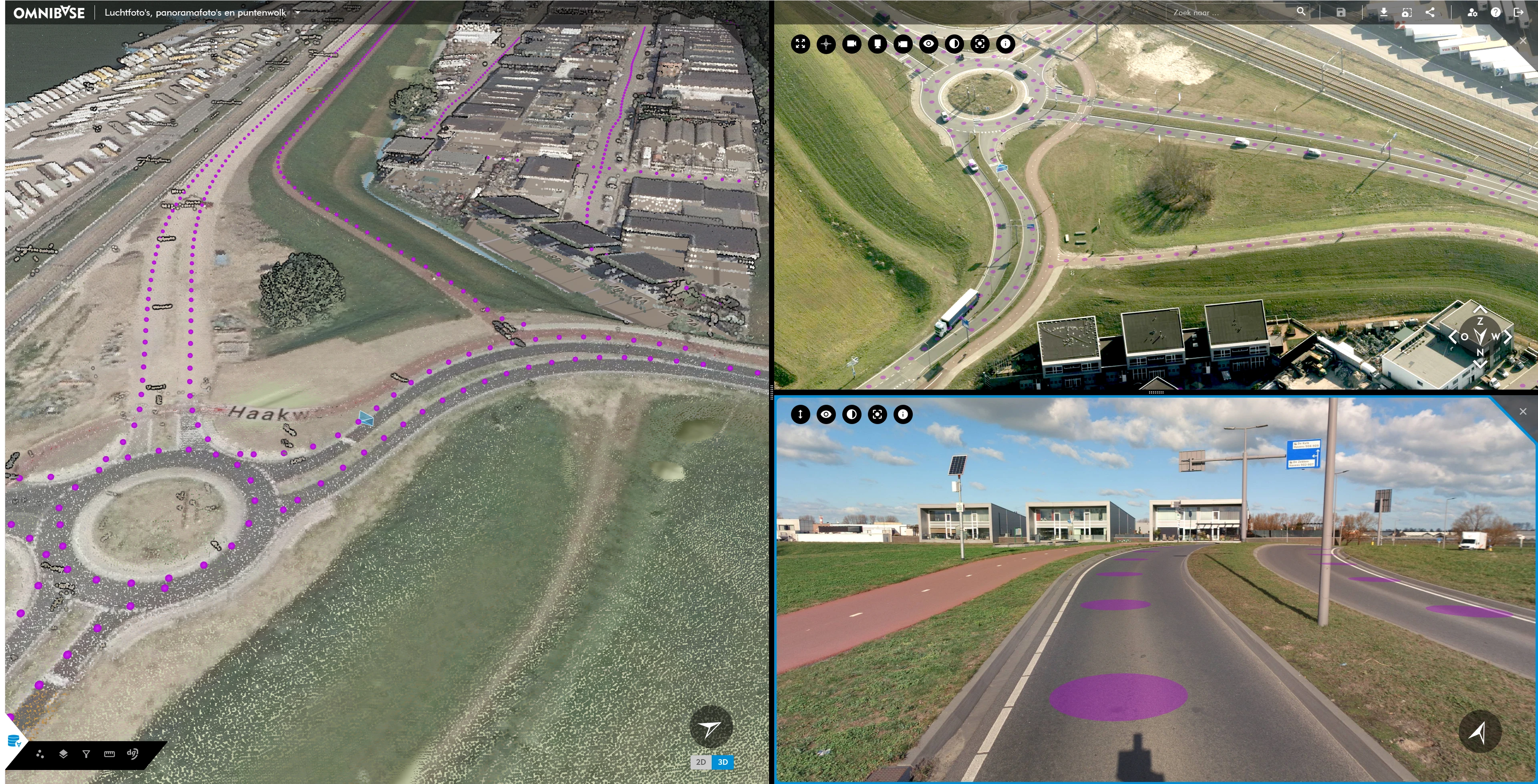
Below is an example combining a point cloud, a mobile mapping panorama image, and an oblique aerial image. By zooming in on specific objects, changes within the same area can be monitored.
Images are opened via right-click in a 2D or 3D view. Overlay visibility per view can be configured using the bottom-left menu.
Opening new images: selecting the target split screen
When opening a new image via right-click in the viewer:
- If no image is open, a second screen is created automatically.
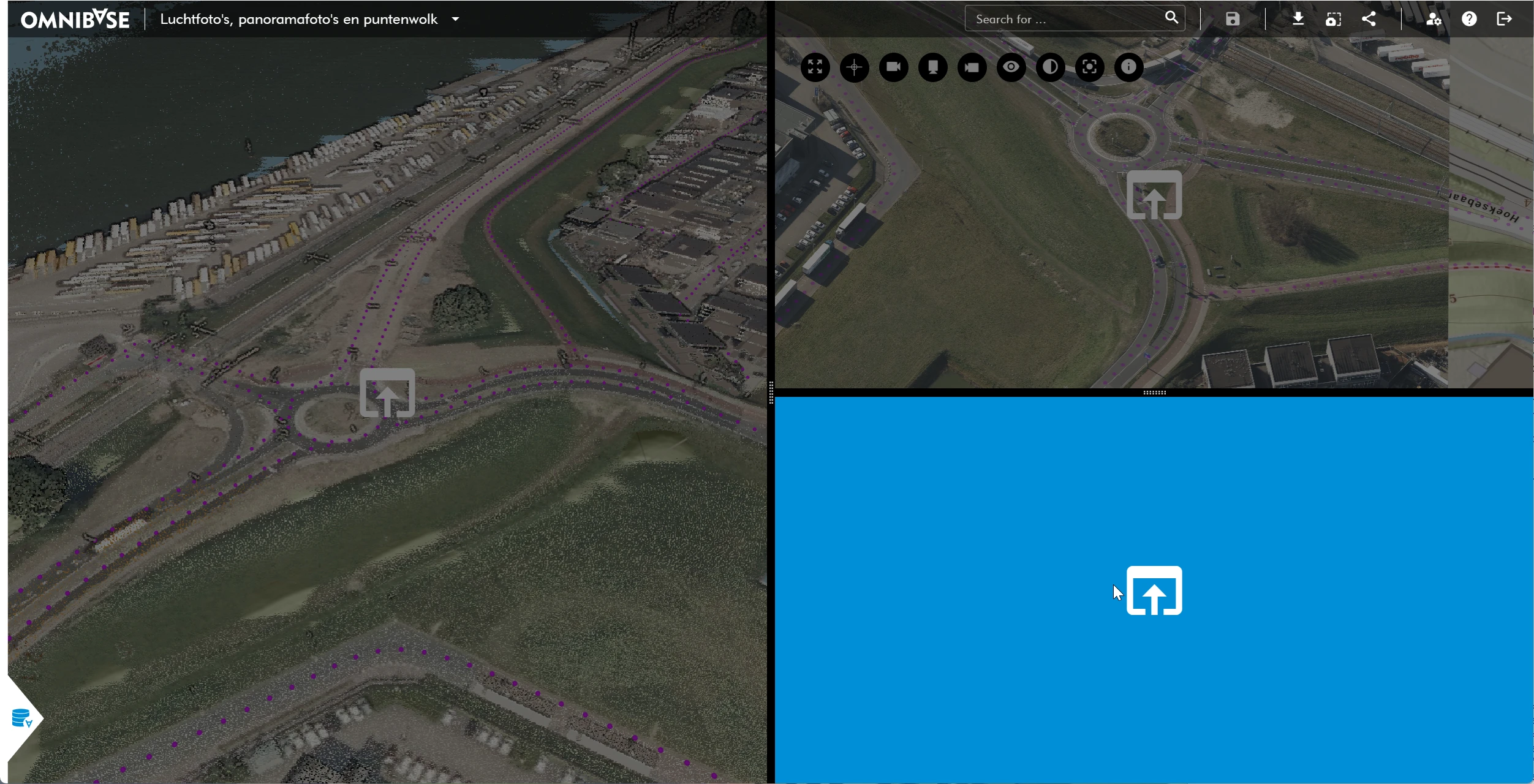
- If additional screens are already open, Omnibase prompts you to select where the new image should be displayed.
A blue overlay appears over the current split screens. Move the cursor to the desired screen and click with the left mouse button. The selected data source opens in that screen.
Viewing oblique images from different directions
By opening two oblique image screens, an object can be viewed from different directions. If two additional screens of the same type are open, Omnibase prompts you to select which screen should display the newly opened image.