Navigation in aerial imagery
How to easily navigate in aerial imagery
In addition to navigation within the 2D/3D viewer, you can navigate to another aerial image or panoramic image by using the buttons within an opened image view or the 4 arrow keys on the keyboard.
Adjust viewing direction of oblique images
Below is shown where you can navigate to another viewing direction for oblique images:
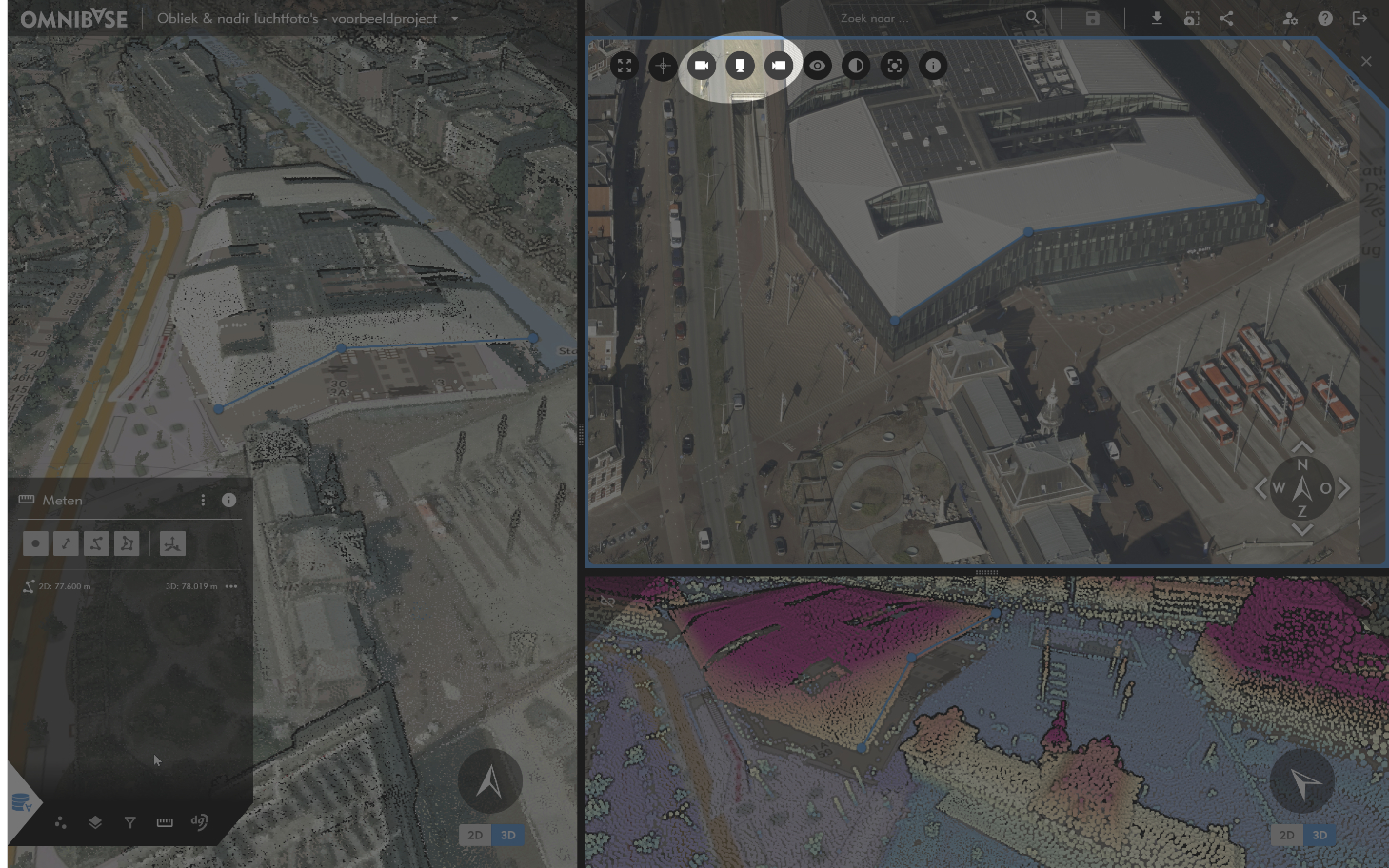
When clicking one of the three buttons with the camera icon, an available image from that viewing direction is opened in the same image view. This allows you to quickly switch to another image where an object may be more clearly visible. By clicking the camera in the middle, an image in the opposite direction is opened. The image is immediately zoomed in if the current view is also zoomed in. The center of the opened image view, where a blue cross appears, indicates the point on which the newly opened image is centered.
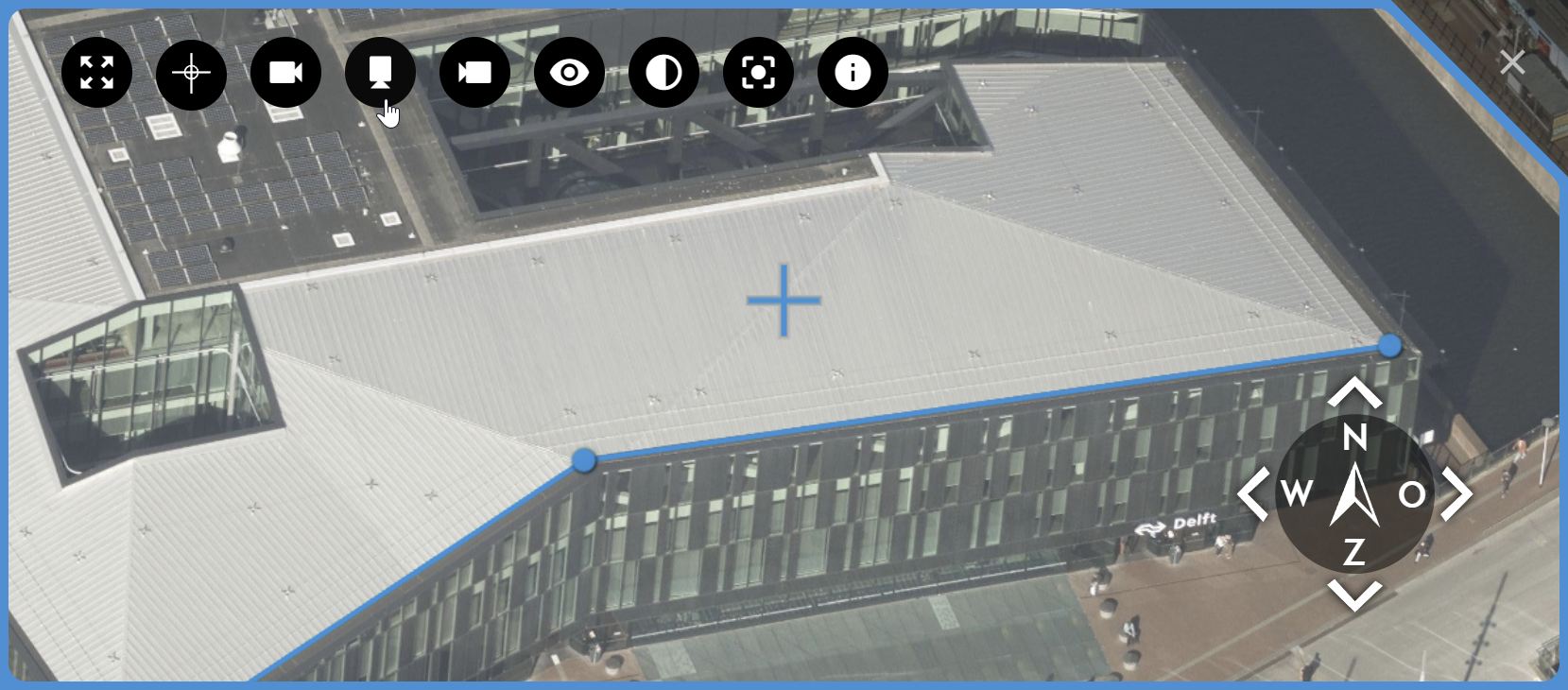
Open another image in the same viewing direction
Below is shown where you can navigate to the next image in a viewing direction:
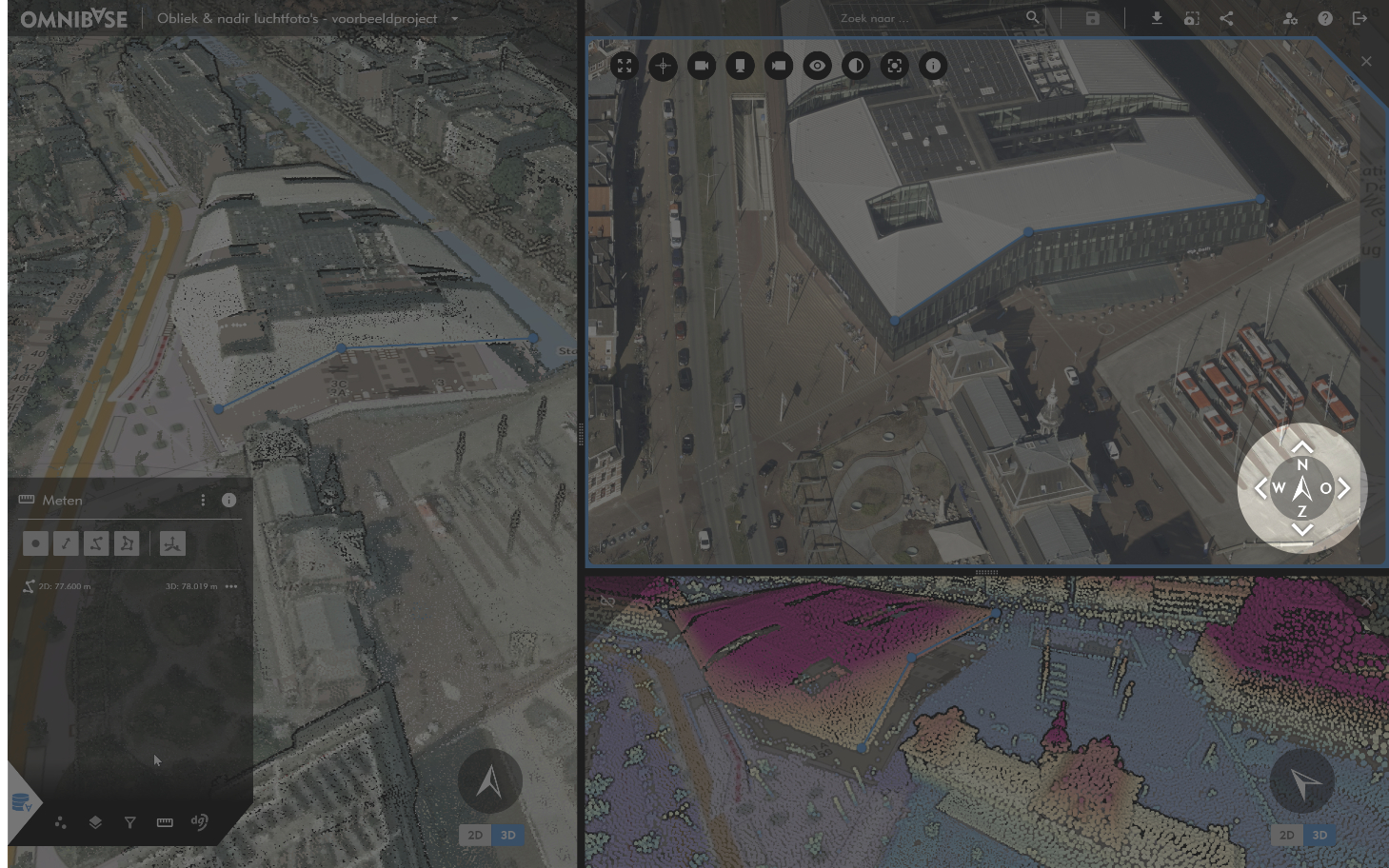
This can be done using the 4 buttons around the north arrow (bottom right) or with the 4 arrow keys on the keyboard. Here again, the blue cross appears to indicate the location where the next image will be centered. Omnibase may display a message that no next image was found containing the current extent. This occurs when the view is zoomed in on a location and there is no next image covering that area.

To continue to the next image, zoom out until the entire image is visible, and you can then easily proceed to the next image in the sequence. The video below shows how this works:
An object can also be quickly viewed from another perspective. Use the buttons at the top of the image to navigate to a view from the left, right, or opposite direction relative to the current view.
The following video shows how this works: