Share bookmark and screenshot
How to share your current view (bookmark)
Within Omnibase, you can directly share your current screen (what you currently see in your project) with others. This can be done by creating a bookmark.
In addition, a screenshot of an individual screen can easily be created, without all visible buttons/elements such as the north arrow or photo navigation buttons.
These tools are located here (top right of the screen):
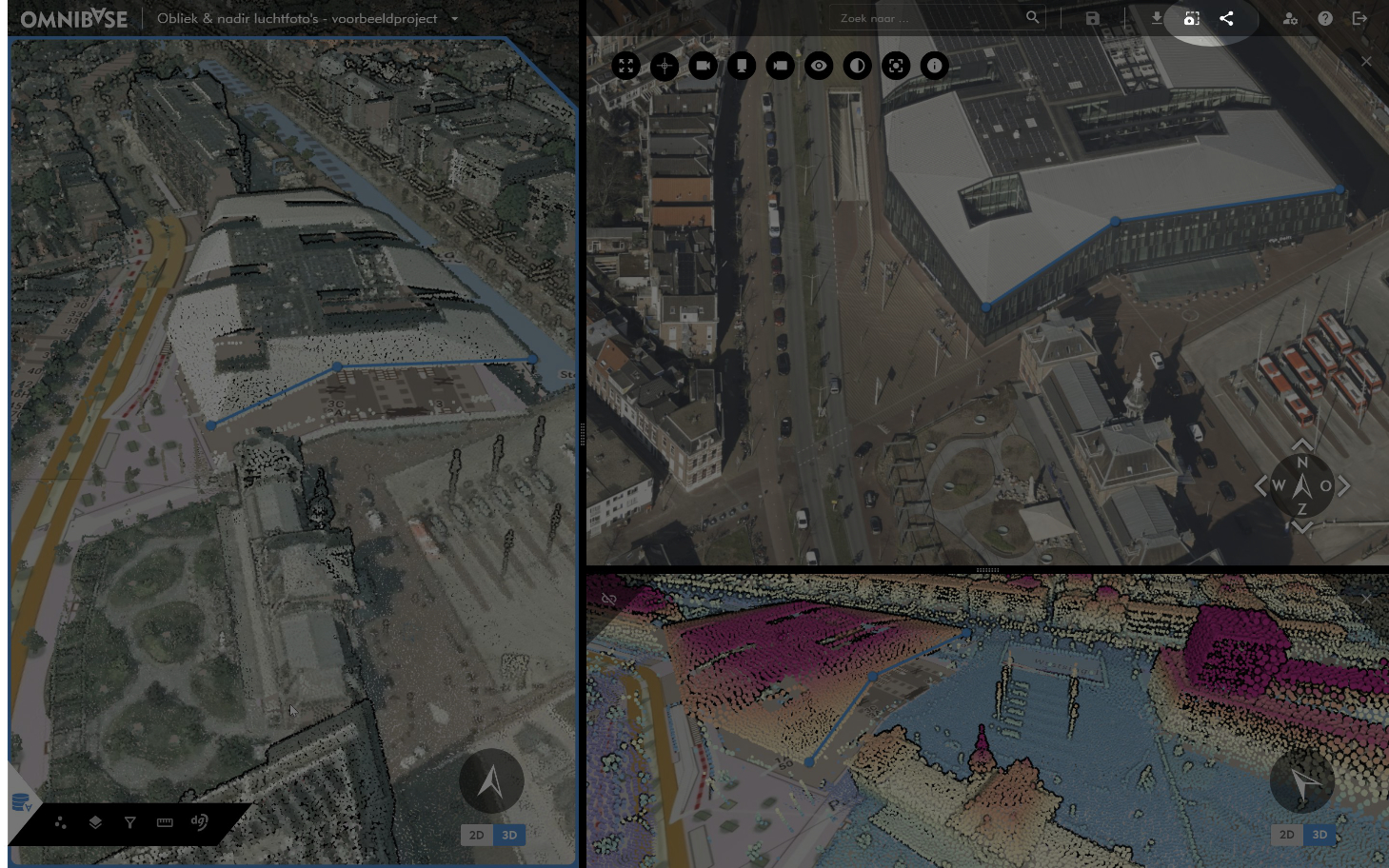
The following icons are available from left to right: Download part of point cloud (1), Create a screenshot (2), and Share bookmark (3)

Create and share bookmarks
The bookmark function generates a link to the current viewer view, including all settings (such as split screens, point cloud settings, filters, measurements, etc.).
This allows the current view to be shared quickly and easily with others.
After opening the link, the recipient sees exactly the same project view with all applied bookmark settings.
Steps:
- Go to the bookmark button
Share the current view with othersat the top right of the screen. - Select which settings you want to share (depending on what is opened in the viewer).
- When a setting is enabled, the following visualization settings are added to the bookmark:
- Point cloud: visualization type, point size, height range settings, and intensity settings.
- Filters: all filters are added to the bookmark (including the status: enabled/disabled).
- Photo/Panorama: projection distance, color settings (brightness, exposure, and contrast), and transparency.
- Measurements: all measurements in the project.
- When a setting is enabled, the following visualization settings are added to the bookmark:
- Click
OKto generate the bookmark. - Then click
Copy linkto copy the link. - Share the link via email or another communication method.
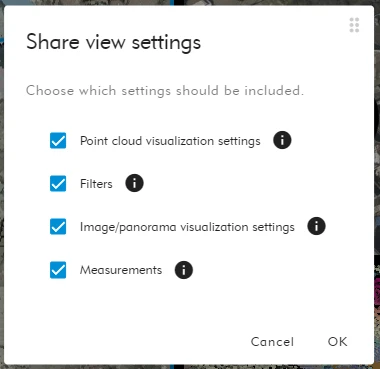
Bookmark settings
The person with whom the bookmark is shared must have access to the Omnibase organization and therefore to the opened project.
Create and save screenshots
With the screenshot function, an image of the current viewer view is saved. Depending on your browser settings, the screenshot is saved to a default location on your computer.
This screenshot can then be used in reports, shared with colleagues, or stored for other purposes.
Steps:
- If multiple screens are open, select the screen from which the screenshot should be taken.
- Activate a screen by clicking on it with the mouse (for more information: see split screen)
- Go to the
Create screenshotbutton at the top right of the screen. - The screenshot is saved in the configured download location of your browser (usually the downloads folder).
- Do you want to change your default download folder?
- In most browsers: three dots top right → Settings → Downloads → Location.
- Do you want to choose the save location for each screenshot?
- In most browsers: three dots top right → Settings → Downloads → enable option "Ask where to save each file before downloading".
- Do you want to change your default download folder?
If you want to create a screenshot of your entire screen (multiple split screens), use the snipping tool on your computer.
For maximum data visibility: temporarily hide the menu at the bottom left.