2D/ 3D mode
Easily switch between 2D/3D view
Within a standard point cloud view, you can switch between a 2D visualization and a 3D visualization of the data. An aerial image and/or panoramic image is always opened in an image view, where there is no option to switch between 2D and 3D.
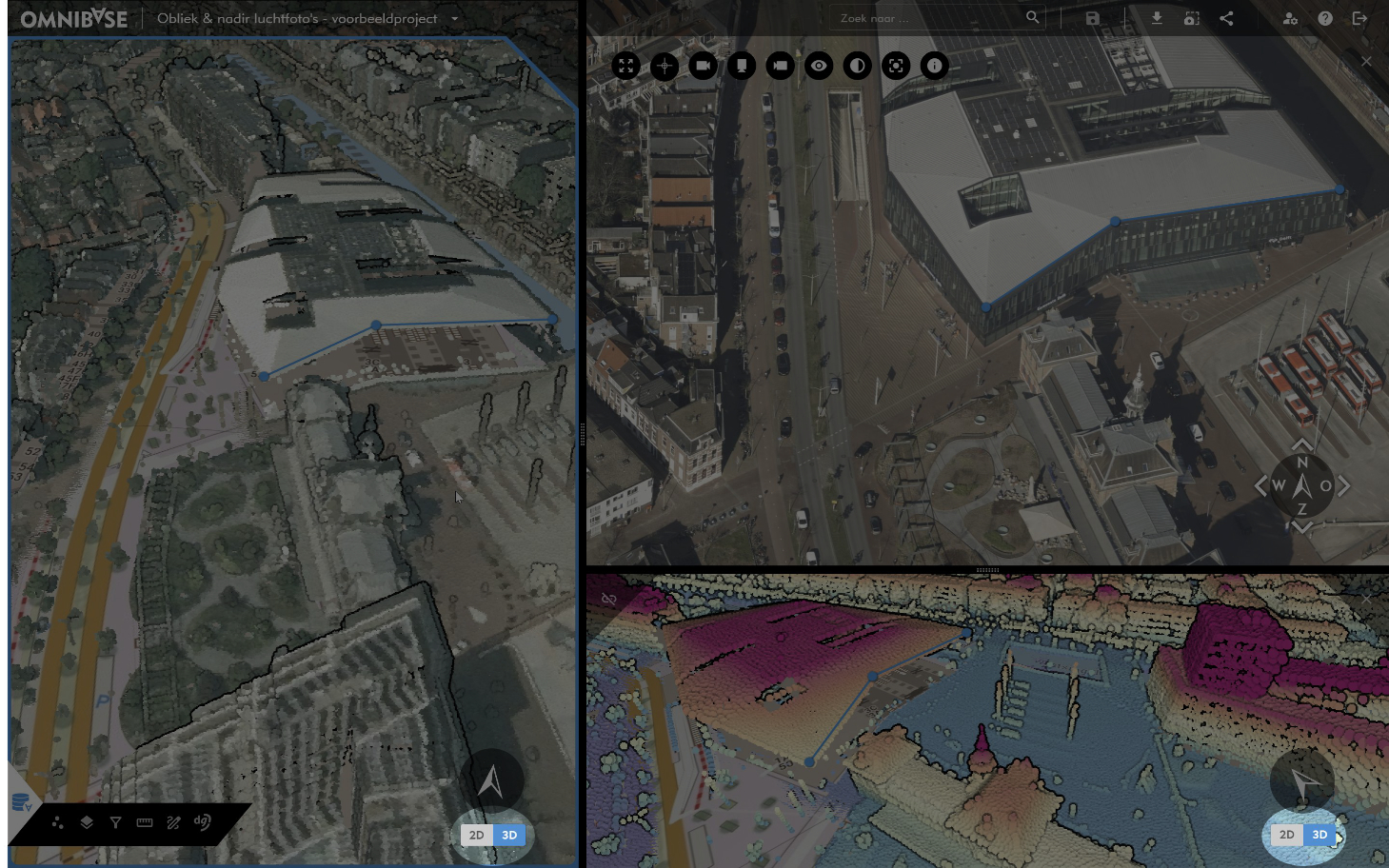
You can easily switch between the two visualizations. The active mode is displayed in blue:
2Dbutton for flat display (top-down).3Dbutton for three-dimensional display.
This option is located here (bottom right in a standard view):
2D mode
Within 2D mode, you can easily work with interactively viewing vector layers, measurements, and opening, for example, panoramic image locations or aerial image locations.
Although most data in Omnibase is 3D, this data is displayed as a flat map in 2D mode.
Properties of 2D mode
- The map is displayed completely flat, viewed from a straight top-down projection.
- Navigation in the 2D view:
- Zoom: Using the mouse wheel.
- Pan: By holding the left or right mouse button and dragging the map.
- Display:
- Point clouds and meshes are displayed in 2D, projected straight from above.
- 2D vector layers can be displayed directly without additional settings.
- All (measurement) functions are available:
- A measurement still snaps to the (3D) information of the point cloud or mesh.
- A measurement performed directly on the 2D map is stored as a 3D coordinate (based on the XY click and Z from the selected DTM elevation model).
Example with panoramic images
An example of panoramic image locations is shown below:
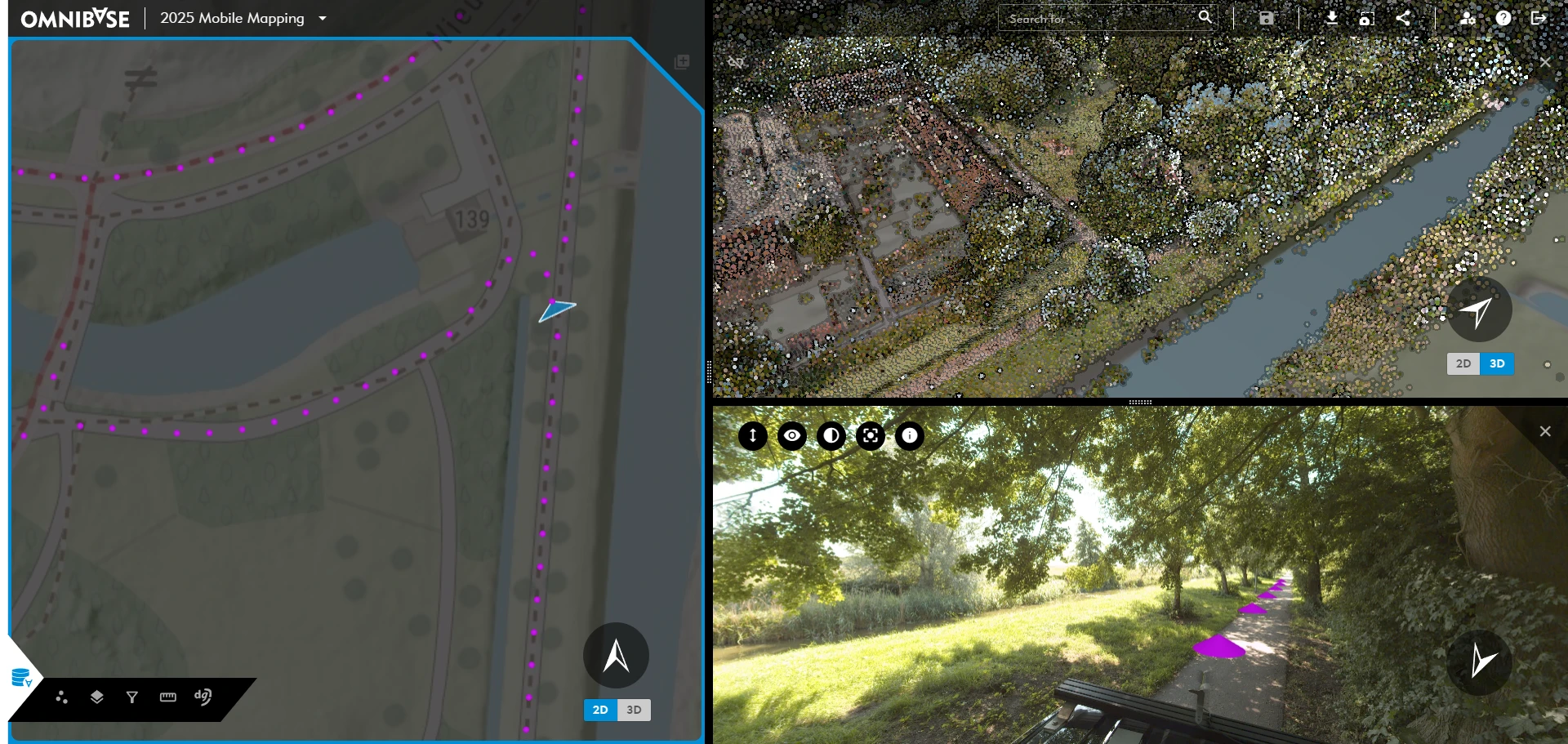
In the left screen, the map mode is 2D and you can choose to display only the basemap (transparent) together with the panoramic image locations.
The upper right screen — which in this case is not linked to the left screen — is in 3D mode, allowing you to view the point cloud in three dimensions.
If one or more panoramic images are opened, these are also displayed in the other screen(s). This always shows where the image is located in relation to the 2D or 3D views and what the position, orientation, and viewing direction of the opened panoramic image are.
Example with aerial images and vector layers
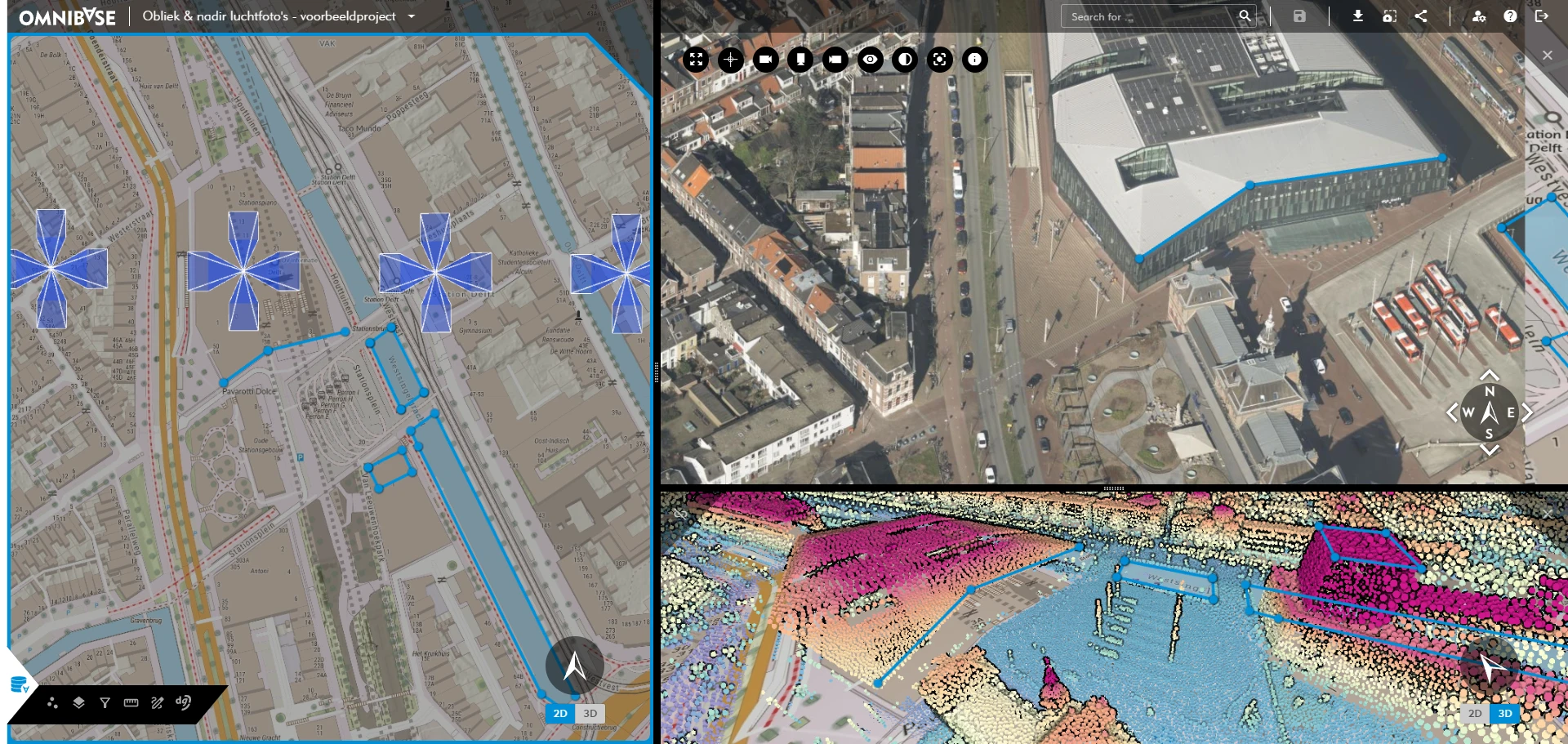
What this looks like with aerial images and vector data/measurements:
3D mode
Within the 3D mode of Omnibase, all data comes together. You can easily pan, rotate, and zoom to the required level of detail. Measurements are visible in real time in all data sources (different screens). This allows an aerial image or panoramic image measurement to be easily verified in the 3D view.
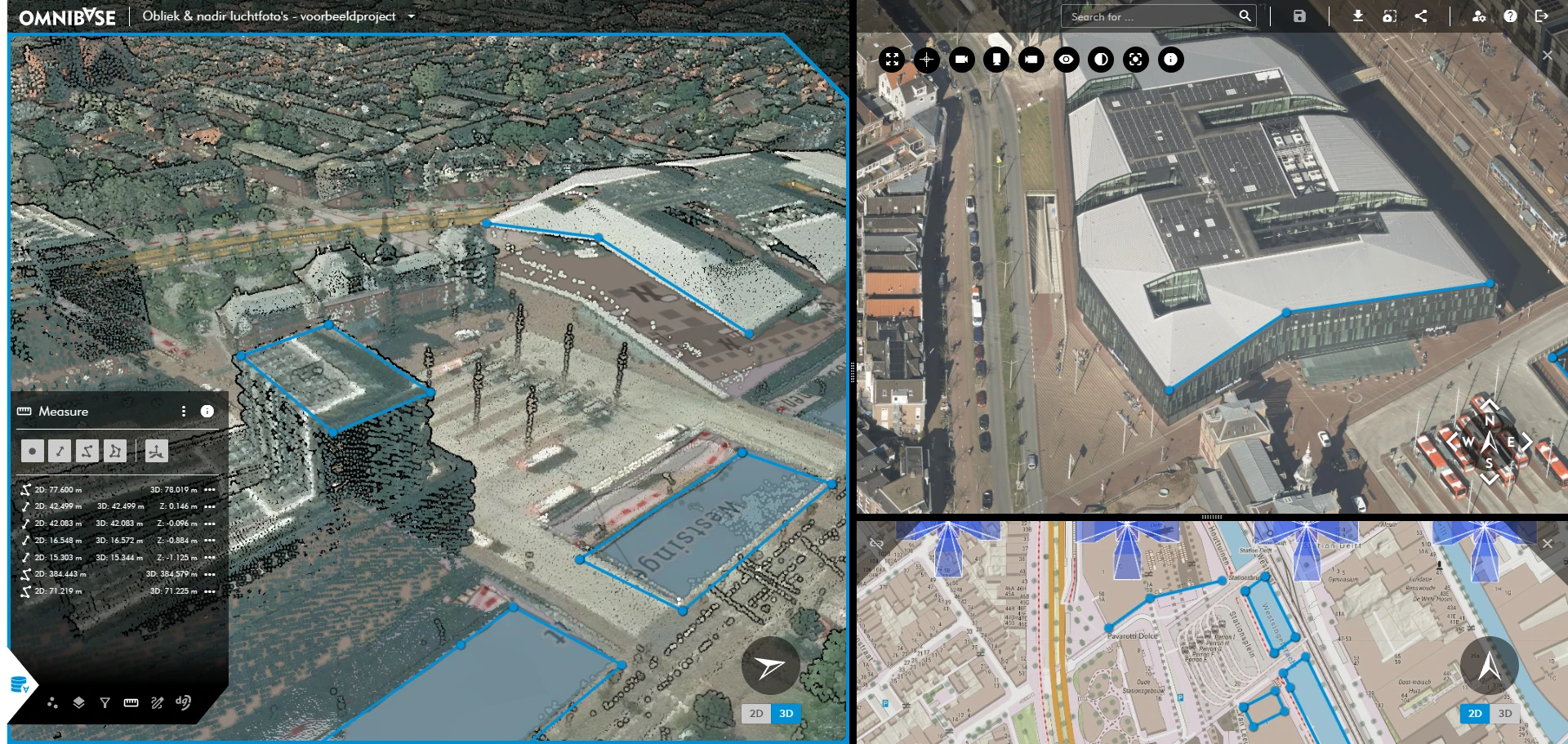
Within 3D mode, you can also easily work with interactively viewing vector layers, measurements, and opening, for example, panoramic image locations or aerial image locations.
Most vector layers are originally 2D geometries. Within Omnibase, these can be used seamlessly because they can be directly projected onto a ground-level DTM.
If a vector layer or part of the geometries within a vector layer contains 3D data, this is used for visualization.
We recommend using the left screen for 3D display and measurements. The advantage is that all measurements are displayed in all split screens, ensuring maximum control.
In the bottom right window, a 2D map can be opened for overview. In the top right window, an aerial image or panoramic image can easily be opened.
Properties of 3D mode
- The map is displayed interactively in three dimensions, adding depth and perspective.
- Navigation in the 3D view:
- Zoom: Using the
mouse wheel. - Pan: By holding the
left mouse buttonand dragging the view.- A blue sphere appears at the mouse cursor location, which is the anchor point used for dragging.
- Rotate around anchor point: By holding the
right mouse button.- A blue sphere appears at the mouse cursor location around which you can rotate the view.
- Rotate from the same position/viewer location: By pressing the
mouse wheeland dragging the mouse.- Alternative options instead of the mouse wheel:
Ctrl + left mouse buttonorShift + left mouse button, then drag with the mouse. - A blue sphere appears, indicating the anchor point used for rotation.
- Alternative options instead of the mouse wheel:
- Zoom: Using the
- Display:
- Point clouds and meshes are displayed in 3D: the data can be viewed from any angle.
- 2D vector layers can be displayed directly (for projection at a specific height, a DTM elevation model can be added to a project).
- All (measurement) functions are available:
- A measurement can be easily performed using 3D controls in the point cloud or mesh.
- Measurements are visible in all screens and can therefore be easily verified in all available data sources.