Viewer settings menu
How 3D point cloud data is visualized
Viewer settings are always available at the bottom left of the left screen and apply to the open project. Within a project, datasets, optional vector reference layers, annotation data models, and a basemap are defined. Depending on the available datasets or modules (such as annotations), specific menu components are activated.
The following menu components are described below:
The viewer settings menu is located here (bottom left of the main screen):
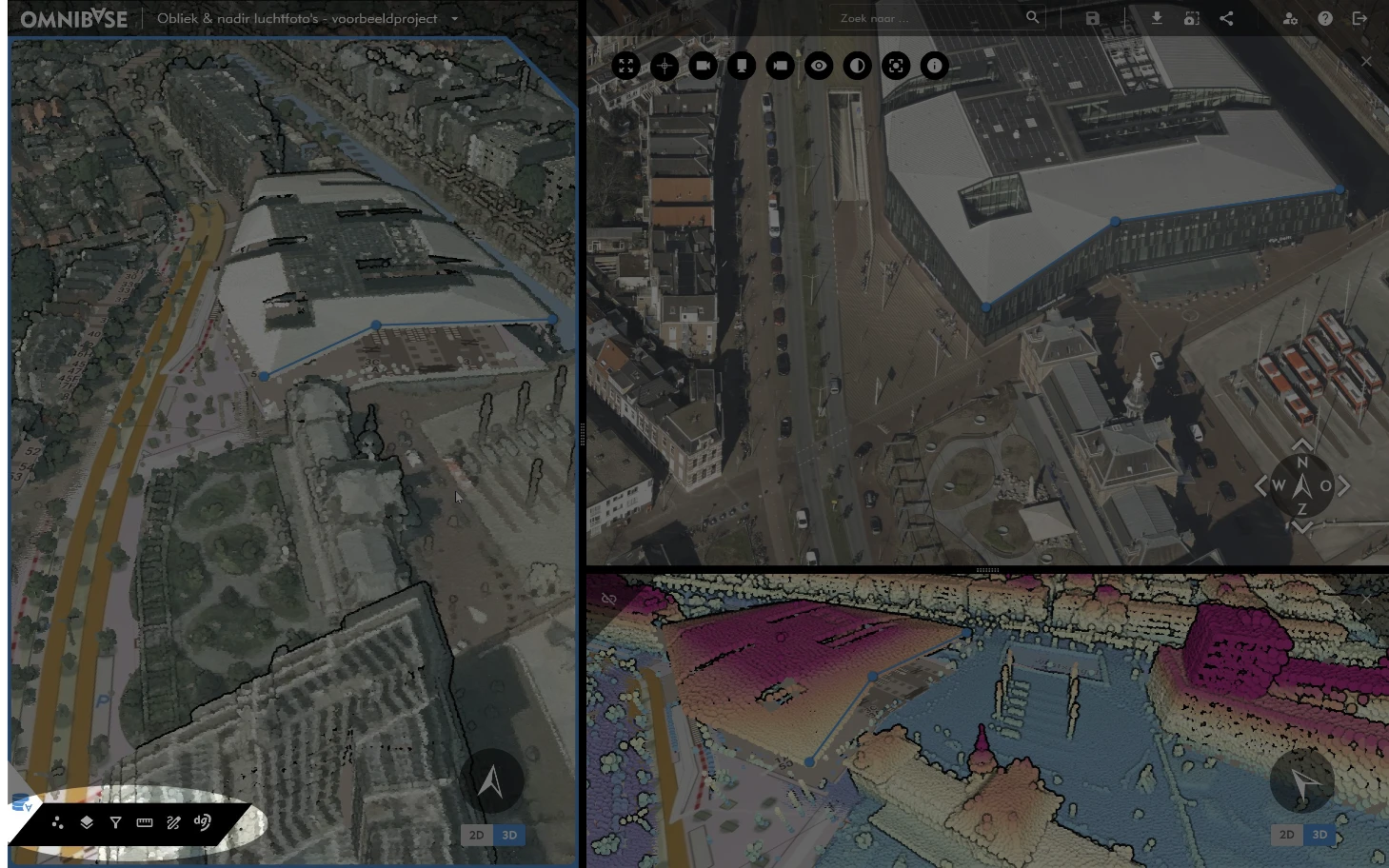
1. Point cloud visualization settings
Within the “Point cloud visualization settings” menu, several options are available.
1.1 Point size
Adjust point size directly. The point cloud visualization updates immediately.
1.2 Advanced point cloud settings
Open advanced settings via the three vertical dots at the top of the point cloud menu. Available options:
- Adaptive point size
Dynamically adjusts point size based on camera distance and point density, creating a seamless and closed surface. - Eye-Dome Lighting (EDL)
Enhances depth perception by sharpening edges and contours.
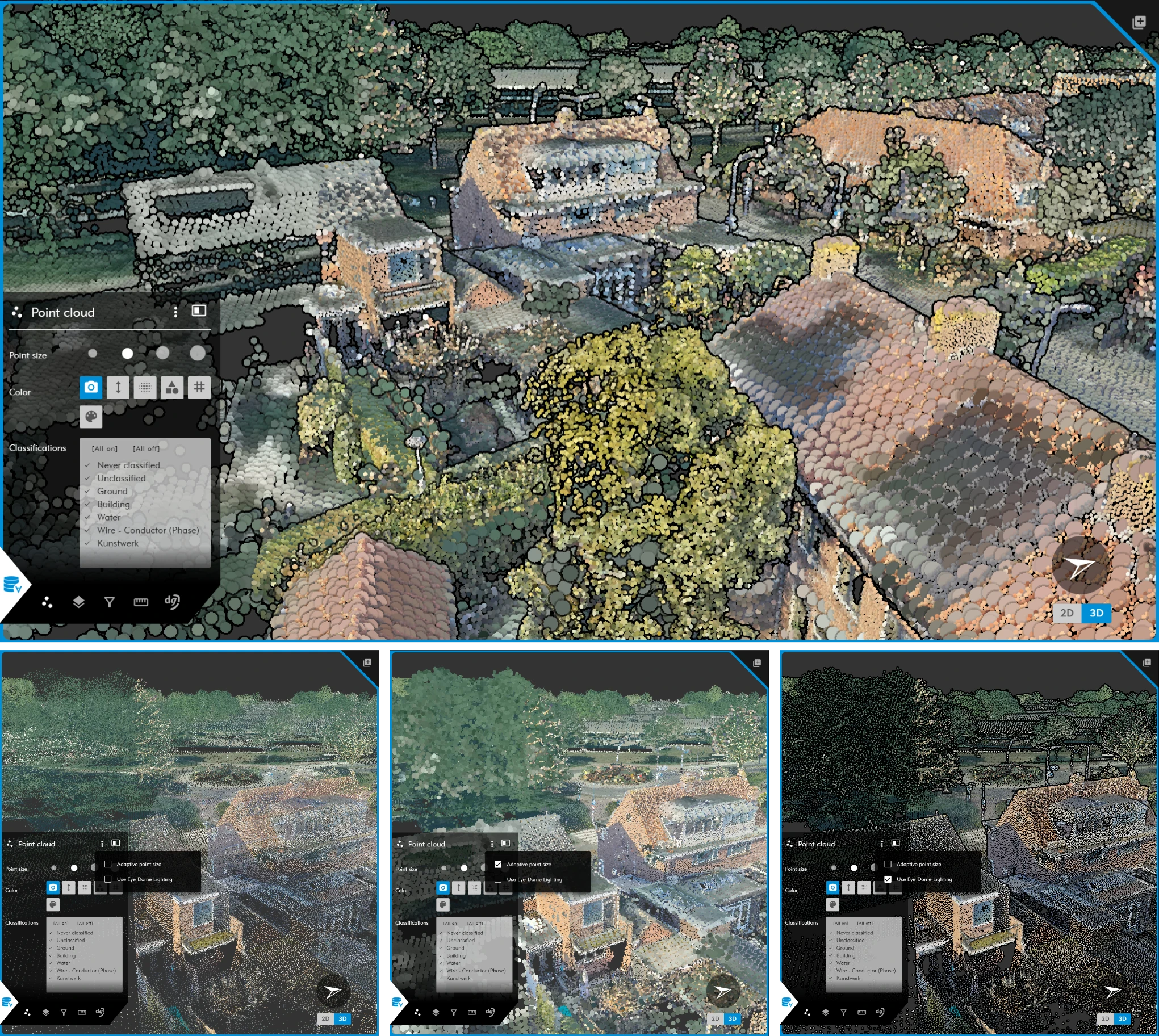
Enable both Adaptive point size and Eye-Dome Lighting for optimal visualization quality.
Point cloud color settings
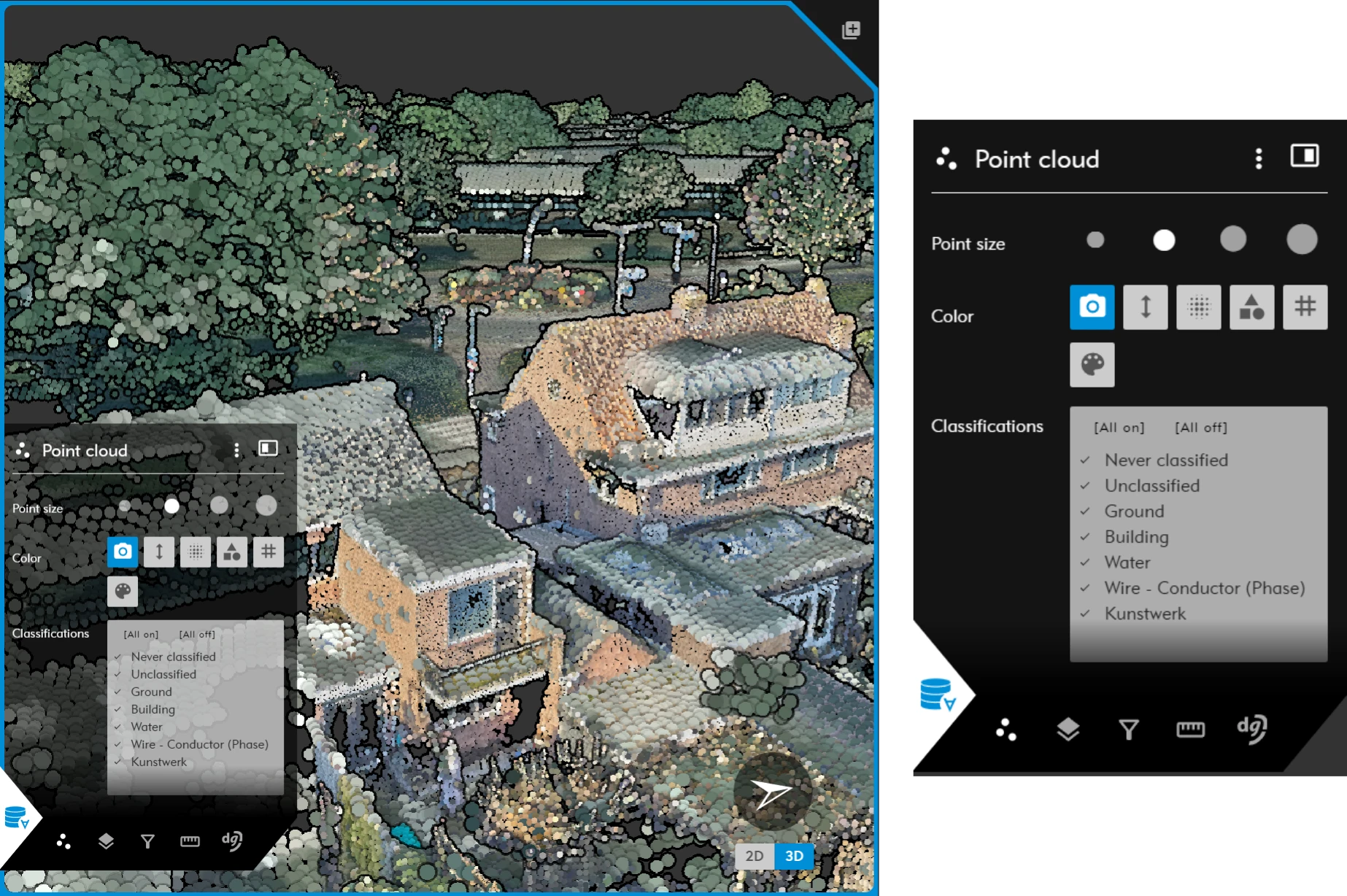
If available in the dataset (e.g. RGB or classification values), the following visualization modes can be used:
- RGB (photorealistic)
- Elevation
- Intensity
- Classification
- Point Source ID
- Single fixed color
Additional settings are available via the gear icon next to relevant visualization options.
1.3 RGB visualization
Photorealistic RGB coloring of the point cloud.
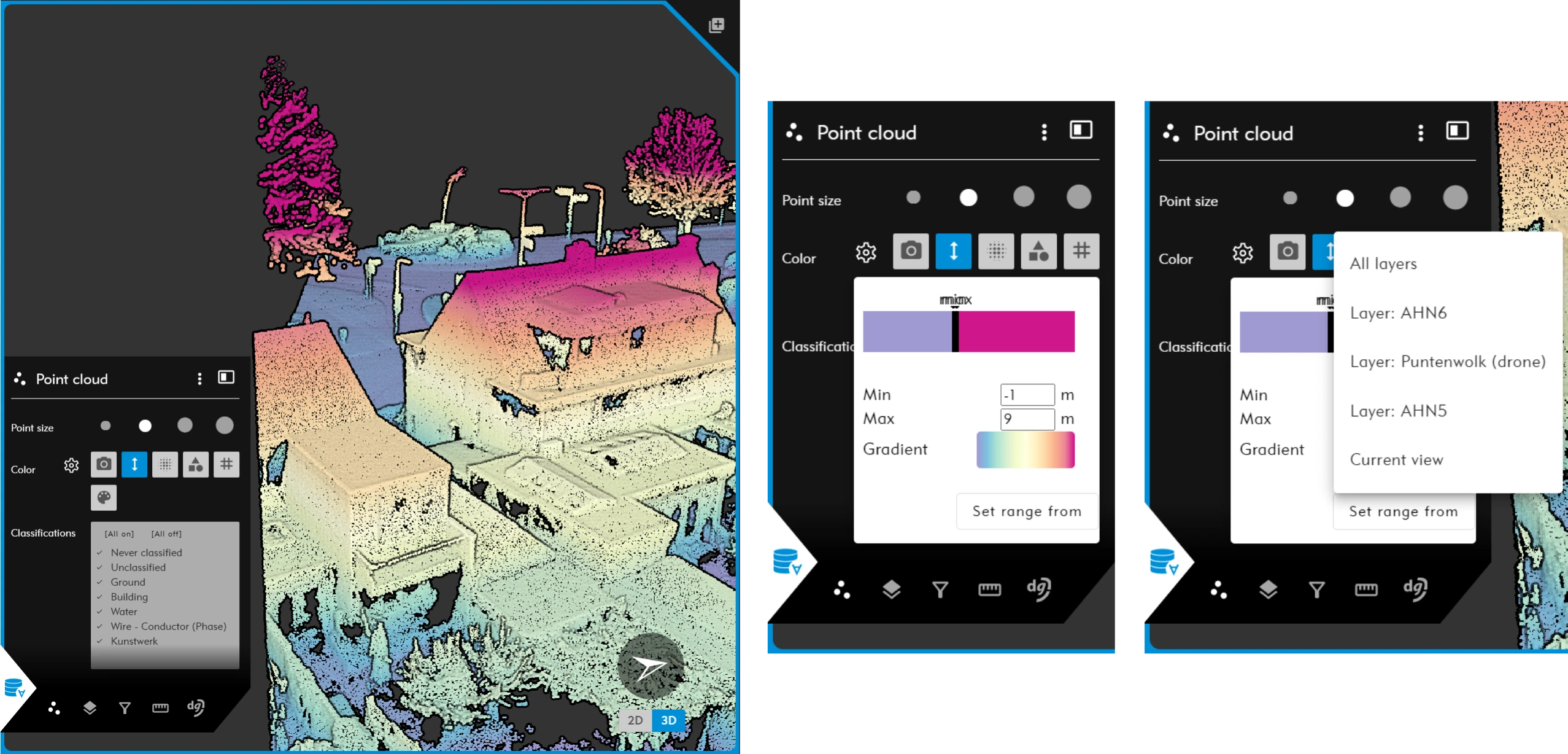
1.4 Elevation-based visualization
Colorization based on height range.
Options:
- Set minimum elevation.
- Set maximum elevation.
- Select predefined color gradients.
- Define min/max range based on:
- All point cloud layers.
- A specific layer.
- Current view extent.
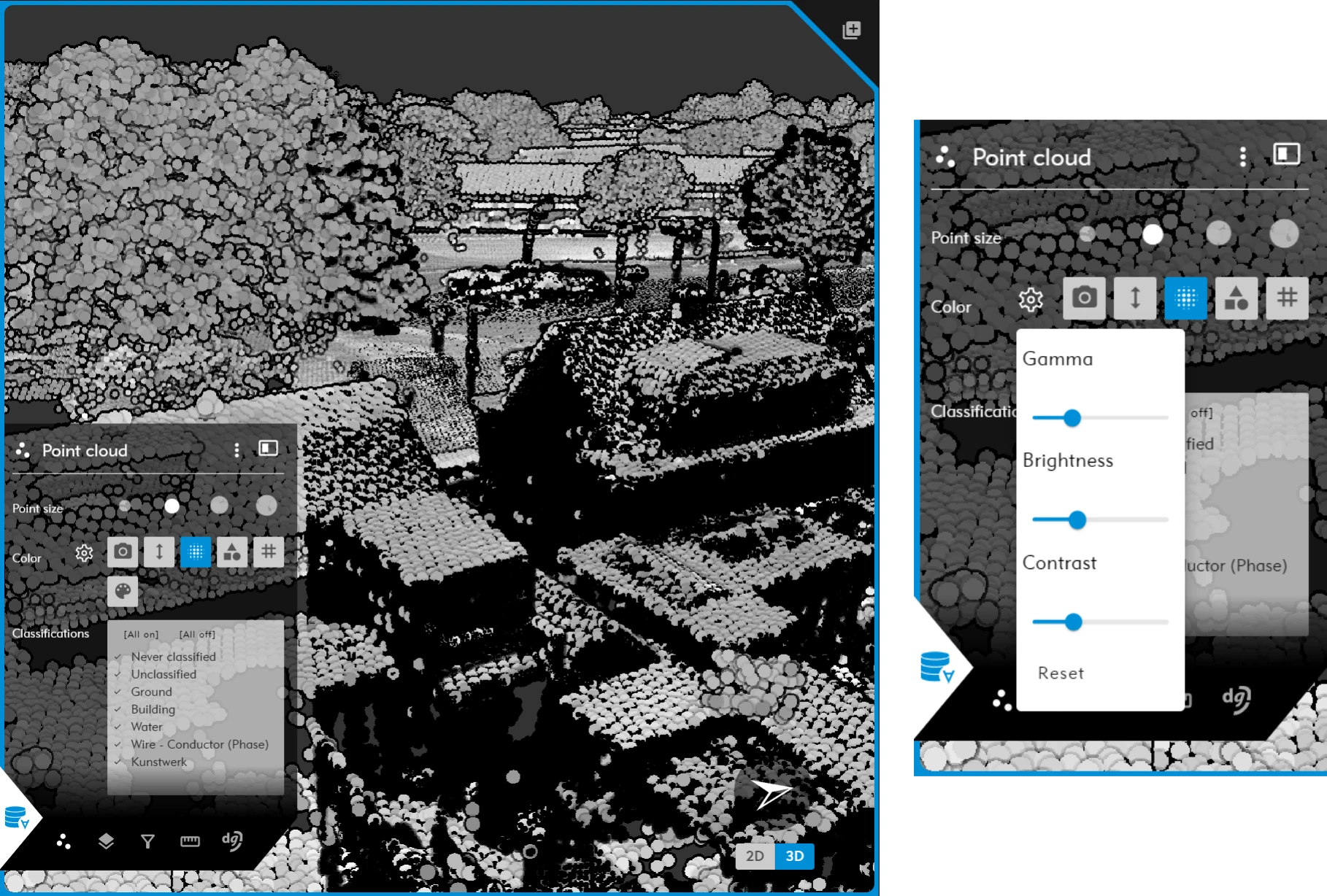
1.5 Intensity visualization
Applicable only when intensity (reflectance) values are available.
- Typically present in LiDAR datasets.
- Not available in dense matching photogrammetry point clouds.
Options:
- Gamma adjustment
- Brightness
- Contrast
- Reset to default values
1.6 Classification visualization
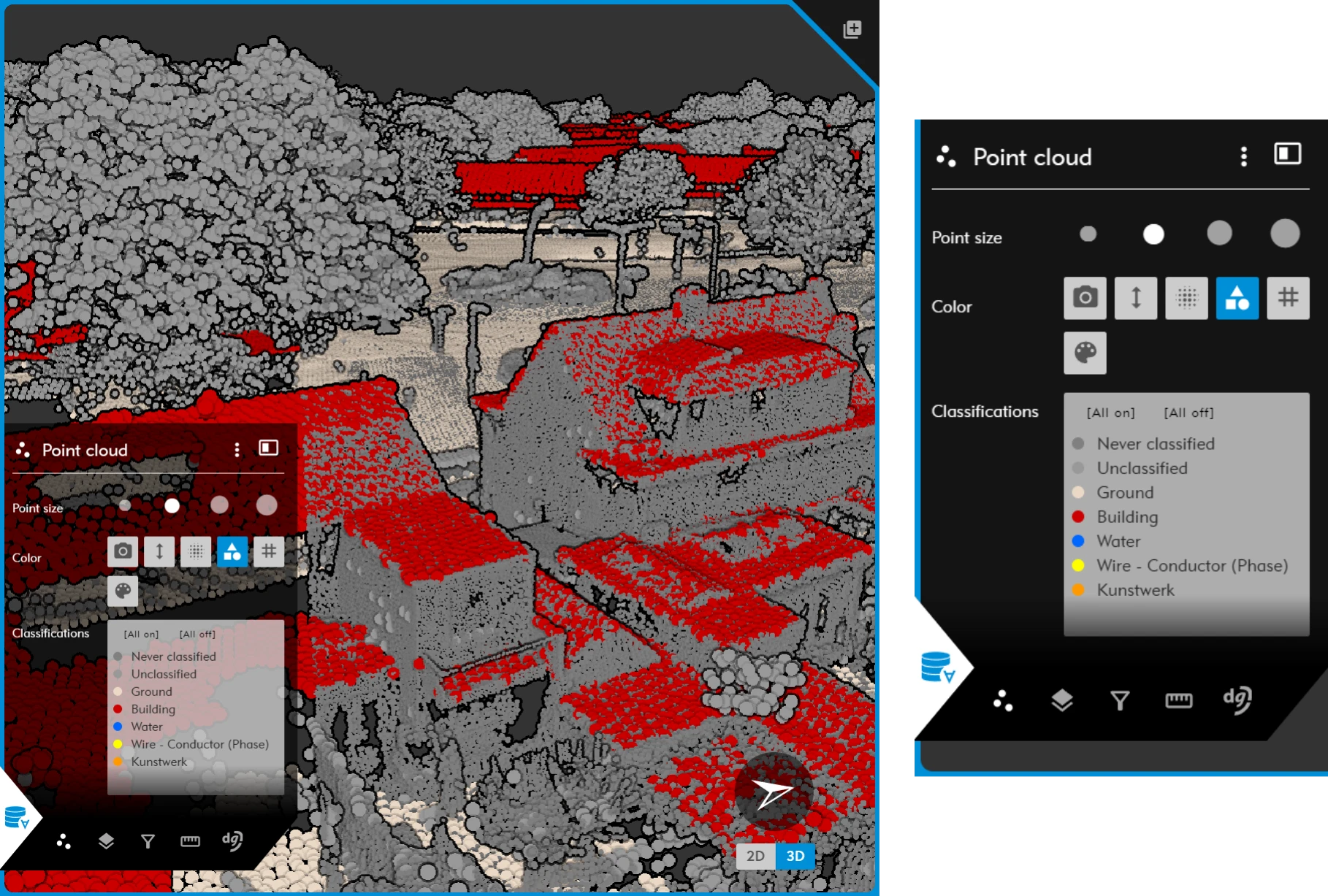
Each classification class is shown in a distinct color.
- Classification IDs follow the LAS standard.
- Examples:
- Building
- Ground
- Vegetation
- Water
- Custom classes
Classes can be toggled individually.
Tip: Disable all classes first, then enable only the required class for focused analysis.
1.7 Point Source ID visualization
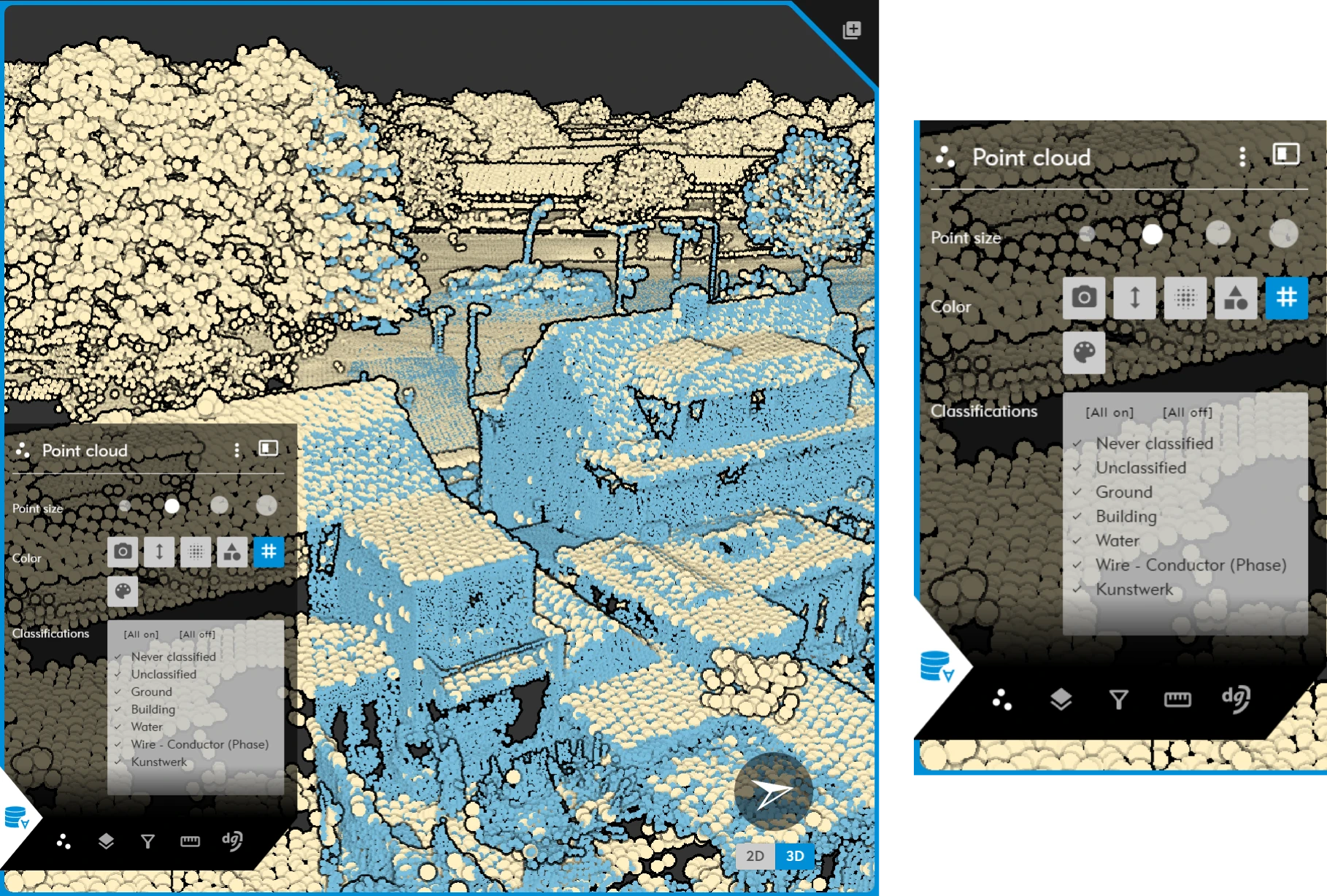
Colorization based on Point Source ID.
Use case:
- Identifying individual flight strips in aerial LiDAR datasets.
1.8 Single color per dataset
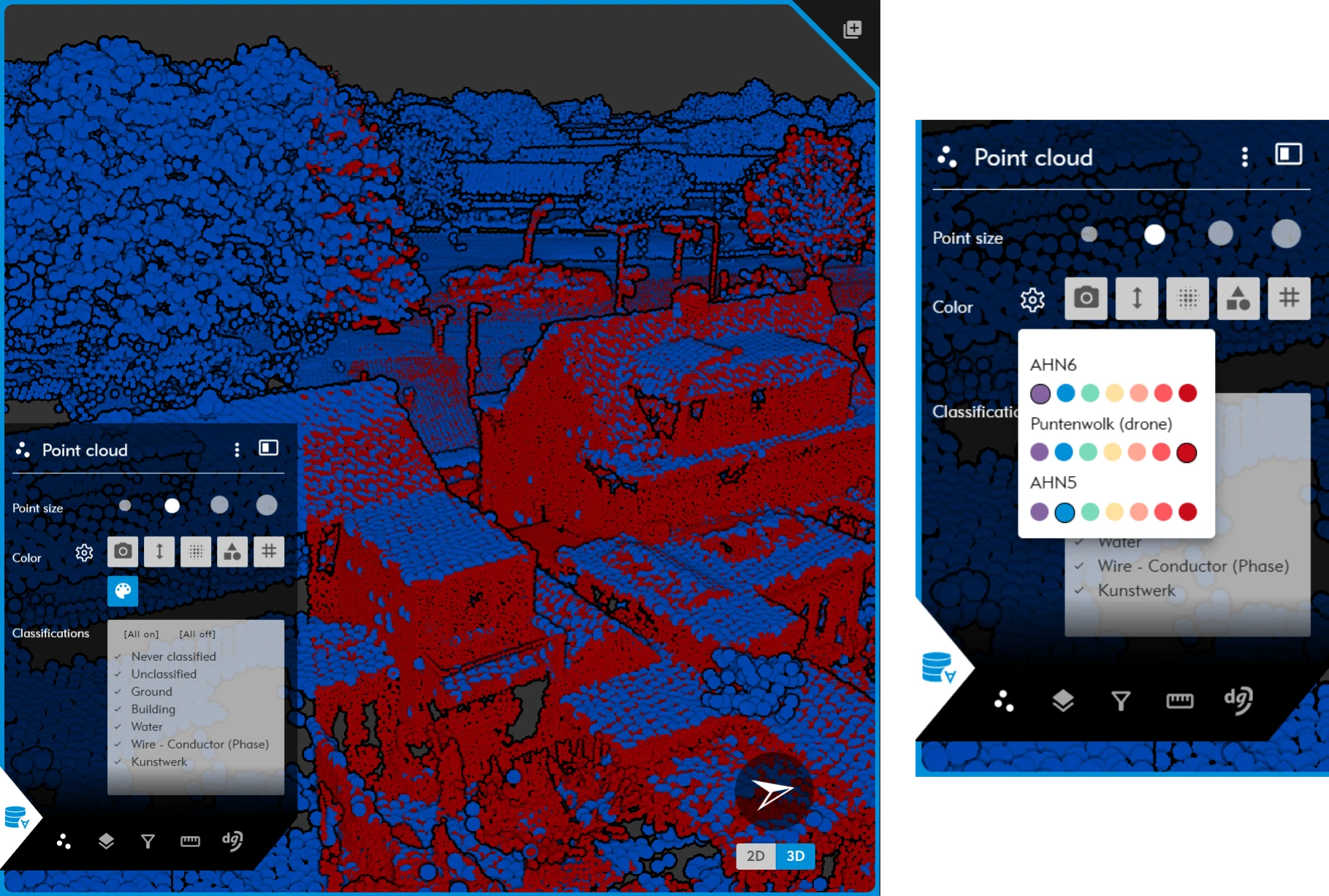
Assign a fixed color per point cloud dataset.
Use case:
- Comparing multiple datasets in a single 3D view or cross-section.
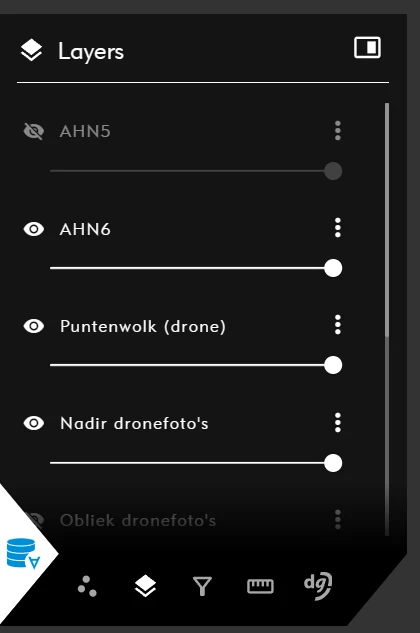
2. Layer settings
Layers can be enabled or disabled per screen.
Available options:
- Toggle layer visibility.
- Adjust transparency.
- Hover over a layer to preview coverage (after 1 second).
- Via the three-dot menu:
- Zoom to layer extent.
- Hide other layers.
3. Filter tools
Filters support targeted analysis of 3D data. Filters apply to the entire 2D/3D view and can be configured per split screen.
Active filters are visible in the interface.
Available filters:
| Filter | Function | Application |
|---|---|---|
| Classification | Filter by class (e.g. ground, vegetation, buildings) | Show only selected classes |
| Elevation range | Filter by Z value | Isolate specific height ranges |
| Point Source ID | Filter by scan source | Analyze flight strips or scan sessions |
| Selection | Filter within or outside a manually drawn polygon | Focus on a defined area |
Adding filters
- Click the
+icon in the filter menu. - Select filter type.
- Define filter parameters.
- Confirm with
OK.
For selection filters:
- Choose “Show points inside polygon” or “outside polygon”.
- Draw polygon.
- Remove last vertex with
BackspaceorCtrl + Z.
Managing filters
- Temporarily disable by clicking the filter name.
- Edit using the pencil icon.
- Delete using the trash icon.
Filters are configured per screen.
Always verify which screen is active before modifying filters.
Check for unintended active filters if data appears incomplete.
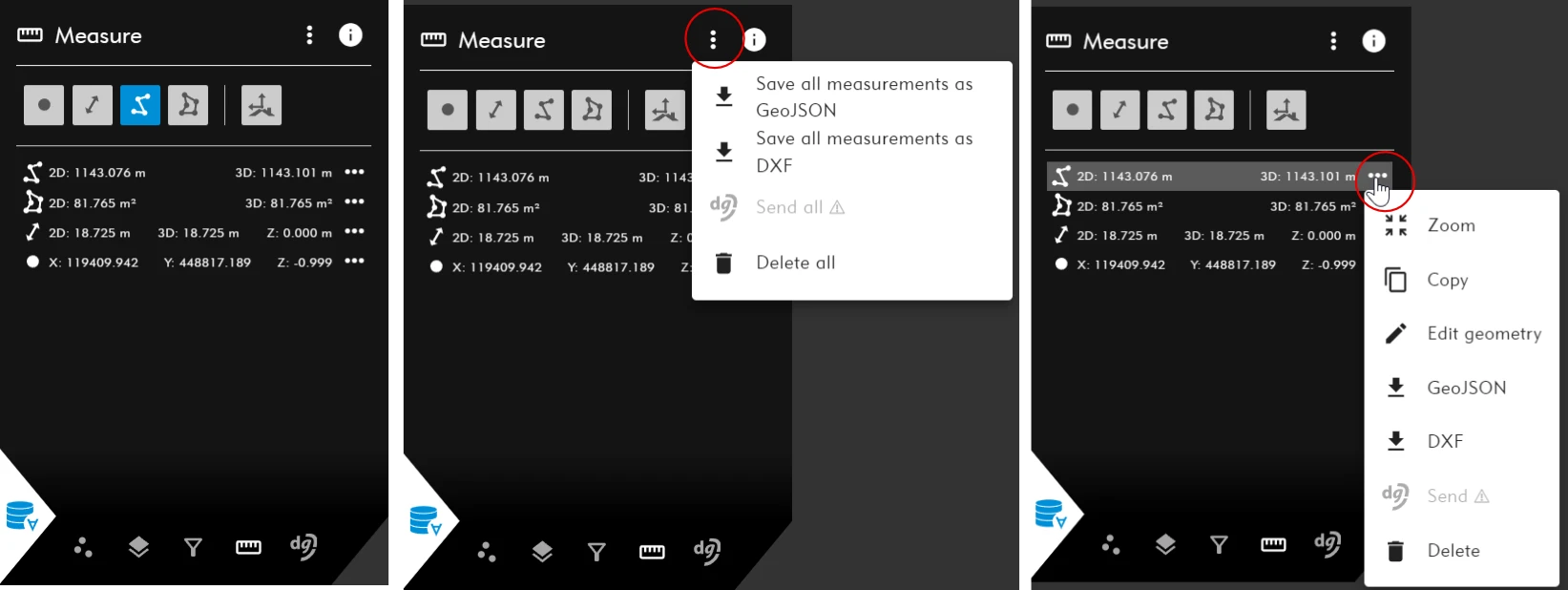
4. Measurement tools
Available measurement types:
- Point
- Line (distance)
- Polyline
- Polygon
Measurements can snap to each other (vertex-to-vertex).
Export options:
- Export all measurements as GeoJSON (GIS use).
- Export all measurements as DXF (CAD use).
- Delete all measurements (irreversible).
Per individual measurement:
- Zoom to location.
- Copy coordinates (WKT use).
- Export as GeoJSON or DXF.
- Delete measurement.
For detailed workflows, see Measurements.
5. Integration menu
The integration menu (e.g. dg DIALOG BGT) is not available by default. An additional license is required.
More information is available here.