Search in Omnibase
How to search for addresses, coordinates, and data sources
Within Omnibase, you can search for different types of data to find locations, images, or other objects. This is done in the Search for field at the top right of the viewer.
Searching, which is also a form of navigation, can be done in several ways:
- Search by coordinates
- Search by address
- Search by data source
The search field is located here (top right of the screen):
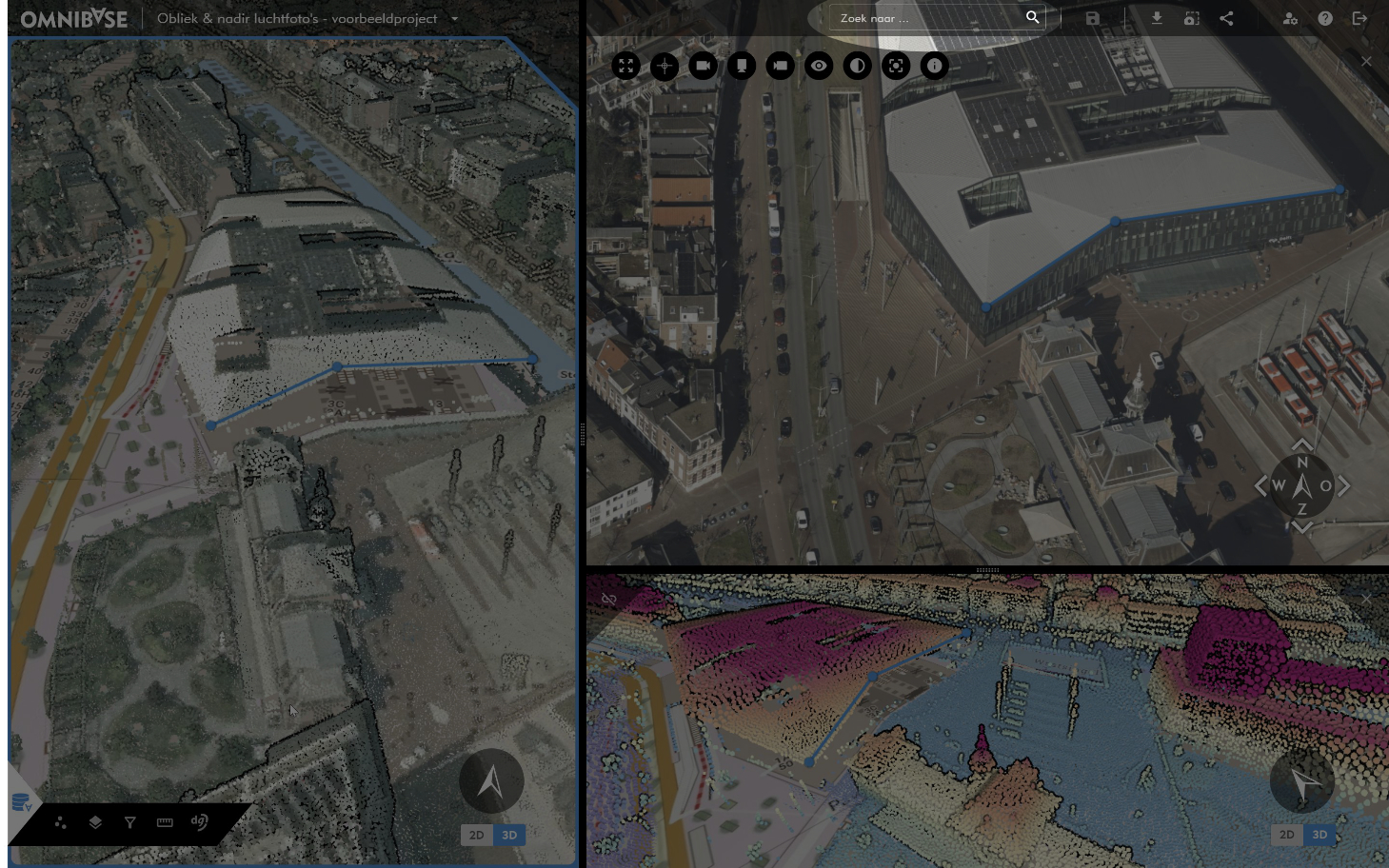
Search bar for address, coordinate, or data source
Search by coordinates
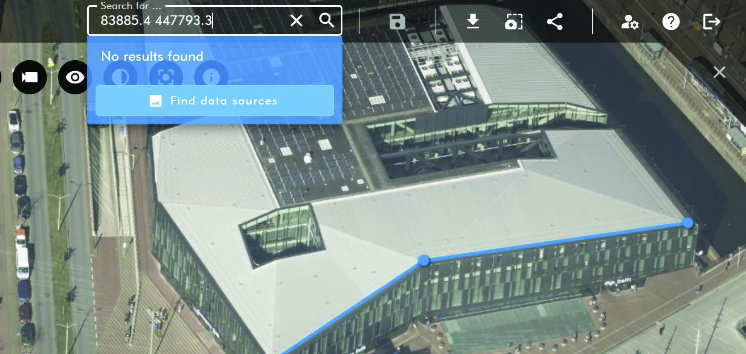
Searching by coordinates can be done by entering RD coordinates separated by a space (or multiple spaces) or a comma. The following search options are available:
- Example with a space
83885.4 447793.3. - Example with a comma
83885.4,447793.3. - XYZ coordinate or only an XY coordinate.
- Press
Enterand the application zooms to the desired location.
Search by address
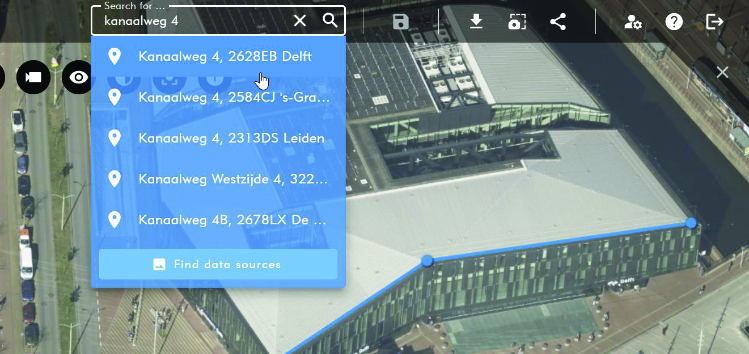
Searching by address is done using the PDOK location service. The following search options are available:
- Enter part or the full address
- Example: Kanaalweg 4 or Kan*
- The nearest locations are shown based on the current viewer location.
- Enter and search by postal code (e.g. 2628 EB)
- Enter and search by city name (e.g. Delft, Amsterdam, or Utrecht)
- Press
Enteror click the desired address and the application zooms to the desired location.
Search by data source
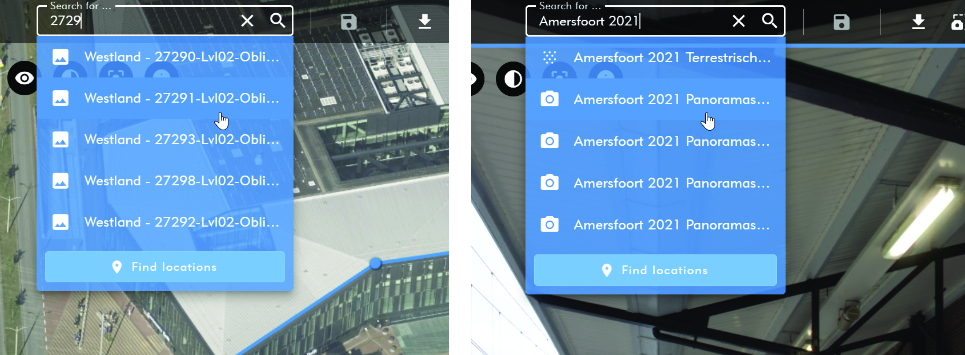
Searching by data source can be done by entering part or the full name of a created data source within Omnibase. This allows you to easily open a specific aerial image or panoramic image. Searching for a data source works as follows:
- Enter part of the name of the desired data source.
- Click the
View data sourcesbutton. - Select the desired data source based on the search term or refine the search term.
- Click the desired data source and the application zooms to the desired location.
- The data source opens in a split screen.
- If one image is open in a split screen, the desired image opens directly in that screen.
- If two image split screens are open, the user can choose in which screen the desired image should be opened.
- The left 3D screen zooms to the same location and the footprint of the data source is temporarily displayed.
- The data source opens in a split screen.