Task list
Working with the task list
The task list lets you turn objects from a project layer into tasks. This is useful when you want to review, process, or annotate a set of objects in a structured way.
The task list opens in a separate window next to the viewer. When you select a task, Omnibase zooms to the related object in the viewer and highlights it.
Tasks in the task list are stored locally in the browser. They are linked to the opened project, but they are not shared with other users or devices.
Opening the task list
First open a project in Omnibase. Then click the checklist icon in the top bar.
If the task list is already open, Omnibase brings the existing window to the front. The size and position of the window are remembered for the next time you open the task list.
Importing tasks from a layer
Tasks are created by importing objects from an importable layer.
- In the task list, click the Import tasks from layers icon.
- Choose the layer you want to create tasks from.
- Optionally enable Apply active filter if you only want to import objects from the active filter selection.
- Optionally enable Fetch from server if this option is available for the selected layer.
- Optionally enter a general remark. This remark is added to all imported tasks.
- Click Import.
During the import, Omnibase shows the progress. You can cancel a running import. Tasks that have already been imported remain in the task list.
A local task list can contain up to 10,000 tasks per project. When this limit is reached, no additional tasks can be added.
Using the task list
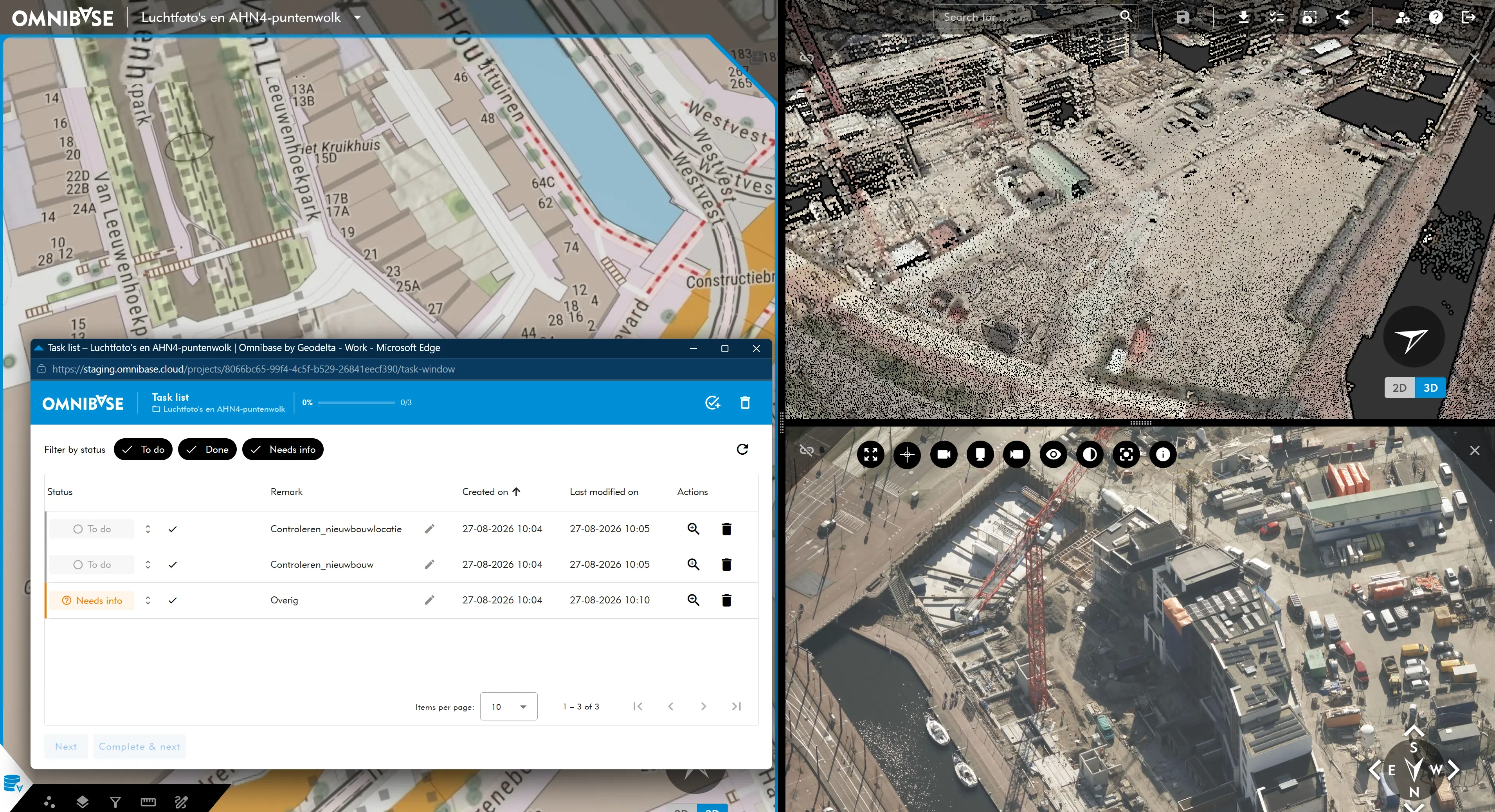
The task list shows tasks in a table. The main columns are:
- Status: the current task status.
- Remark: a free text field for extra information.
- Created on: when the task was imported.
- Last modified on: when the task was last changed.
- Actions: buttons for zooming to the task or deleting the task.
You can sort the table by status, creation date, and modification date. Use the paginator below the table to move through larger task lists. The task list looks as follows inside an opened project, zoomed in on a task list item:
Changing task status
Each task has one of the following statuses:
- To do: the task still needs to be handled.
- Done: the task has been completed.
- Needs info: the task cannot be completed yet.
Click the status field to choose another status. For tasks that are not done yet, you can also click the checkmark to mark the task as Done directly.
Navigating between tasks
Click a row to select a task. Omnibase zooms to the object in the viewer and highlights it.
Use Next to move to the next open task in the current sorting and filtering.
Use Complete & next to mark the selected task as Done and immediately continue with the next open task.
This is the fastest workflow when reviewing many tasks in a row: select the first task, review the object in the viewer, and then keep using Complete & next.
Editing remarks
Click the pencil icon in the Remark column to change the text for a task.
- Press
Enterto save the change. - Press
Escto cancel editing. - When you leave the input field, the change is saved.
Filtering tasks
Above the table, you can filter by status. By default, the task list only shows tasks with the To do status.
You can select multiple statuses at the same time, for example To do and Needs info. If no status is selected, the task list shows all tasks.
Use the refresh button to reload the list.
Deleting tasks
You can delete tasks in three ways:
- Delete a single task with the trash icon in the row.
- Delete all completed tasks from the delete menu at the top.
- Delete all tasks from the same delete menu.
When deleting completed tasks or all tasks, Omnibase asks for confirmation first.
Important notes
- The task list is stored locally in the browser.
- Tasks are linked to the current project.
- Tasks are not visible to other users.
- Tasks are not available on another device or in another browser.
- If browser data is cleared, the local task list may be removed.
- Each project has a maximum of 10,000 tasks.