Loading GeoJSON
Loading GeoJSON files into the viewer
GeoJSON files can be loaded directly into the Omnibase viewer by dragging a .geojson file from your file explorer into Omnibase (drag-and-drop).
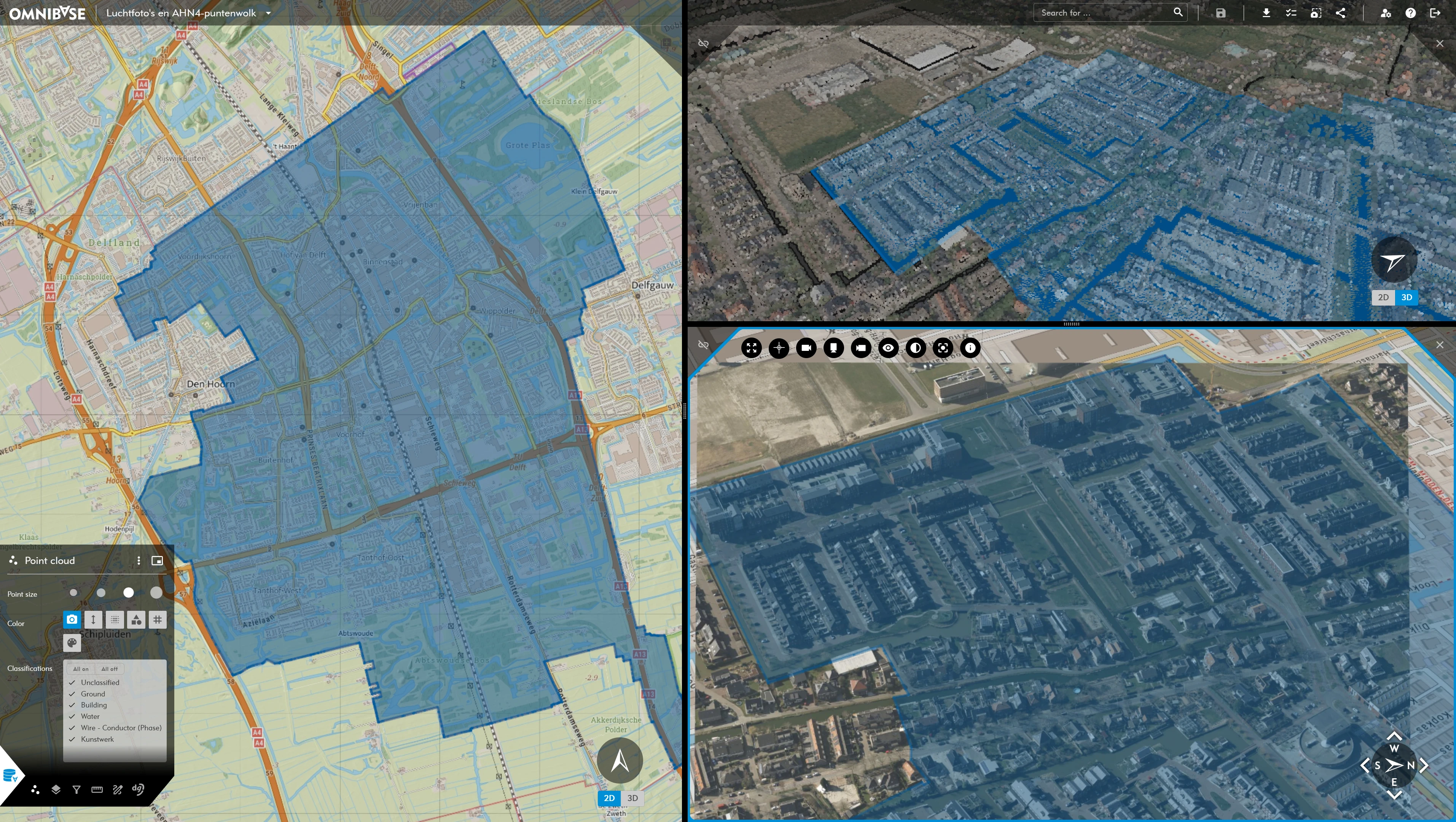
The file is then displayed as a vector layer in all active views (point cloud, aerial image, panorama).
When multiple GeoJSON files are added, they are displayed as multiple vector layers within the project.
When the project is reloaded, these temporarily available GeoJSON vector layers are no longer present in the project.
GeoJSON vector layers are also not included when sharing a bookmark.
Features in a loaded GeoJSON file with XY coordinates only are projected onto the available elevation model in Omnibase.
GeoJSON files with XYZ coordinates are visualized at the location and height of the feature as defined in the GeoJSON file.
Visualization of GeoJSON files in Omnibase
The loaded GeoJSON file is available as a separate vector layer in the layers menu. The features of this layer are visualized in all active views (point cloud, aerial image, panorama). As with all other layers, the visualization of this layer can be changed and adjusted per opened splitscreen.
Changing transparency and disabling layer visualization
The GeoJSON vector layer can be disabled (per splitscreen) by clicking the layer name. The geometries from the GeoJSON file are then no longer visualized. In addition, the transparency of the layer can be adjusted (per splitscreen).
Removing a layer
A loaded GeoJSON layer can be removed via the layers menu. Click the three vertical dots next to the layer name and choose Delete layer.
Default styling
When a GeoJSON file contains no styling information, Omnibase automatically assigns a random color to the layer. Styling is applied to points, lines, and polygons based on the geometry types present in the file.
Custom styling with $omnibaseStyling
Omnibase supports an optional styling extension via the key $omnibaseStyling. This allows you to set colors, line widths, and other display properties yourself, either for the entire layer (root level) or for individual features.
Available styling properties
| Property | Type | Description |
|---|---|---|
pointColor | CSS color string | Color of points (for example "#ff0000" or "red") |
pointSize | number | Size of points |
lineWidth | number | Width of lines |
showPolygonOutline | boolean | Show polygon outline (true / false) |
fillColor | CSS color string or null | Fill color of polygons; null disables fill rendering |
outlineColor | CSS color string or null | Outline color; null disables outline rendering |
All properties are optional.
Root-level styling (applies to all features)
Add $omnibaseStyling as a field directly on the FeatureCollection object:
{
  "type": "FeatureCollection",
  "$omnibaseStyling": {
    "fillColor": "#0055ff",
    "outlineColor": "#ffffff",
    "showPolygonOutline": true
  },
  "features": [...]
}
Per-feature styling (overrides root level)
Add $omnibaseStyling to the properties object of an individual feature. The feature-level style fully overrides the root-level style for that feature:
{
  "type": "Feature",
  "properties": {
    "name": "Example",
    "$omnibaseStyling": {
      "fillColor": "#ff6600",
      "outlineColor": "#000000"
    }
  },
  "geometry": { ... }
}
Example: root styling with a feature override
{
  "type": "FeatureCollection",
  "$omnibaseStyling": {
    "fillColor": "#8800cc",
    "outlineColor": "#ffffff",
    "showPolygonOutline": true
  },
  "features": [
    {
      "type": "Feature",
      "properties": {
        "name": "Special area",
        "$omnibaseStyling": {
          "fillColor": "#ff69b4"
        }
      },
      "geometry": { "type": "Polygon", "coordinates": [[...]] }
    },
    {
      "type": "Feature",
      "properties": { "name": "Default area" },
      "geometry": { "type": "Polygon", "coordinates": [[...]] }
    }
  ]
}
In this example, "Special area" appears in pink (#ff69b4) and "Default area" appears in purple (#8800cc, the root style).
Example: polygons without fill (outline only)
Set fillColor to null to disable polygon fill:
{
  "type": "FeatureCollection",
  "$omnibaseStyling": {
    "fillColor": null,
    "outlineColor": "#000000",
    "showPolygonOutline": true
  },
  "features": [...]
}
Colors are specified as CSS color strings, for example "#ff0000", "red", or "rgb(255,0,0)".
The key $omnibaseStyling is case-sensitive.
Styling priority
When multiple styling sources are present, the following priority order applies (highest first):
- Feature level -
properties.$omnibaseStylingof the individual feature - Root level -
$omnibaseStylingof theFeatureCollection - Automatic - random color assigned by Omnibase (no
$omnibaseStylingpresent)